
Before we even dive into how to generate subtitles for YouTube, let's get a handle on why they are such a game-changer. This isn't just an extra task to tick off your to-do list. When done right, subtitles are one of the most effective tools you have for turning casual viewers into dedicated subscribers.
Why YouTube Subtitles Are a Growth Multiplier
Many creators still see subtitles as an afterthought—something you add for accessibility points. But thinking that way means you're leaving a massive amount of growth on the table. In reality, subtitles are a direct line to better analytics and a true secret weapon in the crowded world of YouTube.
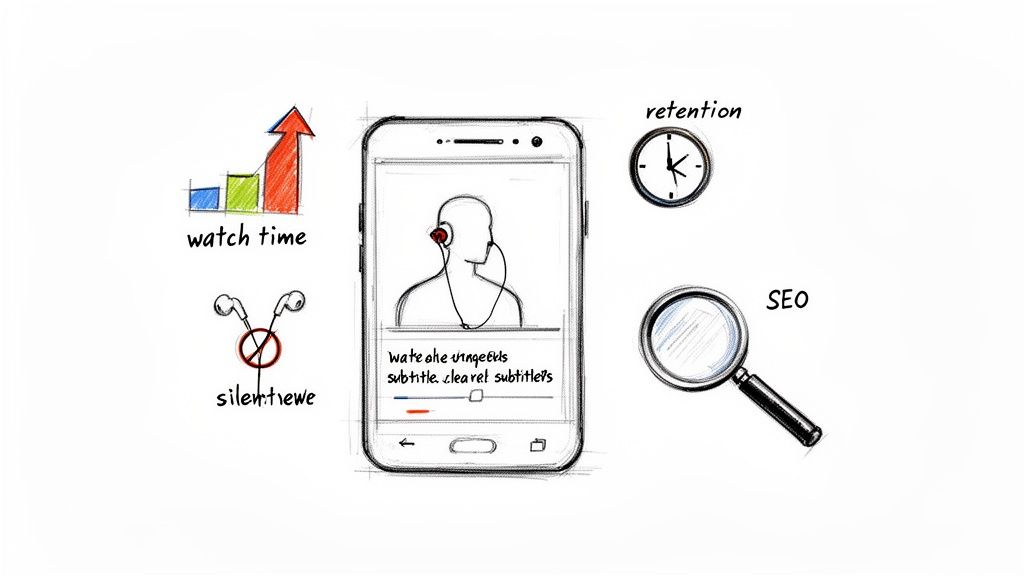
They make your videos watchable anywhere. Think about it: a noisy bus, a quiet library, or during a lunch break at a loud office—these are all common places where people scroll through YouTube with the sound off.
Put yourself in their shoes. If they can't hear your audio and there are no captions, they’re gone in a second. Just by adding subtitles, you capture an audience that would otherwise be completely lost, instantly boosting your reach and watch time.
Boost Viewer Engagement and Retention
The numbers speak for themselves. When you look at actual viewer behavior, subtitled videos consistently outperform those without.
Some studies have shown that captions can increase video watch time by as much as 40%. Another found that videos with subtitles get 20% more watch time than those without. Perhaps most tellingly, 80% of viewers admit they're more likely to watch a video to the very end if it has subtitles.
It's a simple feedback loop: subtitles keep people watching longer. Longer watch times signal to the YouTube algorithm that your content is high-quality, which helps you show up more often in recommendations and search results.
Unlock a Powerful SEO Advantage
This might be the most overlooked benefit of all: the huge SEO boost subtitles provide. When you upload a subtitle file (like an SRT), you’re handing Google and YouTube a perfect, word-for-word transcript of your entire video.
Search engines can crawl and index that entire transcript. Suddenly, your video isn't just ranking for the keywords in your title and description; it can rank for every single long-tail phrase you actually said in the video.
If you really want to grow your YouTube channel, this is non-negotiable. You’re turning your spoken words into searchable text, opening the door for a whole new audience to find your content through organic search.
Setting the Stage with High-Quality Audio
The secret to generating flawless subtitles starts long before you even think about transcription. If you want to generate subtitles for YouTube that don't demand hours of painful editing, you have to begin with clean, crisp audio.
Think of it as the foundation of a house. A shaky foundation means everything you build on top of it will be wobbly and unreliable.
It's a simple principle: garbage in, garbage out. That’s the golden rule for any AI transcription. Even the smartest tools will struggle with mumbled speech, chaotic background noise, or a room that echoes like a cave. A little prep work here pays off massively later, saving you from the soul-crushing task of fixing endless errors. This attention to detail is what separates polished, professional videos from amateur ones.
Simple Mic Tweaks for Better Sound
You don’t need a fancy recording studio to capture great audio. The biggest improvements often come from small, deliberate adjustments to the gear you already have. The main goal? Get that microphone as close to the speaker's mouth as you reasonably can.
For solo creators: If you're using a desk mic, just pull it closer—about 6-12 inches from your mouth and slightly out of the camera's view. This one move slashes room echo and captures a much richer vocal tone.
For interviews: Using separate lavalier (lapel) mics for each person is an absolute game-changer. It ensures every speaker is recorded with equal clarity, so one person doesn't sound like they're shouting from across the room.
Even just recording with your phone? Prop it up on a stack of books nearby instead of leaving it on a distant table. The difference is night and day.
Minimize Background Noise Before You Record
Ambient noise is the sworn enemy of accurate transcription. It's the low hum from a refrigerator, the distant rumble of traffic, or the annoying whir of a computer fan. You can't eliminate everything, but you can silence most of it for free.
Before you hit record, just stop for a moment and listen. Hear the air conditioner? Turn it off while you record. Is your window facing a busy street? Try recording at a quieter time of day or, at the very least, close the window.
Taking 30 seconds to silence your environment is the single most effective thing you can do to improve your audio. Clean audio leads directly to higher transcription accuracy, which means less editing work for you.
This prep work is essential if you're serious about getting near-perfect results from an AI tool. Every bit of clarity you provide upfront allows the system to generate subtitles for your YouTube video with precision, turning a potentially frustrating chore into a smooth part of your workflow.
From Video File to Polished SRT Subtitles
Alright, your audio is clean and prepped. Now for the magic trick: turning that raw video file into a perfectly timed subtitle file.
This used to be a tedious, manual job. Thankfully, modern AI tools have completely changed the game. Forget clunky software or confusing interfaces. We're going to use a fast, efficient workflow that gets the job done right.
The process is simple: upload your media, let the AI do the heavy lifting, and then swoop in for a quick, focused review. The goal isn't to spend hours chasing perfection. It's about making smart, targeted edits that take a transcript from 95% accurate to nearly flawless.
The Initial AI Transcription
First things first, you need to feed your video file to a transcription tool like Meowtxt. This is usually as simple as dragging and dropping your MP4 (or an MP3 if you stripped the audio) straight into the platform.
Once it's uploaded, the AI gets to work. It analyzes the soundwaves, figures out what's being said, and spits out a text transcript with surprisingly good initial timestamps. For a typical 10-15 minute video, this entire process usually takes just a few minutes. It's often far faster and more accurate than YouTube’s own auto-captioning feature.
And remember, the quality of what you put in dictates the quality of what you get out.
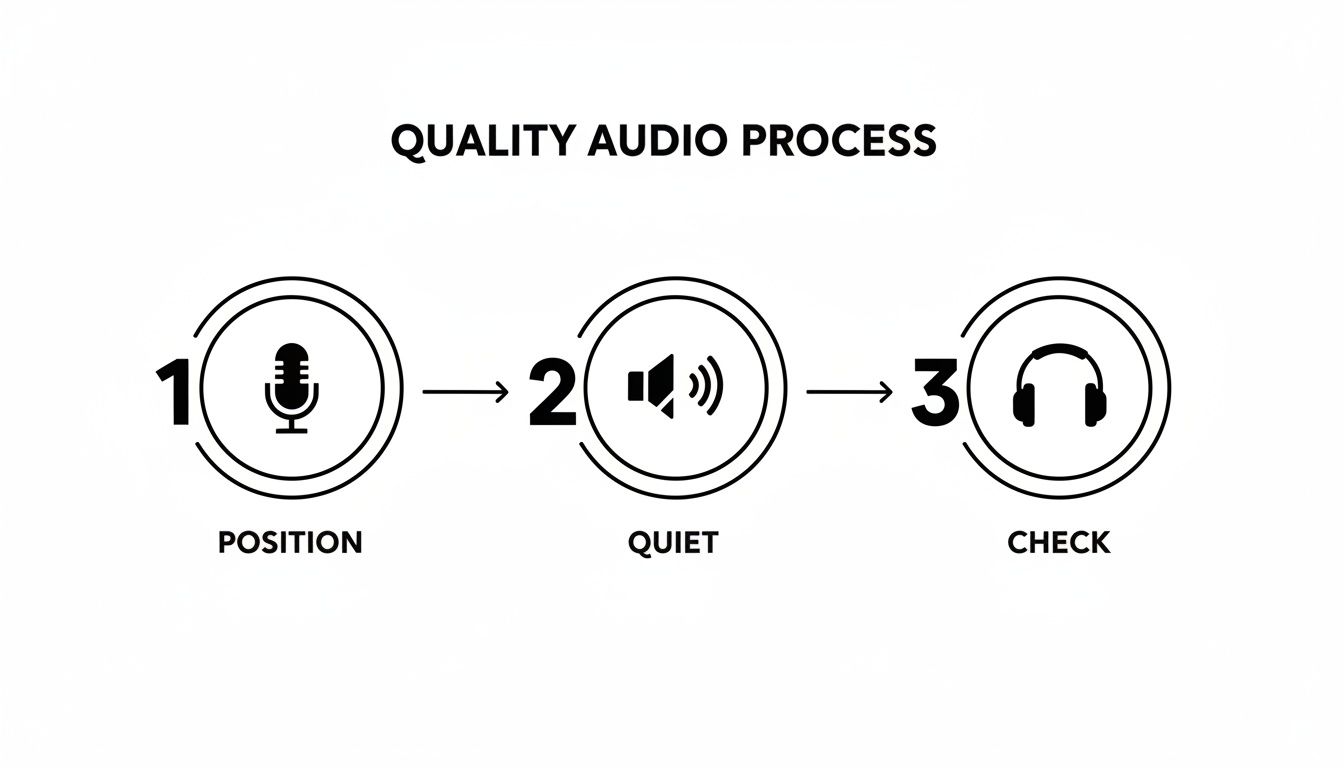
This is precisely why we emphasized audio quality earlier. Good mic placement, a quiet space, and a quick headphone check are the bedrock of a great AI transcript. Garbage in, garbage out.
Editing and Refining the Transcript
No AI is perfect, but their mistakes are pretty predictable. This is where your human brain comes in to smooth over the rough patches. The trick is to scan for common errors, not read every single word.
A good transcription editor will often highlight words the AI has low confidence in, giving you an instant to-do list. Here’s what I always look for:
- Proper Nouns: AI consistently butchers unique names, brands, or places. I just do a quick find-and-replace (CTRL+F) for these terms to fix them all at once.
- Niche Jargon: If you’re talking about a technical topic, be ready to fix industry-specific terms. The AI might hear "logistic regression" as "mystic progression."
- Speaker Labels: For videos with multiple people, double-check that the tool correctly assigned who said what. This is a huge deal for readability.
Your job here is precision, not perfectionism. You're fixing glaring mistakes that might confuse a viewer, not agonizing over comma placement.
Pro Tip: The fastest way to edit is to play the video back at 1.5x speed while you read along with the transcript. Your brain can easily keep up, and you’ll catch awkward phrasing or timing issues much faster than reading silently.
Adjusting Timestamps and Exporting Your SRT File
With the words all correct, the final piece is making sure the timing is spot-on. A quality tool will let you click on any word and have the video jump right to that moment. This makes it a breeze to tweak where a subtitle block starts or ends.
You want the subtitles to appear in sync with the spoken words and disappear shortly after the person stops talking. No lingering.
Once you’re happy with the text and the timing, it’s time to export.
The gold standard for YouTube is the SRT (SubRip Subtitle) file. It’s a simple text file containing a numbered sequence, start and end times, and the subtitle text. If you want to get into the technical details, we have a whole guide on how to create SRT files for your videos in our detailed guide.
Just select SRT from the export menu, and in seconds, you'll have a professional, ready-to-upload file. This little file is the key that unlocks all the accessibility and SEO benefits we've been talking about.
Getting Your Subtitles Live in YouTube Studio
You've done all the hard work. Your perfectly timed SRT file is sitting on your desktop, ready for its big debut. Now comes the final, most satisfying part: uploading it to your YouTube video.
Navigating YouTube Studio can feel like a chore sometimes, but this part of the process is actually pretty straightforward once you know where to look. Let's get those captions live.
Finding the Subtitles Menu
First, jump into your YouTube Studio and open the video you're working on. In the left-hand menu, you'll see a "Subtitles" tab—click it.
YouTube will probably show its own auto-generated captions if the video has been up for a while. You can safely ignore those. Instead, click "Add Language" and pick the language of your SRT file (like "English"). This gives you a clean slate to work with.
Choosing "With Timing" vs. "Auto-Sync"
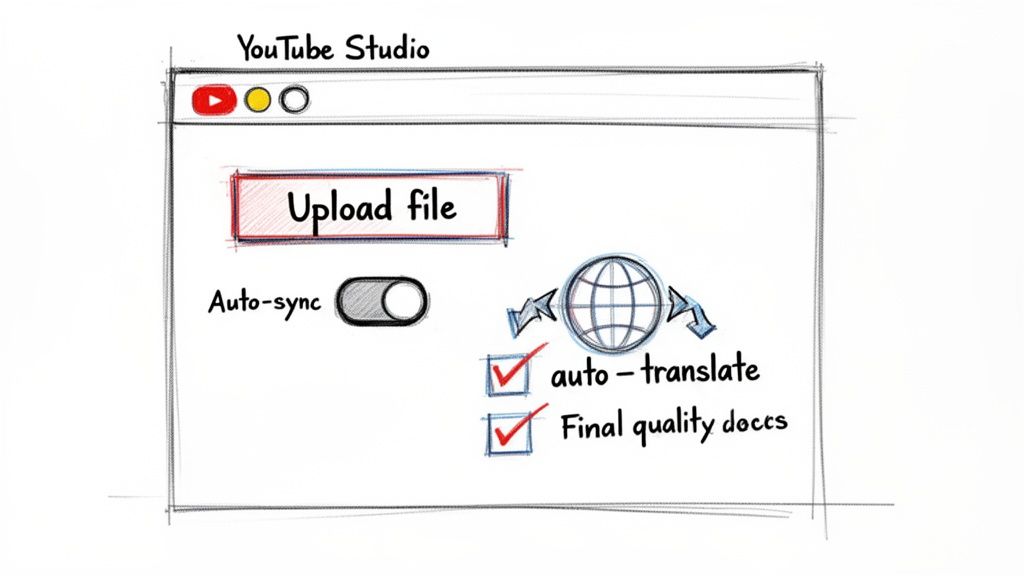
Once you're in the editor for that new language, find and click the "Upload file" option. This is where a lot of people get tripped up. YouTube gives you two choices: "With timing" and "Without timing."
Because you’ve already done the work to create a perfectly timestamped SRT file, you will always choose "With timing." This tells YouTube to use the exact start and end times you perfected in your editing tool, ensuring your captions appear precisely when they're supposed to.
Selecting "Without timing" is basically just a shortcut for YouTube's "Auto-sync" feature. You’d only use that if you had a plain text file of the script and wanted to let YouTube’s AI guess the timings. Since you already have a professional SRT file, "With timing" is the correct—and much more reliable—choice.
Always use a pre-timed SRT file. It gives you total control over the viewer experience and sidesteps the risk of YouTube's AI messing up the sync, which it often does with quick dialogue or intentional pauses.
Unlock a Global Audience with Auto-Translate
Here's where your effort really pays off. With your accurate English captions published, you can now leverage them to reach a massive global audience. YouTube can use your high-quality file as a source to automatically translate captions into dozens of other languages.
Head back to the main "Subtitles" page for your video and click "Add Language" again. This time, pick something new, like Spanish or German. Under the "Subtitles" column for that new language, click "Add." You should see an "Auto-translate" option pop up.
Click it. YouTube will instantly generate a full set of captions in that new language. While machine translation isn't flawless, the results are far more accurate when they start from a clean, human-reviewed transcript instead of YouTube’s own jumbled auto-captions.
This tiny step can dramatically expand your video's reach. We dive deeper into this in our guide on how to add captions to your YouTube video.
The potential here is enormous. With over 500 hours of video uploaded every minute, giving viewers captions in their native language is a proven way to stand out and capture more of that audience.
Advanced Subtitle Strategies for Channel Growth
Once you've nailed the basic workflow to generate subtitles for YouTube, it’s time to stop thinking of them as just a feature. Subtitles can become a core part of your growth strategy, giving you a serious edge over creators who treat them as an afterthought.
This is about moving from simple accessibility to strategic amplification. You can use your subtitle track to boost your video's SEO, break into new international markets, and ensure you're using the most effective format for the platform.
Weaving Keywords into Your Subtitle Track
Your SRT file is a direct line to YouTube's search algorithm. While you should never stuff it with unnatural keywords, you can strategically refine your transcript to better align with what your audience is searching for.
For example, during your editing pass, if you naturally mentioned "making a video look better," you could subtly adjust the caption to "improving video quality." This simple change helps YouTube's algorithm better understand your content's topic, increasing its chances of appearing in relevant searches.
This isn't about changing what you said; it's about refining the text to match search intent. A few small, smart edits can make a significant difference in how your video is discovered over time, turning your spoken words into powerful SEO assets.
Reaching a Global Audience with Translations
One of the most powerful advanced moves is translating your captions. With an accurate English SRT file as your foundation, you can easily create subtitles in dozens of other languages. This transforms a single video into a global asset, opening your content to massive new audiences.
Many platforms, including YouTube, offer an auto-translate feature. By providing a clean, human-reviewed source file, you dramatically increase the quality of these automated translations. For deeper dives into leveraging video for audience engagement and growth, you might want to explore advanced video and subtitle strategies on the Nereo blog.
Why SRT is Still the Gold Standard for YouTube
When you export your captions, you'll see a few format options, but SRT and VTT are the most common. While both work, understanding the difference is key for any serious creator.
Subtitle Format Comparison for Content Creators
This table is a quick-reference guide to understand the most common subtitle file formats and which one is best suited for YouTube and other platforms.
| Feature | SRT (.srt) | VTT (.vtt) | Best For |
|---|---|---|---|
| Compatibility | Universal (YouTube, Vimeo, social media) | Modern browsers, HTML5 players | SRT: Maximum reach across all platforms. |
| Formatting | Basic (bold, italics, underline) | Advanced (colors, text positioning) | VTT: Highly styled web video players. |
| Simplicity | Simple, text-based, and easy to edit | More complex with metadata headers | SRT: Ease of use and quick edits. |
For YouTube, SRT is the undisputed king. Its universal compatibility and simplicity make it the most reliable and widely accepted format. While VTT offers more styling options, most of them aren't supported by YouTube's player, making SRT the practical and efficient choice for nearly every creator.
The entire process is powered by huge advancements in AI. The global AI subtitle generation market was valued at USD 1.03 billion in 2023 and is projected to hit USD 7.42 billion by 2032. This explosive growth shows how vital automated solutions have become, with modern systems hitting 90-98% accuracy.
To see how this all connects, check out our guide on YouTube SEO optimization tips.
Got Questions About YouTube Subtitles? Let's Clear Them Up.
Even with the best tools, diving into subtitles for the first time brings up a few common questions. I get these all the time from creators, so let's tackle them head-on.
Is AI Transcription Really Accurate Enough?
For videos with clear audio? Absolutely. Modern AI transcription tools are consistently hitting over 95% accuracy. That’s more than good enough to give you a professional starting point. The AI does the heavy lifting, saving you from hours of painful manual work.
Your job is just to give it a quick proofread. You’re mostly catching unique names, specific brand terms, or niche jargon the AI might not recognize. Think of it as a final polish, not writing the whole thing from scratch.
How Do Subtitles Actually Help with YouTube SEO?
This is where the magic happens. Subtitles are a goldmine for SEO because they give search engines a full, word-for-word transcript of your video. This creates a detailed map of your content, telling YouTube and Google exactly what your video is about, topic by topic.
The result? Your video doesn't just rank for the keywords in your title and description. It can start ranking for hundreds of specific, long-tail phrases people are actually searching for, giving your visibility a massive boost.
What's the Real Time Investment Here?
Using an efficient AI tool, the whole process is surprisingly quick. For a typical 10-minute video, you’re looking at a workflow that breaks down like this:
- AI Transcription: Usually done in just a minute or two.
- Editing Pass: A quick scan to fix names and jargon might take 5-10 minutes, depending on your audio.
- YouTube Upload: Getting the SRT file uploaded is another minute of work.
Realistically, you can have professional-grade, SEO-friendly subtitles live on your video in well under 15 minutes. It's a tiny time investment that pays huge dividends in accessibility, viewer engagement, and overall channel growth.
Ready to create flawless subtitles in minutes? Meowtxt uses advanced AI to generate highly accurate transcripts and SRT files with a simple drag-and-drop interface. Try it for free and see how easy it is to make your content accessible to everyone. Start transcribing with Meowtxt today!


