
At its core, an SRT file is simply a plain-text file that contains your video's dialogue, broken down line-by-line with precise start and end times. This simple format is what allows video players to display captions perfectly synced with the audio, opening up your content to a much wider and more engaged audience.
Why Creating SRT Files Is a Game Changer for Your Content
It’s easy to dismiss captions as just an accessibility feature, but that’s a massive understatement. Learning how to create SRT files is one of the smartest strategic moves you can make for your video content. This isn't just about helping viewers; it's about making your videos work harder for you, boosting both reach and engagement.
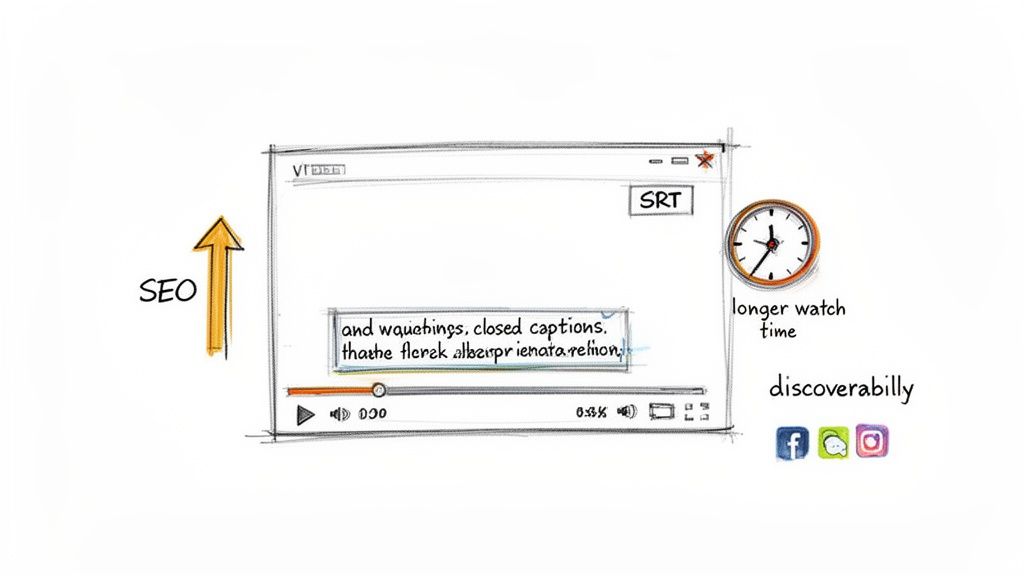
Algorithms on platforms like YouTube and social media actively reward videos with accurate captions. Why? Because the text inside an SRT file is indexable. Search engines can read it, giving them far more context about your video's topic. That directly boosts your SEO and helps new audiences discover your work when they search for relevant keywords.
Unlocking Greater Audience Engagement
Think about where people watch videos these days: on crowded trains, in quiet offices, or scrolling through feeds late at night. In all these sound-off environments, a video without captions is just a silent movie. Your message gets completely lost.
SRT files are the key to capturing attention where audio fails, dramatically increasing watch time and retention. This is especially true on social platforms, where captions can significantly improve social media engagement. They make your videos instantly understandable, encouraging likes, shares, and comments from people who might have just scrolled past.
The Simple Power of the SRT Format
The real beauty of the SRT format lies in its dead-simple structure. It’s built on a few basic rules, making it universally compatible with nearly every video player on the planet.
While a few other formats exist, SRT is the undisputed king. You can dive deeper into the differences in our guide to subtitle file types, but the numbers speak for themselves.
The global demand for captioning is exploding, with the market projected to hit $12.5 billion by 2028. And SRT completely dominates this space, accounting for 92% of all subtitle files used in professional workflows. That’s because it’s compatible with 95% of video players worldwide. It simply works, every time.
Creating SRT Files by Hand with a Text Editor
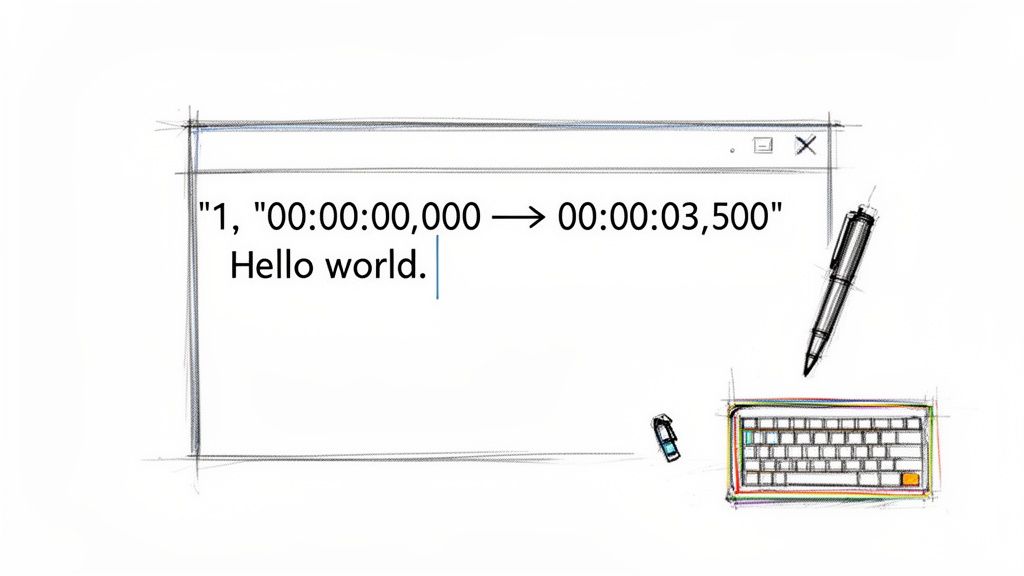
Sometimes the old-school way is the best way to learn. For shorter videos, or if you just want to get under the hood and understand how captions really work, creating an SRT file by hand is a fantastic skill to have.
It demystifies the whole process, giving you absolute control over the final product. The best part? You don't need any fancy software. The tools you already have on your computer—like Notepad on Windows or TextEdit on Mac—are all you need to get started.
This manual method is built on a straightforward, plain-text format that has been the industry standard for decades. Its roots trace back to March 3rd, 2000, when developers Brain and Zuggy released SubRip, a program designed to extract subtitles from DVDs. The SRT format they introduced became the most common subtitle standard on the planet because of its simplicity. You can read more about its history over at Filmora.wondershare.com.
Setting Up Your Workspace
First things first: you need to ensure your text editor is set up correctly. If you're on a Mac using TextEdit, you must switch it to plain text mode. Just go to Format in the top menu and select Make Plain Text. This removes any rich text formatting that will absolutely break your SRT file.
Windows users, you're in luck. Notepad is already in plain text mode by default, so you can skip this step and jump right in.
Crafting Your First Caption Entry
Let's walk through a real-world example: adding a caption to a 30-second social media clip. Every single caption in an SRT file is a "block" that follows a strict four-part structure. Getting this structure wrong is the number one reason SRT uploads fail.
Here’s the breakdown for each caption block:
- The Sequence Number: This is just a counter. Start with
1for the first caption,2for the second, and so on. Hit Enter once you’ve typed the number. - The Timestamp: This is the most critical part, and the formatting has to be exact:
hours:minutes:seconds,milliseconds --> hours:minutes:seconds,milliseconds. For our clip, if we want a caption to pop up at the 2-second mark and vanish at 5.5 seconds, it would look like this:00:00:02,000 --> 00:00:05,500. - The Caption Text: On the next line, type out what's being said. A solid rule of thumb is to keep each line under 40 characters and stick to a maximum of two lines per caption. This ensures it's easy to read on any screen, big or small.
- The Blank Line: After your text, press Enter twice. This creates a blank line that signals to the video player, "Hey, this caption block is finished, get ready for the next one."
Remember: The blank line isn't optional. Forgetting it is the #1 mistake that breaks an SRT file. Each caption sequence must be separated by one empty line.
Putting it all together, our first caption block would look like this in the text file:
100:00:02,000 --> 00:00:05,500Welcome to our channel!Today we're talking about SRT files.
Now, you just repeat this process for the entire video. When you're done, go to Save As. The two crucial things here are to name the file with a .srt extension (not .txt) and to select UTF-8 encoding. Using UTF-8 ensures that any special characters or emojis will show up correctly on any platform.
Using AI Tools to Automate SRT File Creation
Knowing how to build an SRT file by hand is a great skill, but let's be realistic. When you're facing a long video or a tight deadline, the manual method just isn't practical. This is where AI-powered transcription services completely change the game, turning a task that used to take hours into something you can finish in minutes.
These tools handle the two most grueling parts of the job: typing out every spoken word and, more importantly, syncing it all to perfect timestamps. Instead of manually logging every single start and end time, you just upload your file and let the software do the heavy lifting.
The Modern Automated Workflow
Modern tools like Meowtxt have simplified the entire process to create SRT files into a few simple clicks. All the technical hurdles and tedious formatting are handled for you, so you can focus on the quality of your content, not the mechanics of a subtitle file.
The workflow is beautifully simple:
- Upload Your Media: Drag and drop your video or audio file. Almost any common format will work.
- AI Does the Work: The service’s AI gets to work, generating a highly accurate transcript with timestamps for every single word.
- Quick Edits: Jump into a simple editor to fix any names or niche jargon the AI might have missed.
- One-Click Export: Hit export, and you’ve got a flawless, ready-to-use SRT file.
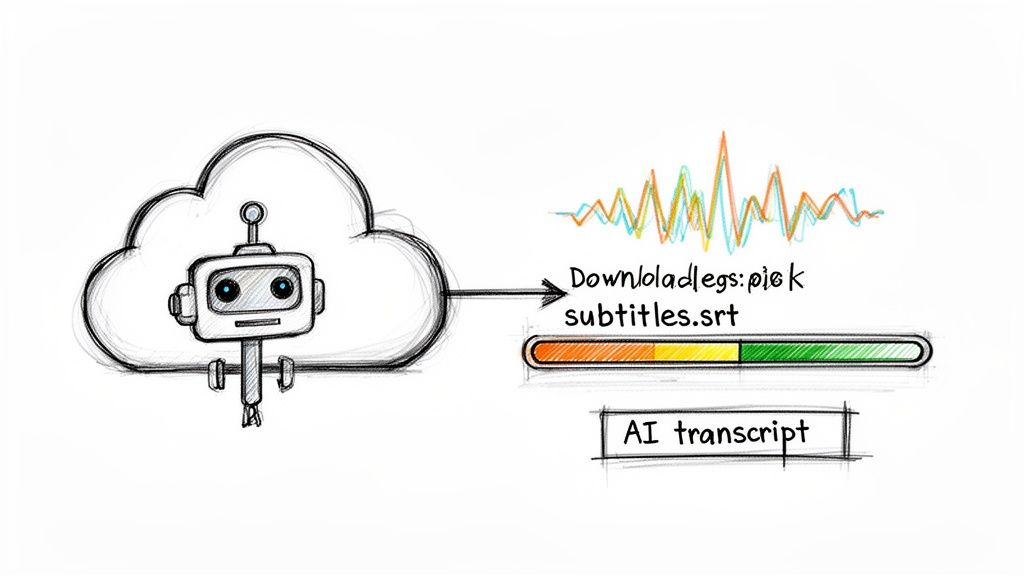
This is what a typical AI editor looks like. The text is neatly broken down with its corresponding timestamps right there, making the review process fast and painless. That visual link between the text and the timeline is what makes these tools so much faster than trying to do it all in a plain text editor.
Speed and Accuracy: The Dual Advantage
The real magic of using an AI service is the powerful one-two punch of speed and accuracy. The technology behind this is Automatic Speech Recognition (ASR), which has become incredibly accurate in recent years. If you're curious, you can dive deeper into what ASR is and how it works in our detailed guide.
Since YouTube officially started supporting SRT files back in 2008, the demand for fast, reliable subtitle creation has exploded. Manual SRT authoring, which used to take editors a painful 4 to 6 hours for every hour of video, now takes less than 30 minutes with modern AI tools.
That’s a 90% gain in efficiency, a figure benchmarked from analyzing thousands of real-world workflows. This is more than just an incremental improvement; it's a fundamental shift.
You can get an SRT file that is up to 40x faster than the manual method, with an accuracy rate of 97.5% or higher.
This kind of performance means creators and businesses can finally afford to caption all of their video content, not just the flagship pieces. To see how automation is changing other areas of content, this guide on AI-powered content creation offers some great insights.
Another game-changing feature is speaker identification, which automatically detects and labels who is speaking. For interviews, podcasts, or panel discussions, this is a massive timesaver that makes the final captions far easier for viewers to follow. Trying to do that by hand is a surefire way to lose an entire afternoon.
Getting Captions Right: Best Practices for Pro-Level Quality
Let's be honest: just having an SRT file isn't enough. The real magic happens in the details that make the viewing experience smooth and professional. A technically perfect SRT can still produce clunky, distracting captions if you ignore the fundamentals.
Following a few key guidelines is what separates amateur work from content that feels polished and accessible to everyone.
Timing and Synchronization
The art of great captioning is all about timing. Captions need to appear on screen the moment words are spoken and vanish just as quickly. There’s nothing more jarring than text that lags behind the speaker or jumps ahead—it completely pulls your audience out of the moment.
When you create SRT files, especially by hand, you have to sync the text with the natural pauses in speech. You want the text to feel like it’s part of the video, not something just slapped on top.
Making Captions Easy to Read
Readability is everything. Your viewers have to absorb the text in a split second without feeling like they’re reading a novel. This is where simple rules about character limits and line breaks make a massive difference.
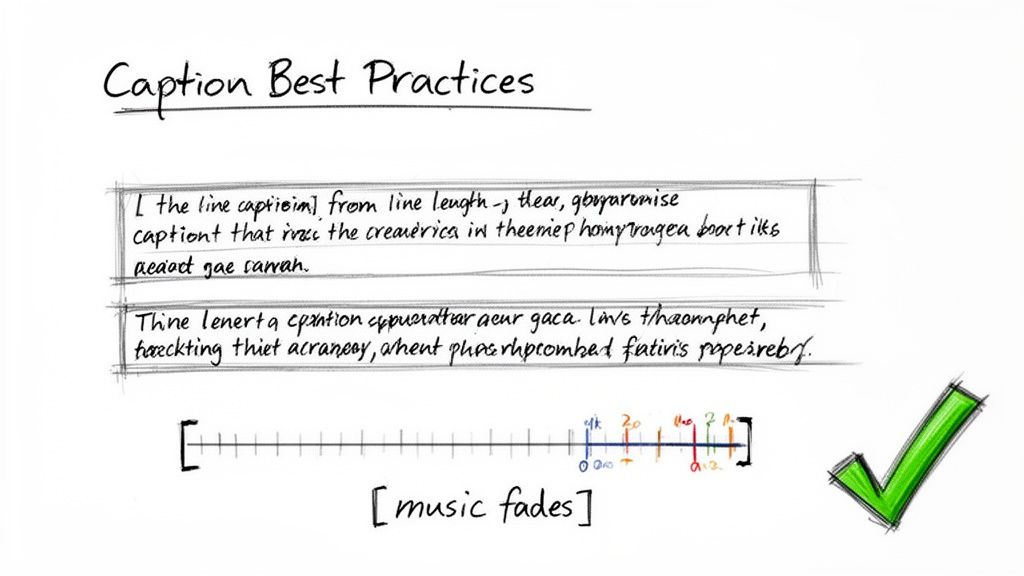
- Character Limits: A solid rule of thumb is keeping each line of text under 40 characters.
- Line Breaks: Don't go beyond two lines for a single caption. A long sentence is much easier to digest when broken into two neat lines instead of one sprawling one.
- Duration: Try to keep each caption on screen for about 1.5 to 6 seconds. That gives people enough time to read it comfortably without the text overstaying its welcome.
Keeping captions short and sweet ensures they look good on any screen, from a giant TV to a tiny phone. The goal is for the text to support the video, not block it.
Don't Forget the Sounds
Captions aren't just for dialogue. To create a truly inclusive experience for viewers who are deaf or hard of hearing, you need to include non-speech sounds that provide context. These are usually wrapped in square brackets.
Little notes like [music fades], [audience laughs], or [door slams] provide critical information that dialogue alone can't. It’s a small touch that makes your content far more immersive for everyone.
The Final Polish: Always Proofread
Even the smartest AI transcription tools aren't flawless. They can stumble over names, industry jargon, or thick accents. That’s why the final step is always a quick, thorough proofread.
This last pass is your chance to catch the typos, grammatical weirdness, or awkward phrasing that an algorithm might have missed. Spending a few extra minutes on this step ensures your captions are dead-on accurate and reflect the quality of your brand. You can dig deeper into why this matters in our guide to proofreading in transcription.
Translating SRT Files to Reach a Global Audience
That perfectly crafted SRT file you just made? It’s more than just a set of captions—it's a passport for your content. In our connected world, sticking to a single language means you're leaving a massive global audience on the table. Translating your subtitles is one of the most effective ways to break down language barriers and watch your viewership grow exponentially.
This isn't just about raw numbers, either. It’s about connecting with people on a deeper, more genuine level. Viewers are far more likely to engage with, understand, and share content that speaks their native language. By offering multilingual captions, you upgrade your video from something they can simply watch into something they can truly experience.
From Local to Global with a Few Clicks
The idea of translating captions into dozens of languages probably sounds like a ton of work, but modern tools have made it surprisingly simple. Services like Meowtxt build translation directly into their workflow, stripping away all the manual effort and guesswork.
Imagine you've just perfected your English SRT file. Instead of having to find a separate translation service and juggle files, you can generate accurate versions for other languages in just a couple of clicks. This seamless process lets you produce captions for multiple regions at once, turning a single video into a truly global asset.
The workflow is refreshingly straightforward:
- Generate Your Original SRT: First, create a highly accurate SRT file in your video's source language. A clean original is the foundation for a great translation.
- Pick Your Target Languages: Next, choose from a list of available languages. This can often include over 100 options, from Spanish and French to Japanese and Hindi.
- Export Your Translated Files: The platform automatically translates the text while—and this is the important part—preserving the original, perfectly synced timestamps. You get a separate, ready-to-use SRT file for each language you chose.
The key takeaway here is that the timing remains identical across all translated SRT files. This ensures that no matter which language a viewer selects, the captions will always appear in perfect sync with your video's audio and visuals.
Putting Your Translated SRTs to Work
Once you have your collection of translated SRT files, using them is easy. Major video platforms like YouTube are built to handle multiple language tracks gracefully.
When you upload your video to YouTube Studio, you can add each SRT file one by one, assigning the correct language to each. This simple action populates the "Subtitles/CC" menu on your video player.
Now, when a viewer from Spain watches your video, YouTube can automatically show them the Spanish captions. A viewer in France will see the French ones, and so on. This small step empowers viewers everywhere to engage with your content in the language they're most comfortable with, dramatically boosting your video's accessibility and international reach. It’s a powerful move for any creator looking to build a truly global audience.
Common Questions About Creating SRT Files
Even after you've got the basics down, a few nagging questions always seem to pop up when you start making your own SRT files. Let's tackle them head-on so you can wrap up your captioning workflow without any second-guessing.
What Is the Difference Between Open and Closed Captions?
This one’s a biggie, and it all comes down to viewer control.
- Closed Captions (SRT files): These are the captions you can toggle on or off with the [CC] button on YouTube or Vimeo. Because SRTs are separate text files that overlay the video, they give viewers a choice. This flexibility is why they're the industry standard for accessibility and SEO.
- Open Captions: Think of these as "burned-in" text. They are a permanent part of the video file itself and can't be turned off. While this guarantees everyone sees them, it offers zero flexibility and search engines can't read the text.
How Can I Fix a Broken SRT File?
Nine times out of ten, a broken SRT file is just a tiny formatting error. Before you start pulling your hair out, run through this quick checklist. The culprit is almost always one of these simple mistakes:
- Incorrect Timestamp Format: Every timestamp must follow the
HH:MM:SS,mmmformat. A period instead of a comma before the milliseconds is a super common slip-up that will break the whole file. - Missing Blank Lines: You need one single, empty line between each caption block. Any more, or any less, and the file won't parse correctly.
- Wrong File Encoding: Your text editor has to save the file with UTF-8 encoding. Using another format can cause major display errors, especially if you're working with special characters or multiple languages.
Are My Own SRT Files Better Than YouTube's Auto-Captions?
Yes. Massively better.
While YouTube's auto-captions have gotten smarter, they're still notoriously flaky. They stumble over names, technical terms, and nuanced phrasing, and their punctuation is often a total mess.
Uploading your own proofread SRT file gives your audience a far better experience, sends much stronger SEO signals to the algorithm, and guarantees your message lands exactly how you meant it to.
Taking a few minutes to create a polished SRT file shows a level of care and professionalism that auto-captions simply can't match. It’s a small effort that makes a huge impact on your content's quality.
Ready to create flawless SRT files without the manual hassle? Meowtxt uses advanced AI to generate highly accurate, perfectly timed captions in minutes. Upload your video, make quick edits in our simple editor, and export a ready-to-use SRT file. Try Meowtxt for free today!


