
Turning your iPhone voice memos into text is simpler than you might imagine. Whether you use the native transcription feature built into the Voice Memos app on a newer iPhone, a clever workaround using your keyboard's dictation, or a professional third-party app for top-tier accuracy, you can easily convert spoken words into searchable, editable text right from your device.
Why Turning Voice Memos Into Text Is a Game Changer
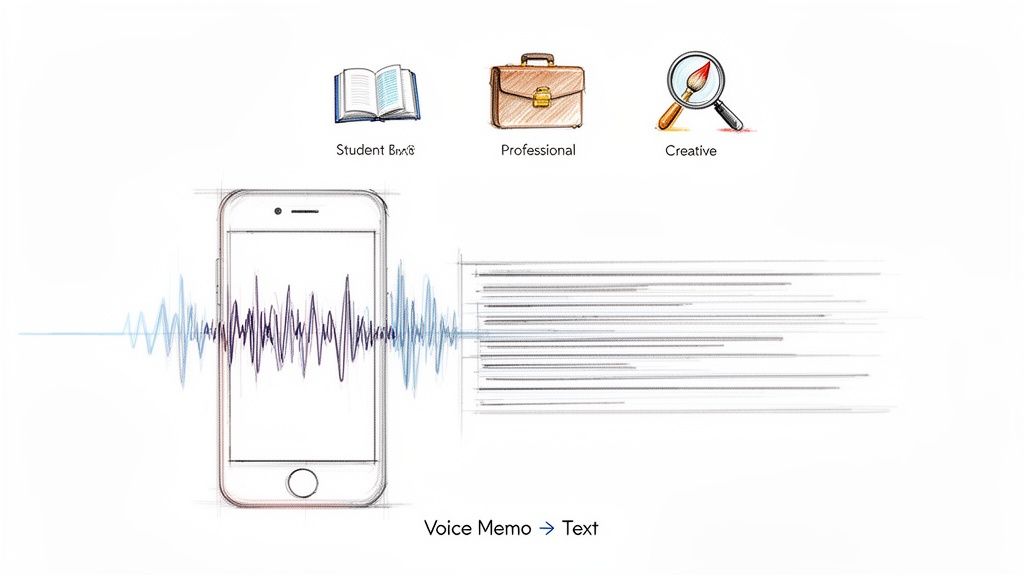
Have you ever recorded a brilliant idea on a walk, only to forget the key details by the time you sat down to work? Or maybe you captured vital client feedback in a meeting, but now it's trapped inside an audio file you don't have time to scrub through. It's a common problem. Voice memos are fantastic for capturing thoughts on the fly, but the audio format can be a dead end for actually using those thoughts.
Getting those recordings into text format changes everything. Suddenly, your ideas are no longer locked away. They become searchable, shareable, and actionable assets. This simple conversion of a voice memo to text is incredibly valuable for almost everyone.
Who Benefits from Transcribing Voice Memos
- Students: Transform a two-hour lecture into a searchable study guide you can review in minutes.
- Professionals: Pull exact quotes from a meeting for a report without re-listening to the entire recording.
- Creatives: Brainstorm a blog post or video script out loud and get a written first draft automatically.
This isn't just a niche trick. The demand for voice-to-text tools has exploded, with the global transcription market projected to hit $393.3 billion in 2026—a massive 32% jump from 2025. A huge part of that growth is driven by people like you, looking for an efficient way to manage their iPhone voice memos.
The real power here is making your spoken words as useful as written ones. It turns a passive recording into an active resource you can edit, analyze, and build on.
For instance, getting text from your voice memos is a lifesaver when you need to add captions to your Instagram Story and want to use something you said on the fly. This guide will walk you through the best methods for how to transcribe voice memos on iPhone. And if you want a deeper dive into the fundamentals, check out our complete guide on converting audio to text.
Your iPhone Voice Memo Transcription Options at a Glance
To help you choose the right path, here’s a quick breakdown of the methods we'll cover. Consider what you need most—speed, accuracy, or zero cost—and pick the one that fits your situation.
| Method | Best For | Typical Accuracy | Cost |
|---|---|---|---|
| Native iOS Transcription | Quick, free transcription for newer iPhones. | Good | Free |
| Notes App / Dictation Workaround | A clever, no-cost trick for short recordings. | Fair to Good | Free |
| Third-Party Transcription Apps | High accuracy, extra features, and handling long files. | Excellent | Varies (Free to Paid) |
Each option has its strengths. The built-in features are great in a pinch, but for important recordings or better results, a specialized tool is often the better choice.
Using Apple’s Native Transcription Features
If you have a newer iPhone, you’re in luck. Apple has quietly added a surprisingly good transcription tool right into the Voice Memos app. This makes it one of the simplest ways to get text from your audio without downloading anything extra. For a quick, free transcript, it’s a fantastic starting point.
Apple officially rolled this out with iOS 18, bringing built-in audio transcription to both Voice Memos and Notes on the iPhone 12 and any later models. A major benefit is that it processes everything on your device, so it works offline and keeps your recordings private. It even offers AI summaries through Apple Intelligence, though its language support is still expanding. To see how its capabilities stack up against other tools, you can explore more about iPhone transcription apps that break down the specifics.
Accessing the Transcription Feature
Getting your transcript is incredibly simple. After you finish a recording, the app automatically prepares the transcription. There’s no special setting to toggle on; it just works in the background.
When you open a recording, you’ll find the "Transcribe" button ready to go. A quick tap reveals the text version of your audio.
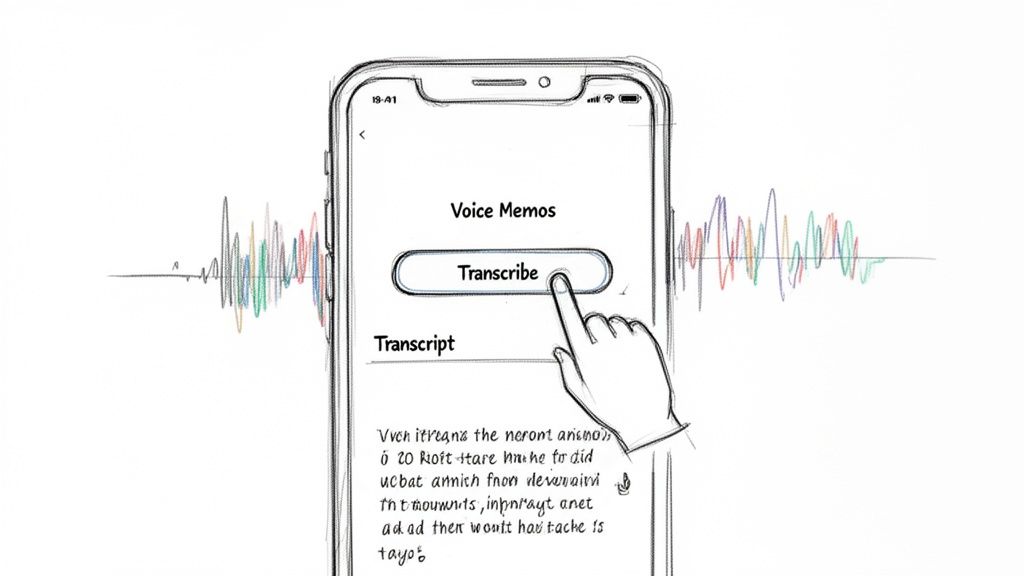
The text appears right under the audio player, and as the memo plays, the words highlight in sync. This is super useful for quickly checking the accuracy of the transcription.
From there, you can copy the entire transcript—or just a snippet—and paste it into an email, a document, or anywhere else you need it. The seamless integration is what makes this feature a real winner for everyday use.
Understanding the Limitations
While this built-in tool is convenient, it's not perfect. It’s important to understand when it's the right choice and when you'll need something more powerful.
The native feature is perfect for clean, single-speaker audio recorded in a quiet room. Think of it as a great tool for personal notes and reminders, but not for mission-critical professional work.
Here’s a realistic look at where it falls short:
- Accuracy Issues: Background noise, multiple speakers talking over each other, or a strong accent can cause the accuracy to drop significantly. You might end up with a jumbled mess that requires heavy editing.
- Limited Language Support: At launch, the feature only supported a handful of major languages like English, Spanish, and French. If you need to transcribe voice memos on iPhone in a less common language, this feature won't work for you.
- No Advanced Features: You won't find professional-level tools here. Features like automatically identifying different speakers (diarization) or adding precise timestamps to each word are not included. This makes it unsuitable for detailed analysis of interviews or meetings.
Bottom line: Apple's native tool is an excellent option for casual use. It’s fast, free, and secure. But if you're a journalist, podcaster, or researcher who needs high-fidelity transcripts, you'll quickly run into its limitations.
Clever Transcription Workarounds for Older iPhones
Don't have the latest iPhone with built-in transcription? No problem. You're not out of options. There's a clever, no-cost workaround using tools you already have: the keyboard’s dictation feature. It's a bit manual, but it essentially turns your iPhone into its own transcription assistant.
This method is often called the "play-and-dictate" technique. You simply play your voice memo out loud on one device (like a laptop or tablet) and let your iPhone "listen" and type it out in an app like Notes. It takes some patience, but it's a fantastic way to transcribe voice memos on iPhone without spending any money.
Setting Up for the Best Results
To get a decent transcript this way, a quiet space is absolutely essential. Background noise is your biggest enemy. Your iPhone’s microphone is designed to pick up everything, and any extra chatter, traffic, or TV sounds will just become gibberish in your text.
Here's how to prepare your setup:
- Find a Quiet Room: This is non-negotiable. Close doors and windows to minimize ambient sound. The cleaner the audio your iPhone hears, the better the dictation will be.
- Use Two Devices: You'll need one device to play back the voice memo—a Mac, PC, or iPad works perfectly—and your iPhone to do the transcribing.
- Position Your Devices: Place your iPhone’s microphone near the speaker of the device playing the memo. Don't put them right on top of each other, as that can create muffled, distorted sound. A few inches apart is usually ideal.
Once you’re set up, open the Notes app on your iPhone, create a new note, and tap the microphone icon on the keyboard to start dictation. Hit play on your other device and watch the words appear.
This method essentially tricks your iPhone's dictation tool into thinking it's listening to you speak. The quality of the transcript depends entirely on how clearly your iPhone can "hear" the recording.
Tips for Improving Accuracy
While this workaround is surprisingly effective, it won't be as polished as a dedicated service. You'll definitely need to do some manual cleanup, but a few small tweaks can save you a lot of editing time.
Make sure to play the audio at a normal, clear volume. If it’s too loud, the sound will distort; if it’s too soft, the microphone won't pick up everything.
Also, be ready to pause the recording occasionally. iPhone dictation can time out if it detects long silences. By pausing the playback during these gaps, you can keep the dictation feature active and ready for when the speaking resumes.
For anyone who finds this process a bit too hands-on, you might want to explore other automated tools. We've put together a full guide on how to transcribe audio files for free that covers some great alternatives.
Achieving Professional Accuracy With Third-Party Apps
When Apple’s built-in tools just aren’t enough for serious work, dedicated transcription apps are the best solution.
While native iOS features are great for a quick note, professionals handling interviews, important meetings, or content creation need a much higher standard of accuracy. This is where third-party solutions come in, bridging the gap between a rough draft and a polished transcript.
The App Store is filled with options designed to solve the common frustrations of Apple's native tools. These apps offer features professionals rely on, such as advanced language support, automatic speaker identification (diarization), and the ability to export into various formats like TXT, DOCX, or SRT for video captions.
For podcasters, journalists, and researchers, these features aren't just nice to have; they are essential for working efficiently.
When to Upgrade From Apple’s Tools
While Apple's own Voice Memos transcription (on iPhone 12 and newer with iOS 15+) is a good start, its limitations become clear very quickly.
Recent analysis shows that the built-in tools meet the needs of only about 22% of users. The other 78%—mostly business and education users—turn to third-party options to get the job done right. A huge reason for this is the language gap. Voice Memos supports only about 15 languages, a fraction of the 100+ available in most specialized apps. You can dig into these transcription app trends and findings for more details.
A Look at a Top-Tier Service: Meowtxt
For those who need the best possible results, a service like Meowtxt is built from the ground up to deliver high-stakes accuracy. It solves the core problems that plague less advanced tools. Instead of settling for a transcript that's "good enough," you get one that’s practically ready to use.
Professional-grade services focus on simplicity and power, which is clear in their interface.
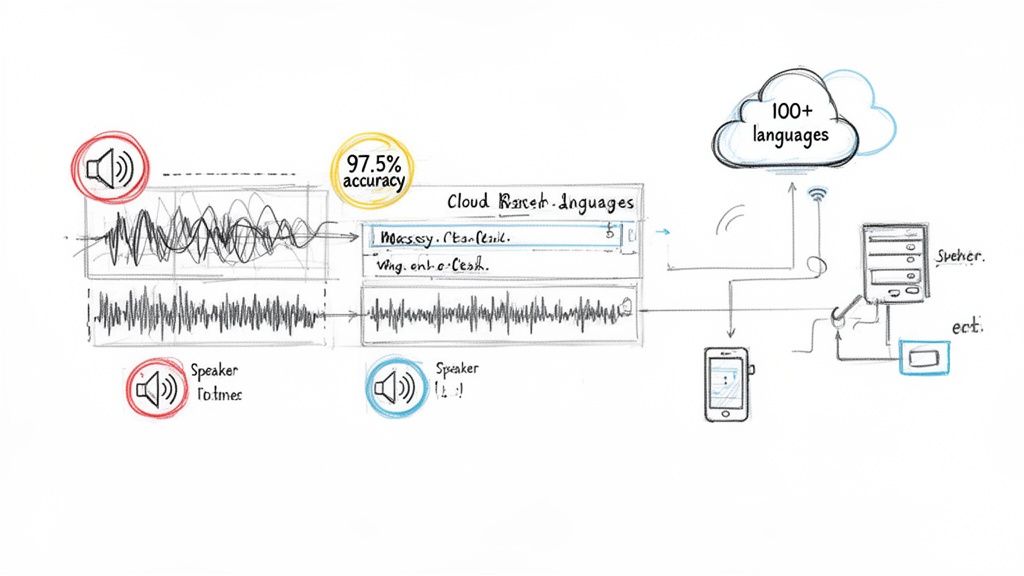
The clean drag-and-drop design lets you upload your voice memo and get started in seconds, with no complicated setup.
Services like this are game-changers because they deliver on what professionals need most: reliability and speed. Meowtxt, for example, can produce transcripts with up to 97.5% accuracy, a level that native tools can't match, especially with difficult audio. It also supports over 100 languages and can return a complete transcript in just a few minutes.
For anyone whose work depends on getting the words right—from legal professionals to content creators—investing in a specialized service isn't a luxury. It's a necessity for productivity.
Why Professionals Choose Dedicated Transcription
The decision to use a third-party app almost always comes down to a few key advantages that directly impact your workflow. When you need to transcribe voice memos on iPhone for professional reasons, these are the features that make all the difference.
- Speaker Identification: Automatically labels who is speaking and when, saving hours of manual work on interview or meeting transcripts.
- Timestamping: Provides precise timestamps for each word or phrase, making it easy to find and reference specific moments in the original audio.
- Versatile Export Options: Lets you download your transcript in a format that fits your needs, whether it's a simple text file, a Word document, or an SRT file for video captions.
Getting a voice memo from your iPhone to a service like Meowtxt is surprisingly simple. Just use the "Share" button in the Voice Memos app and send it over. The entire process is seamless, turning a complex task into a couple of taps.
Comparing Top iPhone Transcription Methods
See how native iOS tools, popular third-party apps, and a professional service like Meowtxt stack up.
| Feature | Apple's Native Tool | Third-Party Apps | Meowtxt Service |
|---|---|---|---|
| Typical Accuracy | Fair to good (~85-90%) with clear audio | Varies widely (85-95%), depends on app quality | Excellent (up to 97.5%) |
| Speaker Identification | No | Often available (diarization) | Yes, with clear speaker labels |
| Language Support | Limited (~15 languages) | Varies, but often 30-50+ languages | Extensive (100+ languages) |
| Export Formats | Plain text only (copy/paste) | Multiple formats (TXT, DOCX, SRT, etc.) | Multiple formats (TXT, DOCX, CSV, JSON, SRT) |
| Cost | Free (built-in) | Varies (free, subscription, or pay-as-you-go) | Pay-as-you-go, with a free trial |
| Best For | Quick personal notes, rough drafts | Regular users, podcasters, students | Professionals, researchers, content creators needing the highest quality |
Ultimately, the best tool depends on your needs. While Apple's offering is a nice freebie for casual use, serious transcription work almost always requires the power and precision of a dedicated service. If you're looking for the right tool, our guide to the best audio-to-text converters offers a detailed comparison to help you choose.
How to Get More Accurate Transcripts Every Time
The quality of your final transcript is often decided before you even hit a button in an app. It all comes down to the quality of the original recording. No matter which method you use to transcribe voice memos on iPhone, taking a few extra seconds to practice good "audio hygiene" will pay off significantly.
Think of it this way: transcription AI is incredibly smart, but it's not magic. It needs clean, understandable audio to do its job well. Simple actions, like stepping into a room with less echo or turning off a noisy fan, can make a world of difference in the final text.
Practice Good Audio Hygiene
Your recording environment is the single biggest factor. An AI will always struggle to distinguish your voice from the clatter of a coffee shop or the rumble of street traffic.
Before you hit record, take a moment to:
- Find a quiet space. This is non-negotiable. Close the door, shut the window, and eliminate any other background noise you can control.
- Position your iPhone correctly. Don't bury your phone under papers or hold it too far away. Aim to keep the microphone about 6-12 inches from the speaker's mouth for optimal clarity.
- Speak clearly and at a steady pace. Mumbling or rushing through your words will confuse even the most advanced transcription engines.
This isn’t just a friendly suggestion; the data supports it. An Apple developer report from 2025 showed that transcription accuracy can soar to 92% for clear speech in quiet settings. Conversely, a separate survey found that 68% of users in non-supported regions got "garbled" transcripts when dealing with accents or background noise. You can read more about these common challenges in iPhone voice transcription.
A good rule of thumb is simple: if a human would have trouble hearing it clearly, an AI definitely will. Give your transcription tool the best possible audio to work with.
Simplify the Post-Transcription Cleanup
Even with a perfect recording, you'll probably have some minor cleanup to do. A smart workflow can save you a ton of time, and this is where the features in professional services truly shine.
For example, if you're working with an interview or meeting, having speaker labels is a lifesaver. Instead of staring at a huge wall of text, the transcript is neatly organized by who said what. Similarly, accurate timestamps let you click on any word and instantly jump to that exact moment in the audio to double-check a quote. Services like Meowtxt build these features right in, turning what could be an hour-long editing headache into a quick ten-minute review.
Picking the Right Transcription Tool for the Job
So, how do you decide which way to go? There’s no single “best” method for transcribing iPhone voice memos. The right choice really comes down to what you’re trying to accomplish.
Are you just trying to capture a fleeting thought, or are you documenting a critical, hour-long client meeting? The stakes are completely different.
For those quick, personal reminders—like a grocery list you dictate on your walk or a sudden project idea—Apple’s native transcription feature is perfectly adequate. It’s free, instant, and already on your phone. You don’t need 100% accuracy, just the gist, and the native tool gets you there without any fuss.
But the moment accuracy becomes non-negotiable, you need to look beyond the built-in options.
Match the Tool to the Task
Think about what’s riding on your recording. If you’re transcribing a crucial interview with background noise or a business meeting with multiple speakers, a professional service is the only reliable path forward.
The risk of misquoting a source or misunderstanding an action item is too high to gamble on a tool that struggles with less-than-perfect audio. This is exactly where services like Meowtxt come in, delivering the precision you need for professional work.
To make the right call, it helps to understand what makes a recording easy or hard to transcribe. This flowchart breaks down the basics.
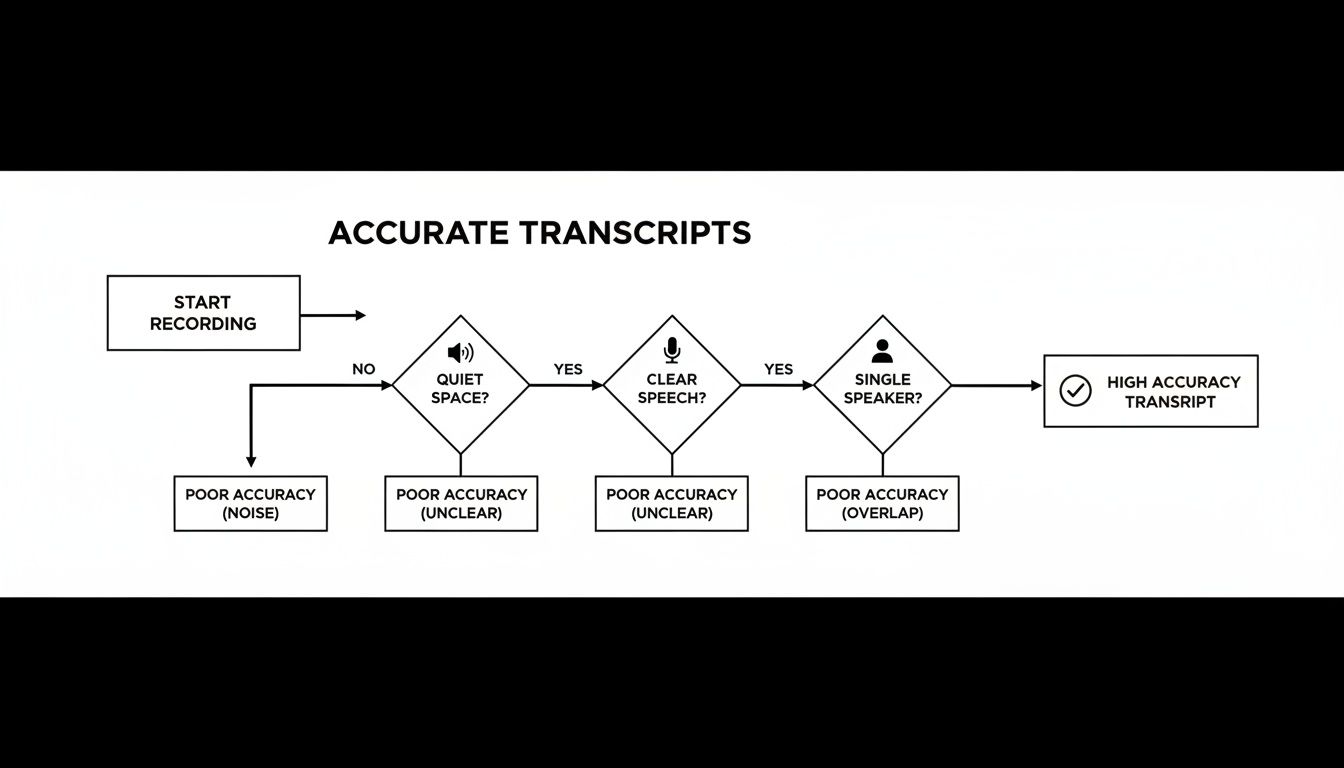
As you can see, a quiet space, clear speech, and a single speaker are the building blocks of an accurate transcript, no matter which tool you use. The better your source audio, the better your results will be.
Ultimately, the choice is between convenience and reliability. While native tools are convenient for casual notes, professionals who demand speed, precision, and peace of mind consistently trust a dedicated service as their definitive solution.
Meowtxt is built for people who can't afford mistakes. It combines near-perfect accuracy with powerful features like speaker identification and incredibly fast turnaround times. When your work depends on getting every word right, it provides the confidence and quality that free, built-in tools simply can't match.
A Few Common Questions
Diving into transcription can bring up a few questions, especially when dealing with personal recordings. Here are straightforward answers to what people usually ask when they transcribe voice memos from an iPhone.
Is It Really Safe to Upload My Recordings?
That's a completely valid concern. While the built-in tools on your iPhone keep everything on-device, uploading a file to a third-party service requires trust.
The good news is that reputable services like Meowtxt are built with security as a priority. They use strong encryption to protect your files during upload and processing. Many also have strict policies to automatically delete your files after a short period, ensuring your private information stays private.
A good rule of thumb? Always take a minute to check a service's privacy policy before uploading anything sensitive. A trustworthy company will be transparent about how they handle your data.
Can I Transcribe Really Long Voice Memos?
You absolutely can, but your choice of tool is critical here. The free or native options on your phone often struggle with longer files. They might time out or fail completely if you try to transcribe a two-hour lecture.
This is where professional services excel. They are designed to handle multi-hour audio files without any issues, returning a complete and accurate transcript. This makes them perfect for long-form interviews, detailed meetings, or academic lectures where every word matters.
What Audio Format Do Voice Memos Use Anyway?
Your iPhone saves voice memos as .m4a files by default. It's a very common audio format, and nearly any high-quality transcription app or service will handle it without a problem. You can usually just share the file directly from the Voice Memos app—no conversion needed.
And once you've turned those voice memos into useful text, you'll want to ensure all that data is safe. When it's time for a new phone, it's a good idea to know how to transfer data from iPhone to iPhone so you don't lose anything important.
Ready for fast, accurate transcripts you can actually rely on? Meowtxt turns your voice memos into polished text in minutes. Try it for free today!


