Trying to turn a long voice memo into text can feel like a huge task. The best way to transcribe a voice memo on an iPhone is to either use the Voice Memos app that's already built-in or a specialized third-party service if you need top-notch accuracy. Your choice really depends on whether you need a quick, free transcript right away or a more polished, professional document.
Your Quick Guide to iPhone Transcription
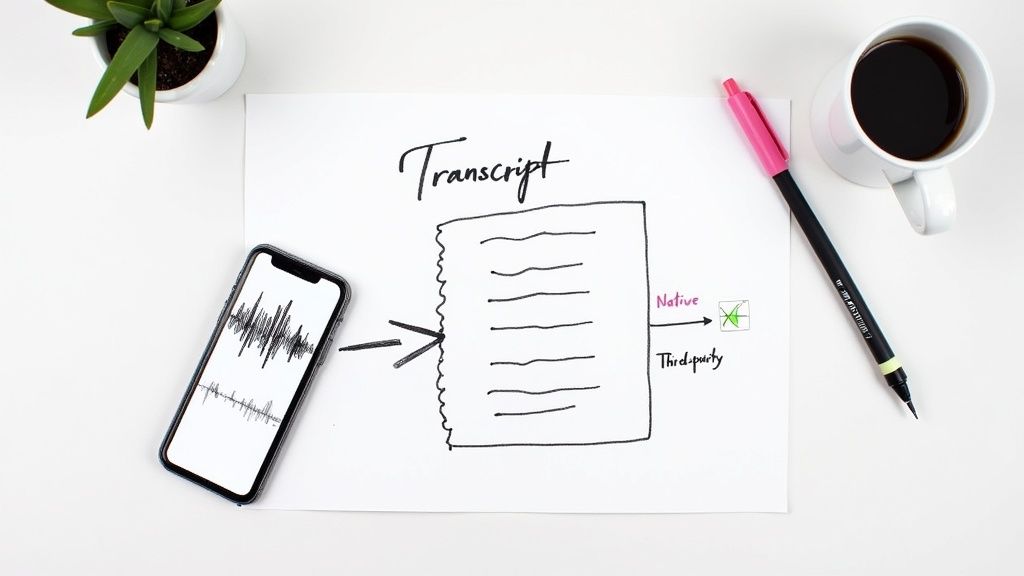
If you're dreading the idea of typing out a lengthy recording by hand, you're not alone. This guide gets straight to the point, showing you the most efficient methods to convert your iPhone voice memos to text directly from your device.
We'll begin with the tool everyone already has: Apple's native transcription. Since Apple introduced this feature, it's become a solid first choice for anyone wanting to skip manual typing. To use it, simply open the Voice Memos app, select a recording, and the transcript will appear. The built-in tool processes everything on your device, which is great for privacy, and can reach up to 95% accuracy in quiet environments. You can learn more about the technology's journey by reading about transcribing iPhone voice memos on plaud.ai.
Choosing Your Transcription Method
While the built-in option is perfect for quick notes or personal reminders, sometimes you need something more powerful. This is where specialized third-party apps come into play. These services consistently deliver higher accuracy, especially when you're dealing with challenging audio like recordings with background noise or multiple speakers.
To help you decide, let's compare the two main approaches:
- Built-in iOS Voice Memos: This is your go-to for convenience and privacy. It’s already on your phone, processes audio locally, and offers a secure, instant way to transcribe straightforward recordings.
- Third-Party Apps: These are designed for more demanding transcription tasks. They often pack advanced features like speaker identification, timestamping, and various export formats, making them ideal for interviews, meetings, or academic lectures.
To make the choice crystal clear, the table below breaks down the key differences at a glance.
Transcription Methods at a Glance
Trying to decide between Apple's free, built-in tool and a specialized third-party app can be tough. This table gives you a simple, side-by-side comparison so you can quickly see which method is the right fit for your needs.
| Feature | Built-in iOS Voice Memos | Third-Party Apps |
|---|---|---|
| Best For | Quick notes, personal reminders | Interviews, meetings, noisy audio |
| Accuracy | Good (up to 95% in ideal conditions) | Very High (often 97%+) |
| Cost | Free | Free tiers or paid subscriptions |
| Speaker ID | No | Yes (most advanced services) |
| Export Formats | Limited to text copy/paste | Multiple (DOCX, TXT, SRT, CSV) |
| Privacy | Excellent (on-device processing) | Varies (check provider's policy) |
In the end, the built-in feature is a great starting point for casual use. But if your work relies on accurate, well-formatted, and easily shareable transcripts, investing in a dedicated app will save you a lot of time and frustration.
Using Your iPhone’s Native Transcription Tool
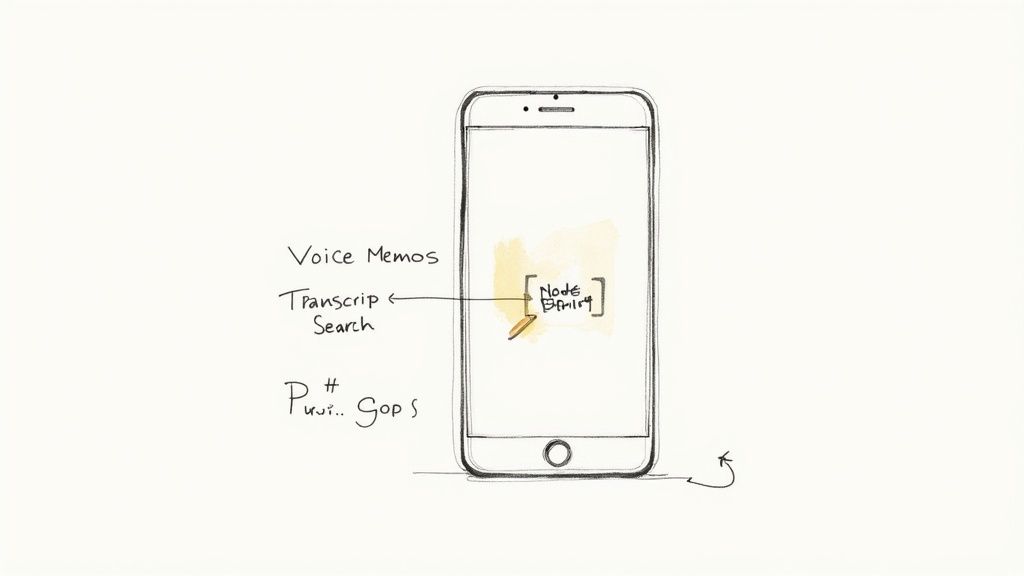
Sometimes, the best tool is the one you already have. Apple’s solution to transcribe voice memos is built right into the Voice Memos app, making it the most convenient, zero-effort option available.
Its biggest advantage is the seamless integration and on-device processing. Your recordings stay completely private and are never uploaded to a server, which is a significant benefit for sensitive information.
Accessing the transcript is incredibly easy. Just open any recording, and the text automatically appears below the audio player. From there, you can search for keywords or copy and paste the entire transcript into Notes, Mail, or Messages. It’s that simple.
Real-World Performance and Limitations
So, how well does it actually work? For a single, clear speaker in a quiet room, the accuracy is genuinely impressive. It's the perfect tool for capturing your own thoughts, dictating a personal reminder, or transcribing a clean monologue.
But once you introduce some real-world chaos, the limitations become clear.
- Background Noise: Trying to transcribe a memo from a busy coffee shop or a windy park? The accuracy will drop significantly.
- Multiple Speakers: The tool can't distinguish between different speakers. It just creates one long block of text, making group conversations a jumbled mess to sort through.
- Accents and Mumbling: Strong accents or unclear speech can easily confuse the software, leaving you with garbled text that requires heavy editing.
This on-device transcription is powered by Automated Speech Recognition (ASR) technology—the same engine behind Siri. The quality of ASR output is directly linked to the clarity of the audio you feed it, which explains why performance varies so much between a quiet office and a noisy street.
Practical Use Cases
Knowing when to use the native tool is crucial. It’s perfect for quickly getting the main points of a lecture you recorded from the front row. But for a group interview with people talking over each other? You'll likely end up with a transcript that’s more confusing than helpful.
To get a better handle on the tech behind this, see our deep dive on what is ASR. For those more demanding scenarios, you’ll save yourself a major headache by turning to a dedicated third-party service instead.
When You Need Better Accuracy: Third-Party Apps
You'll know when the built-in iOS tool isn't enough. Trying to get a clean transcript from a group meeting with crosstalk or a lecture with background noise often results in a jumbled mess. That’s the moment to bring in the specialists.
This is where dedicated third-party transcription apps truly excel. These services are built from the ground up to do one thing exceptionally well: turn messy, real-world audio into clean, accurate text. They are powered by sophisticated AI models specifically trained to handle tricky situations that trip up more basic tools.
Why Switch to a Dedicated App?
The improvement in quality is often night and day. Specialized apps can achieve an incredible 99% accuracy, even when dealing with accents, noisy environments, or specific industry jargon. Most are compatible with modern iPhones, handle long recordings without issue, and support over 100 languages. You can see a breakdown of the capabilities of these apps at 1transcribe.com.
Beyond just getting the words right, these apps are packed with features designed for real work:
- Speaker Identification: They can automatically figure out who is talking and label their lines accordingly.
- Timestamps: Every word or paragraph is timed, allowing you to instantly jump to that exact spot in the audio.
- More Export Options: You’re not limited to plain text. You can save your transcript as a DOCX, TXT, PDF, or even an SRT file for video captions.
It's about moving from a "good enough" tool to a professional one. Making the switch saves you hours of tedious manual cleanup, making the whole process of transcribing a voice memo on your iPhone much more efficient.
The workflow is usually incredibly simple. First, you share your recording from the Voice Memos app. Just tap the "Share" icon on your recording and send it directly to the transcription app you've installed. The app then processes the audio and returns a polished, feature-rich transcript ready for you to use.
Exploring More Advanced Features
Many of these services go beyond basic transcription. They often include powerful AI summaries, automatically highlight important keywords, and some even offer real-time transcription. If you record interviews with Voice Memos, it's worth checking out AI video editing tools that also include transcription features, as they often use the same powerful technology.
Most of these apps operate on a "freemium" model. This means you can typically transcribe a few minutes for free each month—perfect for taking them for a spin. If you need more, paid plans unlock higher limits and premium features, offering a flexible solution for everyone from students to professionals.
Choosing the Right Transcription App for Your Needs
With a seemingly endless list of options on the App Store, picking the right transcription app can feel overwhelming. The truth is, they aren't all created equal. The best one for you depends entirely on what you need to accomplish.
Are you a student trying to capture every word from a long lecture? Or a journalist who needs a flawless interview transcript, fast? Each task requires a different tool.
First, Figure Out What You Actually Need
Before you even start searching, get clear on your main objective. For many people, a simple, free app is perfectly fine for the occasional one-off voice memo. But if you find yourself needing to transcribe audio on your iPhone multiple times a week, your requirements become much more specific.
Ask yourself these key questions:
- How accurate does it need to be? Is "pretty close" good enough, or do you need near-perfect text to avoid spending hours on edits?
- What’s your budget? Are you looking for a generous free plan, or does a monthly subscription for high-volume work make more sense for your workflow?
- Is the audio sensitive? If you're handling confidential information, an app with strong privacy policies or on-device processing is a must.
- What about extra features? Do you need speaker labels for interviews, timestamps to sync with audio, or quick AI summaries to pull out key points?
The voice-to-text app market is booming, with new players constantly emerging. Services like Plaud.ai, for example, are gaining attention for features like real-time AI transcription with 98% accuracy and even offline modes. Their pricing, which includes free monthly minutes alongside pro plans, shows how the industry is catering to both casual users and professionals. You can see the app's impressive growth on appstorespy.com.
A Comparison of Top iPhone Transcription Apps
To give you a clearer picture, here is a quick comparison of some of the most popular options available. This should help you see, at a glance, which tool might be the best fit for how you plan to transcribe voice memos.
| App | Key Feature | Pricing Model | Best For |
|---|---|---|---|
| Meowtxt | AI summaries & no registration | Pay-as-you-go | Quick, accurate transcripts with summaries. |
| Otter.ai | Real-time transcription & speaker ID | Freemium with monthly subscription | Students in live lectures & team meetings. |
| Rev Voice Recorder | Human transcription option (99%) | Per-minute (AI & Human) | Journalists needing guaranteed accuracy. |
| Notta | Live transcription & export options | Freemium with monthly subscription | Professionals who need to export to multiple formats. |
| Just Press Record | On-device transcription & iCloud sync | One-time purchase | Privacy-focused users and quick personal notes. |
This table is just a starting point. The best way to know for sure is to try one or two that look like a good fit. Most offer free trials or a number of free minutes to get you started.
Matching the Right App to the Right Task
Let's break it down with some real-world examples. A student recording a two-hour lecture will probably lean toward an app with a generous free plan that can handle long files without issues. On the other hand, a podcaster will happily pay a premium for top-tier accuracy and automatic speaker labels because it saves them hours in post-production.
Think of it like picking a vehicle. You wouldn't use a sports car to haul furniture, and you wouldn't use a moving truck for your daily commute. Choosing the right app is all about matching the tool to the job.
Ultimately, making the right choice from the start means you can confidently transcribe a voice memo on your iPhone without the headache of fixing a mountain of errors later. For a much deeper dive into the pros and cons, check out our guide on the best audio-to-text converters. It'll help you weigh the options and find the perfect match.
Practical Tips for Crystal-Clear Transcriptions
Ever wonder why some transcripts come back nearly flawless while others are a mess of typos and nonsense? It almost always comes down to one thing: the quality of the original audio.
Garbage in, garbage out. A few small adjustments to how you record can make a world of difference, saving you hours of painful editing.
The easiest thing you can do is get your iPhone's microphone closer to the speaker. Seriously, just moving it a foot closer can be a game-changer. Also, don't forget about the ‘Enhance Recording’ feature built into the Voice Memos app. It's surprisingly good at reducing background hum and echo.
Small Habits for Big Improvements
If you're recording interviews or meetings, make it a habit to ask participants to state their names before they speak. It might feel a bit formal, but trust me, it makes identifying speakers a breeze when you’re editing the transcript later.
Also, consider your environment. Recording in a room with a lot of reverb—like an empty office with hardwood floors—creates a hollow sound that confuses transcription AI. Try to find a room with carpet, curtains, or furniture to absorb the sound and reduce echo.
This decision tree can help you figure out which transcription approach is the right fit for your specific needs, whether you're just taking quick notes or preparing a professional interview.
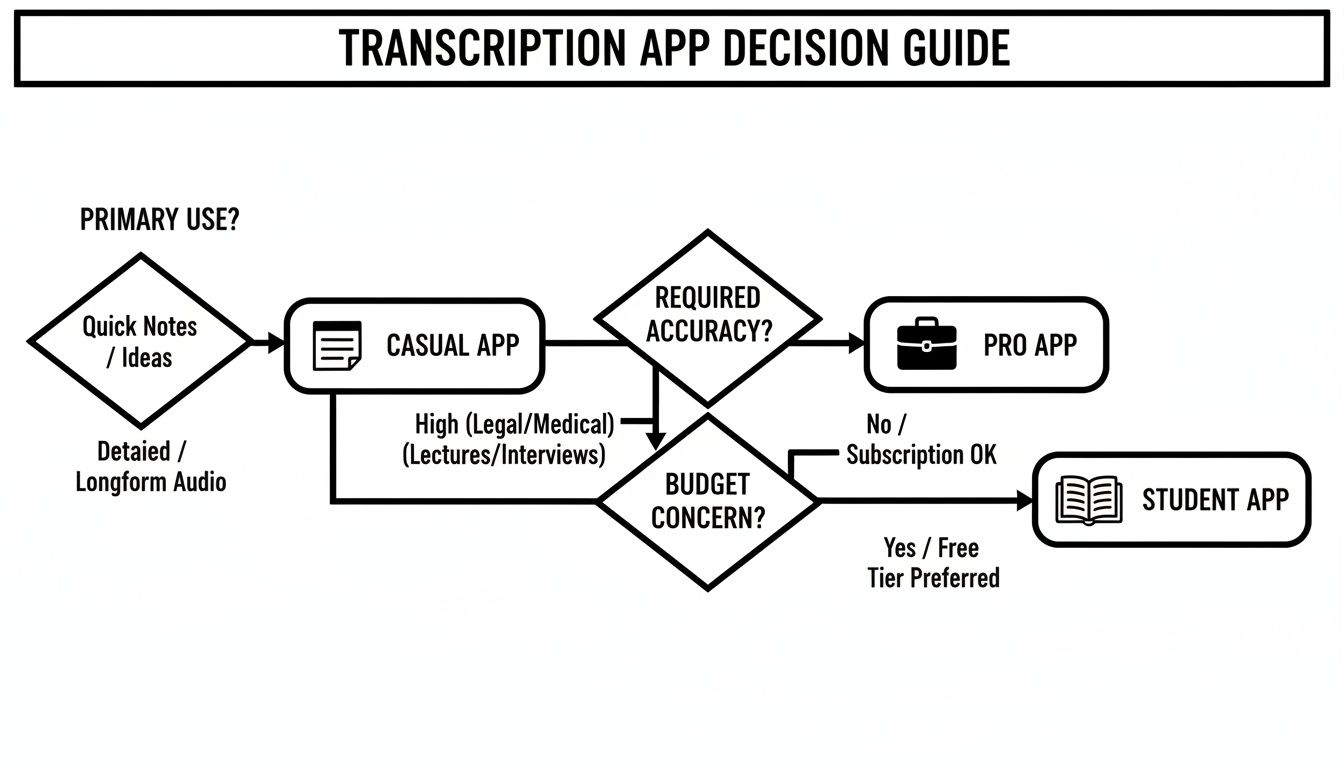
As the graphic shows, what works for a casual user won't be sufficient for professional or academic work where accuracy and advanced features are essential.
Want to go even deeper on optimizing your sound? Check out our full guide on how to improve audio quality. And if you're getting into the technical details of your iPhone's settings, this guide on how to increase mic volume is a fantastic resource.
Got Questions? We’ve Got Answers.
Still have a few questions about how to transcribe voice memos on your iPhone? Let's clear up some of the most common ones that come up.
Can I Transcribe Old Voice Memos on My iPhone?
Yes, absolutely. If you're using Apple's built-in tool, any voice memo you've ever saved can be transcribed, as long as your iPhone is running a compatible iOS version.
For third-party apps, the age of the recording doesn't matter at all. You can share any memo, no matter how old, directly from the Voice Memos app to your chosen transcription service.
How Secure Is My Data with Transcription Apps?
This is a critical question, and the answer really depends on the service you choose.
Apple’s native feature is as secure as it gets. The entire transcription process happens on your device, which means your audio never leaves your phone or gets sent to a server.
Third-party apps are a different story. Most need to upload your audio to the cloud for their AI to process it. That’s why it is so important to check their privacy policy before you upload anything sensitive. Reputable services use strong encryption to protect your data, and some, like Meowtxt, go a step further by automatically deleting your files after a short period.
What Is the Best Way to Handle Memos with Multiple Speakers?
If your recording features two or more people talking, a dedicated third-party app is your best bet. The built-in iOS feature will give you the words, but it won’t know who said what. You'll just get one giant, confusing block of text.
The magic feature you're looking for here is called "speaker diarization" (or speaker identification). Apps with this feature use AI to automatically detect and label who is speaking throughout the transcript. It’s a total lifesaver for interviews, meetings, or group chats and cuts down editing time massively.
Honestly, this single feature is often worth the cost of a specialized app if you regularly record conversations.
Ready to get fast, accurate transcripts with AI-powered summaries? Try Meowtxt today and get your first 15 minutes free. No registration required, just upload and go. Discover a smarter way to transcribe at https://www.meowtxt.com.


