
Yes, you absolutely can get a youtube video to text transcription free using several different methods. From YouTube's own built-in tools to clever workarounds with platforms like Google Docs, you have options.
These free methods are perfect for turning spoken content into searchable, editable text without spending a dime. The best approach for you really just depends on the level of accuracy you need and how quickly you need the transcript.
Why Free YouTube Transcription Is a Content Game Changer
Ever wondered how top creators get so much value out of every single video? It isn't just about flashy editing. A huge piece of the puzzle is making their content discoverable and accessible to everyone.
Getting a text transcript of your YouTube video is one of those small efforts that delivers massive returns, and it goes way beyond just saving a bit of cash.
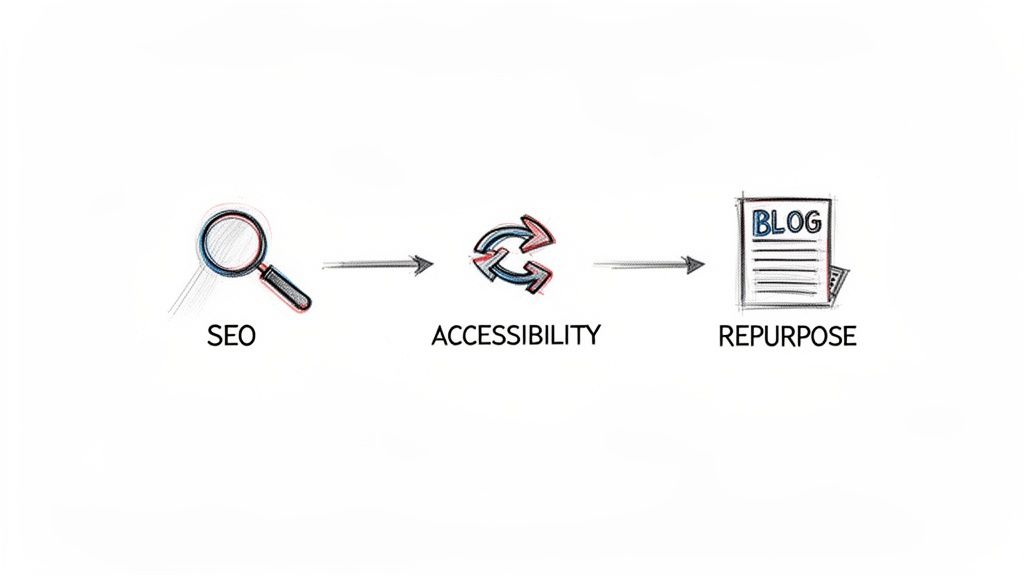
Think of a transcript as a bridge that connects your spoken words to search engines like Google. Without text, search crawlers have no real way to understand what your video is about. By providing the full script, you make every single word indexable, which massively boosts your chances of ranking for a wide range of relevant keywords.
Unlocking New Audiences and Opportunities
Beyond pure SEO, transcripts open the door to a much broader audience. For starters, think about accessibility. Over 1.5 billion people worldwide live with some form of hearing loss. Transcripts and captions aren't just a nice feature; they're essential for an inclusive content strategy.
And it’s not just about accessibility. Research shows that 80% of Americans are more likely to watch a video if it includes captions. It’s simply how people consume content today, especially on their phones.
The text version of your video is also a goldmine for content repurposing. Just imagine turning one hour-long video into:
- A detailed blog post that dives deeper into the core topics.
- A full week's worth of insightful tweets or a detailed LinkedIn article.
- An engaging email newsletter for your subscribers.
- A script for a dozen different TikToks or YouTube Shorts.
By turning your video into text, you create a foundational asset. It's something you can slice, dice, and reshape for different platforms, saving you an incredible amount of time and effort. It’s one of the smartest ways to scale your content production. You can dive deeper into these techniques by exploring different content repurposing strategies.
A Real-World Growth Scenario
I once worked with a creator whose cooking channel was struggling to gain traction. The videos were excellent, but the traffic was completely flat.
We went back and added accurate transcripts to their top 20 recipe videos. Within a few months, their organic traffic skyrocketed.
Why? Because Google could finally "read" their ingredient lists and step-by-step instructions. Suddenly, their videos started ranking for highly specific searches like "how to make sourdough starter from scratch."
It’s a perfect example of how a free transcript is more than just text. It's a powerful strategic tool you can use to grow your YouTube channel.
Using YouTube's Built-In Transcript Feature
The quickest way to get a YouTube video to text transcription free is often right inside the platform itself. Most videos on YouTube have an automatically generated transcript, and you can grab a rough draft in just a few seconds.
Simply open the video on your desktop, click the three dots (...) below the video player, and select “Show transcript.” A new panel will pop up right next to the video, showing the full text with clickable timestamps.
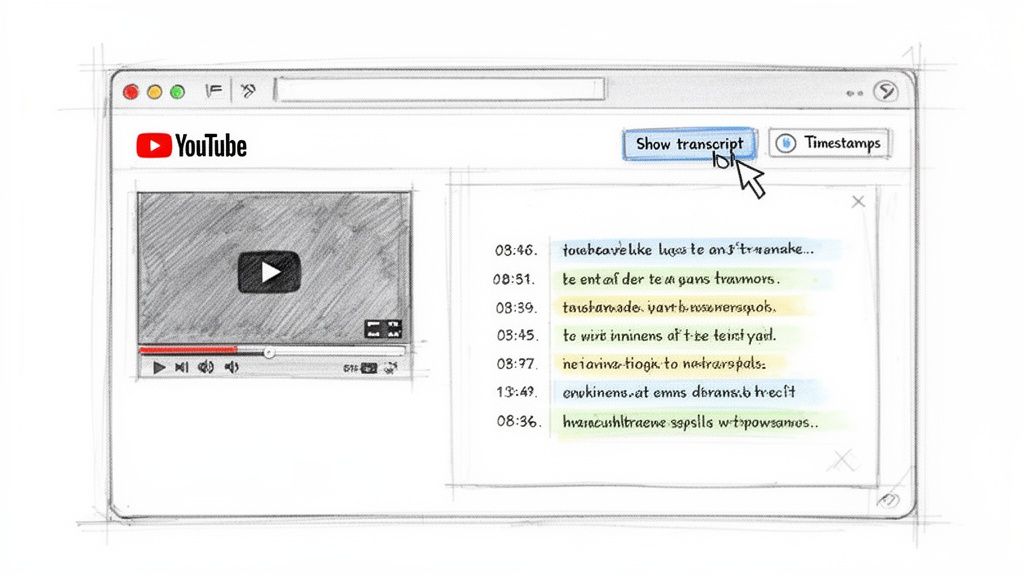
From there, you can easily copy and paste the text into whatever document you're working on. It’s the most direct method available.
The Big Catch: Accuracy
But here’s the trade-off for all that speed. The accuracy of YouTube’s auto-generated transcripts can be all over the map. Think of it less as a finished product and more as a very rough first draft that will almost certainly need a lot of editing.
The system really struggles with a few common issues:
- Multiple Speakers: It often fails to distinguish between different people, mashing all their words into one confusing block of text.
- Strong Accents: Non-standard accents can completely throw off the AI, leading to some truly bizarre phrases and incorrect words.
- Background Noise: Music, ambient sounds, or people talking over each other will seriously degrade the transcription quality.
- Technical Jargon: Specialized terms or industry-specific lingo are frequently misunderstood.
This isn't just a minor annoyance—it can make the transcript completely unusable for anything professional. The whole point of a free transcript is to save time, but if you end up spending hours fixing errors, you've defeated the purpose.
Understanding the Numbers
The hard truth is that YouTube's built-in feature, while free, often maxes out at around 61.92% accuracy. That low rate makes it unreliable for any task that demands precision, such as creating professional subtitles, reviewing a legal deposition, or scripting a podcast.
Dedicated transcription services, on the other hand, deliver much cleaner results, though they usually come at a cost. You can learn more about how different platforms compare on YouTube transcript generator accuracy.
When Is It Good Enough?
So, when does it make sense to use this feature? It’s a great shortcut for specific, low-stakes tasks.
It’s perfect if you're a student trying to pull a few key quotes from a lecture. It’s also ideal if you just want to quickly scan a video's content to find a specific part you're looking for.
But if your goal is to create a polished blog post, accurate closed captions for accessibility, or any other public-facing content, this method will likely create more work than it saves. In those cases, you're better off using it as a starting point for a deep edit or looking at more accurate free alternatives.
The Clever Google Docs Voice Typing Method
If you're looking for a completely free method that can often beat YouTube's own tool on accuracy, it's time to get a bit creative. This workaround uses a tool you almost certainly have—Google Docs—to act as your own personal transcriptionist. And it costs nothing.
The approach is straightforward: you play your YouTube video’s audio out loud and let the powerful Voice Typing feature in Google Docs listen and type everything out in real time. It's a fantastic, budget-friendly solution for creators who need a youtube video to text transcription free without a huge drop in quality.
Here's the familiar logo for the tool we'll be using.
Google Docs' Voice Typing is surprisingly accurate. It often captures clear speech with impressive precision, making it a go-to method for many.
Setting Up for Success
To get the best results, you need to prepare your environment. The goal is to feed Google Docs the cleanest audio possible, which means eliminating any interference between your video's sound and your microphone.
Here’s how to set it up properly:
- Find a Quiet Space: This is non-negotiable. Turn off fans, close windows, and ensure you won't be interrupted. Any extra sound can throw off the voice-to-text engine.
- Use a Decent Microphone: While your laptop's built-in mic might work, an external USB microphone will capture much clearer audio. This directly translates to a more accurate transcript. You don't need a high-end studio mic; even a basic podcasting one will make a significant difference.
- Position Your Gear: Place your microphone close to your speakers. You want the mic to hear the video's audio directly, not the sound bouncing around the room.
This setup might seem a bit clunky, but in our experience, it can sometimes outperform YouTube’s native tool—especially for videos with a single, clear speaker. It's a real testament to the quality of Google's speech recognition technology.
A Real-World Podcaster Scenario
Imagine a new podcaster who just uploaded their first interview to YouTube. They need to create detailed show notes and a blog post to promote the episode, but their budget for transcription services is exactly zero.
This is the perfect use case for the Google Docs method. The podcaster simply opens a new Google Doc, enables Voice Typing, and plays their YouTube video through their speakers. As the interview plays, Google Docs gets to work, typing out the conversation. Sure, it might miss a few names or technical terms, but the core content is captured with remarkable precision.
After a quick manual review to fix errors and add speaker labels, they have a complete, usable transcript. From this single free action, they now have the raw material for their show notes, a full blog article, and dozens of social media clips. It's a practical workflow that helps creators get more mileage out of their content. For more insights on this, you can explore our guide on how to transcribe video to text for other valuable techniques.
When built-in methods and creative workarounds aren't enough, it’s time to call in the specialists: dedicated online transcription tools. The internet is flooded with services offering a youtube video to text transcription free, but let's be honest, most of them aren't worth your time.
A truly useful free service is a rare find. It needs to offer generous usage limits, impressive accuracy, and the flexibility to export your text in a format you can actually use, like a simple TXT file or a timed SRT for captions.
This is where professional-grade tools with a solid free tier, like Meowtxt, truly shine. You get a taste of premium features without pulling out your wallet, which is a massive win for anyone needing high quality on a tight budget. The process is usually simple: download the YouTube video (always respecting copyright), upload the file, and get back a surprisingly accurate transcript in minutes.
What a Great Free Tier Looks Like
A good free offering isn't just a basic text dump; it packs real value into its limits. For example, Meowtxt’s free 15 minutes comes loaded with features that are often locked behind a paywall. We're talking 97.5% accuracy, automatic speaker identification, and multiple export formats.
These aren't just bells and whistles; they're huge time-savers.
- Speaker identification is a game-changer for interviews or panel discussions, saving you the headache of manually figuring out who said what.
- Flexible export options mean you can grab a simple text file for your blog post, or a perfectly timed SRT file to create professional-looking captions in a snap.
This decision tree helps visualize when a dedicated free tool is your best bet compared to simpler methods.
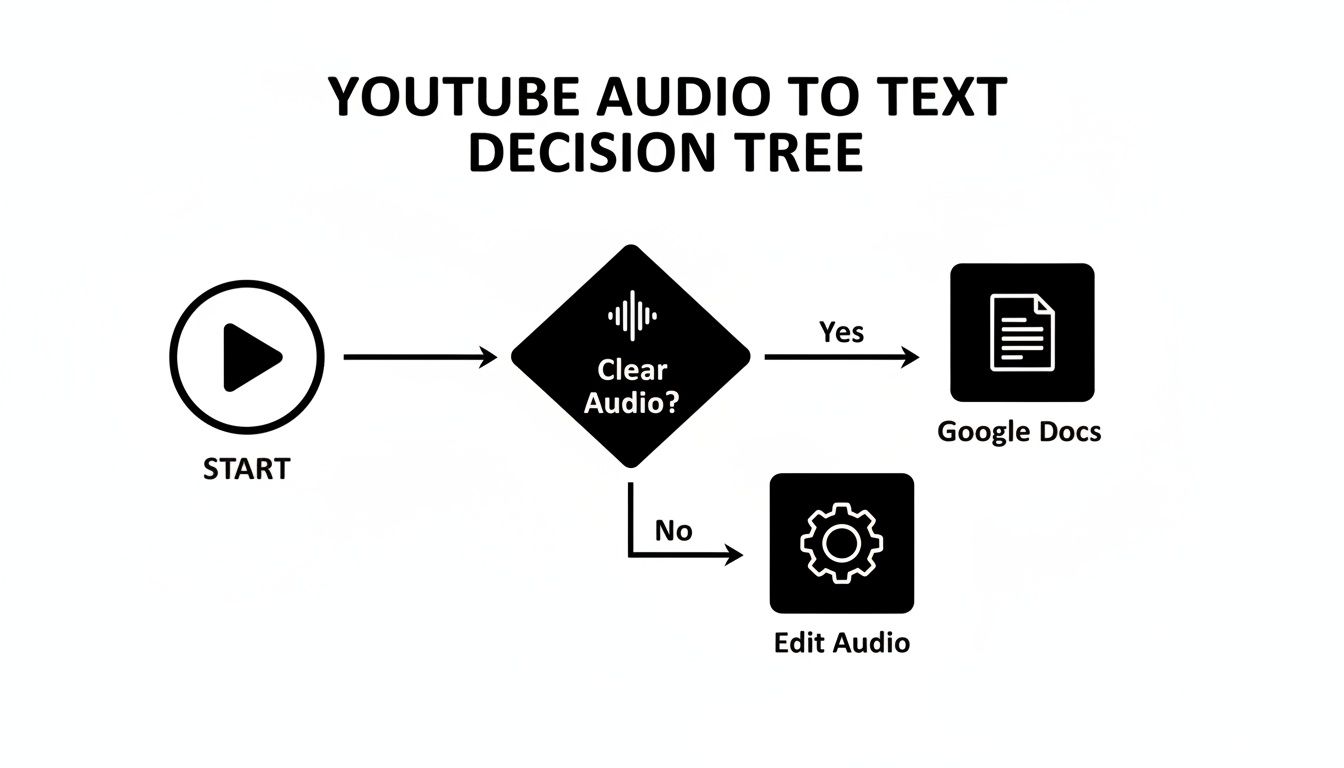
As the flowchart shows, if your audio is anything less than crystal clear, a specialized tool is almost always a better choice than wrestling with something like Google Docs' voice typing.
Why AI Tools Are a Massive Productivity Hack
The efficiency boost you get from an AI-powered tool is staggering. Imagine saving 80-95% of your transcription time. Manually typing out a one-hour video can take a professional 4-6 hours, but a good AI tool gives you a working draft in just a few minutes.
This is a huge advantage for the 40% of people who identify as content creators, especially when you consider that over 500 hours of new content are uploaded to YouTube every single minute.
The core benefit here is efficiency without compromise. You get a near-perfect transcript in record time, letting you jump straight to the creative part: turning that content into something new and valuable.
Before settling on one tool, it’s helpful to see what else is out there and how they stack up.
Feature Comparison of Top Free Transcription Tools
To give you a clearer picture, here's a quick comparison of what you can expect from the free tiers of some popular transcription tools. This helps highlight where you get the most value for your time.
| Tool | Free Limit | Key Features in Free Tier | Best Use Case |
|---|---|---|---|
| Meowtxt | 15 minutes | 97.5% accuracy, speaker ID, multiple export formats (TXT, SRT, DOCX), no sign-up needed. | Quick, high-accuracy transcripts for repurposing content or creating captions. |
| Otter.ai | 300 monthly minutes (30 min/convo) | Real-time transcription, speaker ID, keyword summaries. | Transcribing live meetings, lectures, or interviews for searchable notes. |
| Happy Scribe | 10 minutes (one-time) | Interactive editor, multiple export options, speaker identification. | A one-off project where you need a good editor to clean up the transcript. |
| Descript | 1 hour (one-time) | Video editing features, speaker labels, filler word removal. | Podcasters or video creators who want to edit their media using the transcript. |
This table makes it clear that while many services offer a free trial, the features and limits can vary wildly. It's always worth checking what's included before you commit to uploading.
As you explore these powerful transcription services, think about how they fit into your larger workflow. Integrating them with other video content creation tools can help you build a much more efficient content engine from start to finish. For more tips on getting started, our guide on how to convert audio to text online free covers even more platforms and techniques.
Pro Tips for Improving Your Transcription Workflow
Getting that first draft from a YouTube video to text transcription free tool is a huge win, but the real magic happens during the editing process. An efficient workflow is what separates a frustrating, hours-long task from a quick and painless one.
Trust me, refining a transcript is a skill. And instead of just jumping in to fix errors as you spot them, a little structure can save you a world of hurt.
Adopt the Two-Pass Editing System
One of the most effective methods for editing transcripts is the "two-pass" system. It breaks the process into two distinct phases, each with a clear goal.
First Pass: Focus on Accuracy. On your first read-through, listen along with the audio. Your only job here is to fix the raw text—obvious typos, spelling mistakes, and words the AI got wrong. Don't get bogged down with grammar or punctuation yet. Just focus on making the words match what was said. This keeps you moving fast.
Second Pass: Focus on Context. Now, go back to the top. This is where you polish the text. Add the correct punctuation, break up long, rambling sentences into clean paragraphs, and ensure the whole thing flows naturally and makes sense.
This system is fantastic because it stops you from getting stuck on tiny details right away. You tackle the big accuracy problems first, then come back for readability. It's so much faster and less overwhelming.
Speed Up Your Workflow with Smart Tactics
Beyond the two-pass method, a few insider tricks can seriously speed things up. These are the small habits that make a massive difference.
First, create a personal glossary. If your videos often mention specific technical terms, brand names, or people's names that AI tends to mishear, keep a running list. Before you even start editing, you can use your text editor's "Find and Replace" function to fix every instance of a common mistake in one click.
Another game-changer is using placeholder tags. When you hit a word or phrase you just can't make out, don't stop and rewind ten times. Just drop in a quick note like [unclear 10:25] and keep going.
This simple technique is incredible for maintaining momentum. It lets you finish your first accuracy pass without constantly stopping and starting. Once you're done, you can circle back and deal with all the unclear spots at once, which is far more efficient.
By combining a structured system with these practical shortcuts, you can turn a messy, machine-generated script into a polished, professional document in record time.
Got Questions About Free YouTube Transcription?
Once you start pulling transcripts using these free methods, a few questions always come up. Let's tackle the most common ones so you can move forward confidently.
Is It Legal to Transcribe Any YouTube Video?
This is a big one, and the short answer is: it all comes down to copyright.
If you’re transcribing your own videos, you're in the clear. It’s your content, your intellectual property. Go for it.
Things get a little gray when you transcribe someone else's video. For personal use—like taking private notes for a research project or studying a lecture—you're generally fine. This is often considered "fair use."
The real trouble starts if you try to republish that transcript. Never post a full transcript of someone else's work on your own blog, website, or social media without their explicit, written permission. That's a fast track to copyright issues.
How Do I Transcribe a Video in Another Language?
YouTube’s own transcript tool does technically support multiple languages, but the results can be a real mixed bag. Accuracy often plummets with less common languages or strong regional accents.
For a much more reliable result, your best bet is a dedicated AI service built for multilingual transcription. The top tools will accurately transcribe the video in its original language first, then offer a separate feature to translate it. This is a game-changer for creators trying to reach a global audience or researchers working with international content.
Key Takeaway: While YouTube's built-in tool is a starting point for different languages, a specialized AI service gives you the accuracy needed for any serious project. Being able to transcribe and translate in one place is a massive workflow upgrade.
What Is the Best Transcript File Format?
The "best" format really depends on what you plan to do with the text. There’s no single right answer, just the right tool for the job.
Here are the two you'll encounter most often:
- .TXT (Plain Text): This is your workhorse. It's perfect for pasting into a blog post draft, pulling quotes for an article, or just storing clean notes. It’s simple, universal, and gets the job done.
- .SRT (SubRip Subtitle): This is the industry standard for video captions. It's a text file that includes precise timestamps, telling the video player exactly when to show each line of text. If your goal is to create captions to upload back to YouTube, you absolutely need an SRT file.
Any good transcription tool will let you export in both formats, giving you the flexibility for pretty much any task.
Can I Really Get Professional Accuracy for Free?
You can get remarkably close without spending a penny. The secret is a simple, two-step hybrid approach.
First, run your video through a high-quality AI transcription tool with a generous free tier. This does the heavy lifting in minutes and can easily get you 95% of the way there, sometimes even higher.
Then, do a quick manual cleanup yourself. Just play the audio while reading the transcript and fix any awkward phrasing, proper nouns, or industry jargon the AI might have missed. This blend of AI speed and a final human touch delivers a professional-quality result without the professional price tag.
Ready to see what professional-grade accuracy feels like? Meowtxt gives you 15 minutes of free transcription with 97.5% accuracy, automatic speaker labels, and multiple export options. Turn your YouTube videos into perfect text in minutes—no credit card or sign-up needed. Try it now at meowtxt.com.


