
Ever recorded a brilliant idea on the fly, only to have it disappear into a sea of unlabeled audio files? We've all been there. The fastest way to rescue those thoughts is to convert your voice memo to text using an automated service, which can turn your spoken words into searchable, editable content in seconds.
Why You Should Convert Voice Memos to Text
It’s a classic scenario: you have a moment of inspiration while walking the dog or driving, so you grab your phone and record a quick voice memo. But what happens next? Too often, that brilliant idea gets buried in a long list of audio files, making it nearly impossible to find when you actually need it.
When you convert your voice memos to text, you transform those fleeting thoughts from forgotten audio clips into actionable assets. Suddenly, your ideas are searchable, easy to edit, and simple to share with your team. This isn't just a minor convenience; it's a fundamental shift in how you can capture and act on your own insights.
Unlock the Value Trapped in Your Recordings
For professionals and creators, turning audio into text is a massive productivity hack. Imagine quickly converting a scattered brainstorming session into an organized project brief. Or think about pulling key quotes from an interview without hitting rewind a dozen times. This one small step unlocks the hidden value trapped inside every recording you make.
The benefits are immediate and practical:
- Find Anything, Instantly: Instead of scrubbing through hours of audio, you can use a simple text search (Ctrl+F or Command+F) to pinpoint specific information in seconds.
- Share and Collaborate with Ease: Text is universal. You can easily copy and paste key takeaways into emails, project management tools like Asana or Notion, or shared documents for your team.
- Make Your Content Accessible: A text transcript opens up your content to a wider audience, including individuals who are deaf or hard of hearing.
- Jumpstart Content Creation: A transcript is the perfect foundation for blog posts, social media updates, articles, or video scripts. It saves you from ever having to start from a blank page again.
The real power of transcribing voice memos lies in making your spoken ideas tangible. It bridges the gap between a thought and its execution, turning abstract concepts into concrete plans you can act on.
The technology that makes all of this possible has come a long way. The journey from room-sized research systems to the near-instant speech-to-text tools on our phones took about seven decades. Back in 1952, Bell Labs’ “Audrey” system could barely recognize digits spoken by a single person. By the 2010s, modern systems were achieving word error rates below 5%, rivaling human accuracy and making the automatic conversion of voice memos a daily reality. You can learn more about the evolution of speech to text technology that put these powerful tools in our pockets.
How to Get Clean Audio for Accurate Transcription
The golden rule of transcription is brutally simple: garbage in, garbage out. No matter how sophisticated the software, it's going to stumble over muffled, noisy audio. A few minutes of prep before you hit record can literally save you hours of painful editing later on.
The biggest enemy of a clean recording is background noise. You might tune out the low hum of an air conditioner or the distant rumble of traffic, but a sensitive microphone won't. These sounds are in direct competition with your voice, forcing transcription AI to make educated guesses—and it often guesses wrong.
Find Your Quiet Space
Your first move, and the most effective one by far, is to find a quiet place to record. This doesn't mean you need a professional studio. A small room with plenty of soft furnishings—think carpets, curtains, or even a closet packed with clothes—can work wonders. These materials absorb sound and kill the echo.
Steer clear of rooms with hard, reflective surfaces like kitchens and bathrooms. They create a ton of reverb that muddies your voice. Simply moving to a better spot is the single biggest upgrade you can make, often boosting transcription accuracy by 10-15% without spending a dime.
Optimize Your Microphone Technique
Once you’ve found your quiet corner, the way you speak into the mic matters a lot. Consistency is the name of the game, whether you're using your phone's built-in mic or an external one.
- Keep a Consistent Distance: Aim to keep your mouth about six to eight inches from the microphone. Get too close, and you'll get nasty "plosives"—those harsh pops from words with "p" and "b" sounds. Too far, and your voice will sound thin and lost.
- Speak Clearly and Naturally: Don't rush it. Speak at a steady, conversational pace. Enunciating your words clearly gives the software the best possible shot at getting it right.
The goal is clarity, not volume. Yelling into the microphone just causes distortion, making the transcription worse. A calm, consistent tone is what you're after.
Making sure your audio quality is pristine is non-negotiable for accurate transcription, whether it's a quick voice note or a recording from professional high-quality call recording features.
Know When to Upgrade Your Gear
For quick notes to yourself, your smartphone's built-in microphone is surprisingly decent. But if you’re recording important interviews, lectures, or anything you plan to publish, a small investment in an external mic will pay for itself almost immediately.
A simple lavalier (lapel) mic that clips to your shirt can cost as little as $20 and will dramatically improve your audio by isolating your voice from the environment. For a deeper dive into microphones and software tweaks, check out our guide on how to improve audio quality for transcription. This small upgrade makes your voice the star of the show, which in turn makes converting that voice memo to text far more reliable.
Turning Voice Memos Into Text on Your Phone
Alright, your audio is prepped and ready to go. So, how do you actually turn that recording into text? The good news is you don't need a fancy studio setup. The powerful computer you carry in your pocket is more than up for the task. Whether you're on an iPhone or an Android, there are straightforward ways to get this done in just a few taps.
This whole process has become incredibly easy thanks to the rise of smartphones and cloud computing. Automatic speech recognition (ASR) tools, once the stuff of science fiction, are now baked into our daily lives. It all started with assistants like Siri and Google Assistant and has since exploded, turning voice-to-text into a standard feature. Find out more about the short history of the voice revolution on voicebot.ai and see how we got here.
Quick Transcription for iPhone Users
If you're an iPhone user, there's a simple and effective method built right into iOS. While the native Voice Memos app doesn't have a big "Transcribe" button, you can use a clever workaround with another app you already have.
It's a low-tech trick, but it works surprisingly well for short notes:
- Open your recording in the Voice Memos app and play it on speaker.
- At the same time, open the Notes app, create a new note, and tap the little microphone icon to start dictation.
Your phone will essentially "listen" to itself and type out what it hears. It’s a scrappy but effective way to capture the gist of a short idea. For anything longer or more important, you'll want to turn to a dedicated app like Otter.ai or Just Press Record to get higher accuracy and handy features like speaker identification.
Powerful Tools on Android Devices
Android users, especially those with a Google Pixel phone, have a killer tool right out of the box: the Google Recorder app. This app is a game-changer. It not only records clean audio but also transcribes it in real-time, offline, with frighteningly good accuracy.
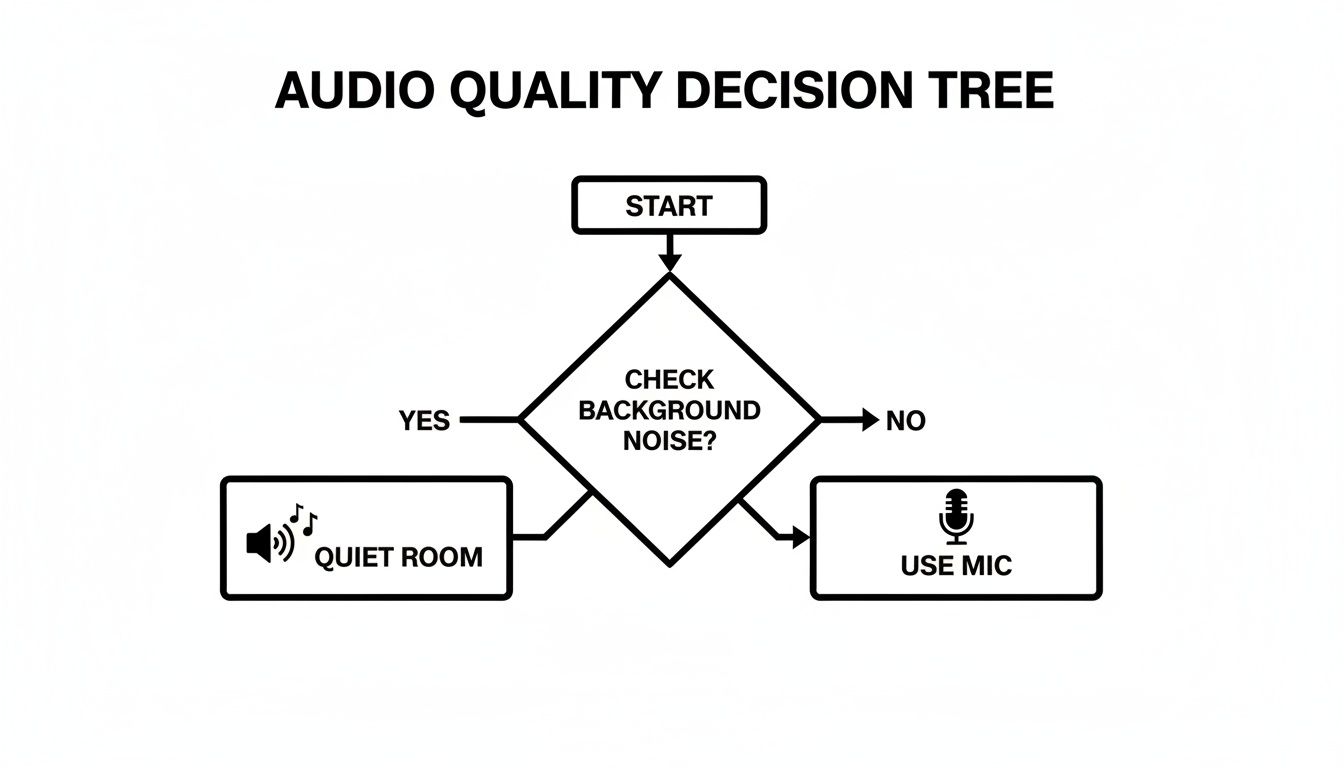
The flowchart above really nails the first step for getting clean audio on any device. Your environment is everything.
If you don't have a Pixel, don't worry. The Google Play Store is packed with excellent transcription apps. Tools like Speechnotes and Voice Notes offer reliable performance and support for multiple languages. The workflow is pretty much the same across the board:
- Record a new memo right in the app or import one you already have.
- The app will process the audio and spit out an editable text transcript.
- From there, you can share the text to your email, cloud storage, or any other app.
The real magic of using a dedicated mobile app is how seamless it is. You can go from a spoken thought to a shareable document in less than a minute, all without leaving your phone.
Comparing On-Device vs. Cloud Transcription Methods
When you're deciding how to transcribe, you're essentially choosing between two paths: using the built-in dictation features on your phone or uploading your file to a specialized cloud service. Each has its pros and cons, and the best choice really depends on what you need.
Here’s a quick breakdown to help you decide.
| Feature | On-Device Transcription | Cloud Transcription Service |
|---|---|---|
| Accuracy | Good for simple notes, but struggles with complex audio | Generally higher, especially with multiple speakers |
| Speed | Real-time or very fast for short clips | Processing can take a few minutes for longer files |
| Cost | Usually free (built into the OS) | Often has a free tier, then pay-per-minute or subscription |
| Privacy | High (processing happens on your device) | Depends on the service; check their privacy policy |
| Advanced Features | Basic text output only | Speaker ID, timestamps, summaries, various export formats |
| Best For | Quick personal notes, reminders, rough drafts | Interviews, meetings, lectures, content creation |
In short, on-device tools are fantastic for speed and convenience with simple tasks. But for anything that requires high accuracy, speaker labels, or other advanced features, a dedicated cloud transcription service is almost always the better bet.
Using Desktop Tools for Complex Transcription Tasks
While your phone is perfect for capturing a quick thought on the go, your desktop is the real workhorse when the stakes are higher. For lengthy interviews, meetings with a dozen different voices, or any project where accuracy is the top priority, desktop and cloud-based tools offer a level of precision that mobile apps just can't touch.
These platforms are built for heavy lifting. They chew through massive audio files without murdering your phone's battery and typically run on more sophisticated AI models. The result? A much cleaner first-draft transcript, which is a lifesaver when you're dealing with complex vocabulary, industry jargon, or speakers who can't stop talking over each other.
Powerful Cloud Transcription Services
The easiest way to get started is with a cloud-based service that has a simple drag-and-drop uploader. You just take your audio file—whether it's an MP3, WAV, or M4A—and let their servers handle the rest. In a few minutes, you get back a detailed transcript packed with features that slash your editing time.
These services really shine at a few key tasks:
- Speaker Identification: They can tell the difference between people talking and label the dialogue ("Speaker 1," "Speaker 2"). This is an absolute game-changer for transcribing interviews or meeting minutes.
- Timestamps: Most platforms add clickable timestamps to the text. If something sounds off, you can instantly jump to that exact spot in the audio to check it.
- Custom Vocabulary: Some of the more advanced tools let you upload a list of specific names, acronyms, or technical terms to teach the AI what to listen for, boosting its accuracy right out of the gate.
If you're looking to see what's out there, our guide on the best audio to text converter tools gives a detailed rundown of the top services available today.
Hidden Transcription Features You Already Have
You might not even need a specialized service for every task. In fact, some of the most popular apps on your computer have surprisingly good voice-to-text features hiding in plain sight. They’re fantastic options when you need a quick, no-frills transcription without signing up for something new.
For example, Google Docs has a "Voice typing" feature (under the Tools menu) that is remarkably accurate. You can just play your voice memo out loud near your computer's mic and watch Docs type it out in real time. It's a simple trick, but it gets the job done for turning spoken words into an editable document.
Likewise, Microsoft Word offers a "Dictate" function that works in a similar way. The web version of Word takes it a step further with a "Transcribe" feature, which lets you upload an audio file directly for an automated transcription, complete with speaker labels.
The real advantage of using desktop tools is control and precision. Whether it's a dedicated cloud platform or a feature in your word processor, you get more power to handle complex audio and produce a polished, professional transcript.
Ultimately, the right tool depends on the job. For a quick solo brainstorming session, the dictation feature in Word or Docs might be all you need. But for that critical client interview with three different people, investing in a dedicated cloud service will save you a world of time and frustration, giving you a far more accurate and usable transcript from the start.
Polishing Your Transcript for Maximum Accuracy
Once you convert your voice memo to text, what you get back from an AI is an incredible head start. But it's almost never the finished product. Think of it as a talented assistant who gets the bulk of the work done in seconds but still needs a human eye to catch the subtle mistakes.
This editing pass is what turns a good transcript into a great one. It’s a lot like the final polish needed when adding captions to videos—the goal is to transform the AI's raw output into a document that's reliable, readable, and ready to use.
Common AI Transcription Errors to Watch For
Even the smartest automated systems have predictable blind spots. As you’re proofreading your text, keep a sharp eye out for these common slip-ups. Spotting them is the key to creating a professional-grade document.
- Proper Nouns and Jargon: AI often stumbles over unique names of people, companies, or niche industry terms. It might hear "Meowtxt" but spit out "meow text."
- Homophones: Words that sound alike but have different meanings are a classic source of error. Think "their," "there," and "they're" or "to," "too," and "two."
- Punctuation and Paragraphs: The AI's grasp of punctuation can be hit-or-miss. You'll often find long, run-on sentences or giant walls of text that are missing paragraph breaks.
- Crosstalk: When multiple people speak at once, the AI can get confused and mash their words together into nonsensical phrases.
For a deeper dive into the art of cleaning up AI-generated text, our guide on proofreading in transcription offers even more specific tips.
Balancing Speed with Precision: The Human-in-the-Loop Model
While AI transcription has improved by leaps and bounds, it still has its limits. Back in the 1990s, it wasn't uncommon for transcription software to have a Word Error Rate (WER) of over 20%. Today, the best models can dip into single-digit WERs under perfect lab conditions.
But for a typical voice memo—with a bit of background noise, an accent, or some mumbling—a more realistic accuracy rate is somewhere around 70–85%.
This accuracy gap is exactly why so many professional workflows now rely on a "human-in-the-loop" model. The process is simple: an automated service handles the initial heavy lifting, getting 80–95% of the words right, and then a human proofreader swoops in to review and correct the rest.
For mission-critical tasks like legal depositions, academic research, or client-facing reports, layering AI with a human review is a smart investment. It combines the raw speed of automation with the nuance and accuracy of a human expert, giving you the best of both worlds.
Voice Memo Transcription: Your Questions Answered
Even with the best tools, you’ll probably have a few questions when you first start turning voice recordings into text. Let's tackle the most common ones we hear, with some quick, straightforward answers to help you find the right method and fix any hiccups along the way.
What Is the Best App to Convert Voice Memos to Text?
The "best" app really boils down to what you're doing and what you value most.
If you’re on Android, especially with a Google Pixel, the built-in Google Recorder is a powerhouse. Its accuracy is phenomenal, and it transcribes in real-time, even offline. For sheer convenience and quality on that platform, it’s tough to beat.
For iPhone users, the built-in dictation is fine for super short notes, but a dedicated app like Otter.ai is usually the top pick. It’s brilliant at identifying different speakers and has a generous free plan, which makes it perfect for transcribing meetings or interviews. The best app is always the one that fits your workflow, budget, and how accurate you need it to be.
Can I Transcribe a Voice Memo for Free?
You absolutely can. There are a few excellent ways to get your audio into text without spending a dime.
The most direct, old-school method is using your phone's built-in dictation. Just play your voice memo out loud on a speaker and let your phone's keyboard "listen" and type it out in a notes app. It works surprisingly well in a quiet room.
For a more hands-off approach, many top-tier transcription services have free plans. Services like Otter.ai or Descript give you a certain number of free transcription minutes every month. This is often more than enough for the occasional short voice memo, making it a perfect starting point.
Most free options are surprisingly solid for personal use. They let you see what automated transcription can do and help you decide if you really need to upgrade for more frequent or complex jobs.
How Long Does It Take to Transcribe a Voice Memo?
The speed of automated transcription is where it really shines. For most AI services, the process is dramatically faster than the audio file's runtime. A typical 10-minute voice memo can often be fully transcribed in less than a minute.
Of course, this can vary a bit depending on how busy the service's servers are and the total length of your file. But when you compare it to the painstaking hours it takes to type something out by hand, AI transcription feels almost instant. This quick turnaround is what makes it so practical for daily use, letting you act on your ideas right away. It's a total game-changer when you need to quickly convert a voice memo to text on a tight deadline.
Ready to turn scattered audio notes into organized, actionable text? Meowtxt offers a simple, powerful solution. Just drag and drop your file, and get a highly accurate transcript in minutes. Start for free and see how easy it can be to unlock the value in your voice memos. Try Meowtxt today!


