
Turning a video file into an audio-only MP3 is a surprisingly handy skill. At its core, you're just stripping the audio track out of an MP4 video and saving it as its own lightweight file. This is perfect for grabbing songs from music videos, saving lectures to listen to later, or turning a video interview into a podcast episode. Many people find they need to convert mp4 to mp3 format for all sorts of everyday projects.
Real-World Reasons to Convert MP4 to MP3 Format
Ever watched a live music performance on YouTube and wished you could add that specific version to your workout playlist? Or maybe you sat through a brilliant webinar and wanted to save just the audio to catch up on during your commute. These aren't niche technical problems; they're everyday situations where knowing how to convert MP4 to MP3 format becomes incredibly practical.
Beyond Personal Playlists
For your own use, the benefits are immediate and obvious. You can build a custom audio library from your favorite video clips, save just the sound from old family videos, or turn long video essays into something you can listen to like a podcast.
This simple conversion makes your media far more portable. You can listen anywhere, without needing to keep your screen on and drain your device’s battery.
A huge driver for this is smart content repurposing. For creators, finding effective strategies for repurposing content is key, and turning video into audio opens up entirely new platforms.
Key Takeaway: Converting video to audio isn't about deleting the visuals. It's about unlocking the audio for new uses, making your content more flexible and accessible, whether you're the creator or the consumer.
A Game-Changer for Creators
For anyone making content, this process is even more of a game-changer. It’s a core part of a modern content strategy, letting you squeeze maximum value from a single piece of work.
Here are a few quick examples:
- Podcast Creation: A video interview or a livestream can be instantly transformed into a new podcast episode for platforms like Spotify and Apple Podcasts.
- Social Media Clips: You can pull short, punchy audio clips from longer videos to create engaging Reels, Shorts, or other social posts.
- Accessibility: Offering an audio-only version of your video is a great way to serve audiences who prefer listening or who may have visual impairments.
This widespread need has created a massive market. The task of converting MP4s to MP3s is so common that industry reports estimate the market for audio format converters is roughly ~60 million units sold or installed each year in the US and Western Europe alone. You can dig into the data on the audio converter market to see the full picture.
Before we jump into the "how," understanding these practical "whys" makes the whole process much more meaningful.
Choosing the Right Tool: Online vs. Desktop Software
So, you need to convert an MP4 to an MP3 format. The first big decision is how you’re going to do it. You've basically got two paths: using a quick web-based tool or installing a dedicated piece of software on your desktop.
There’s no single “best” answer here. The right choice really boils down to what you need at this very moment.
Online Converters: The Fast and Easy Route
Online converters are all about speed and convenience. Got one small video file and need the audio right now? A web tool is almost always your fastest bet. There's nothing to install, and the whole process is usually just a few clicks.
But that convenience comes with a few strings attached. Most free online services put a cap on file sizes, so that two-hour podcast recording or long lecture you want to convert is probably a no-go. The bigger issue, though, is privacy. You're uploading your file to someone else's server, which is a real concern if the content is sensitive or confidential.
Desktop Software: Power, Privacy, and Control
On the other side of the fence, you have desktop applications. This is where you get serious control, power, and security. Because everything happens locally on your computer, file size limits are a thing of the past, and your data never leaves your machine.
This is the only way to go if you're dealing with more than a couple of files. Desktop apps almost always include batch conversion, letting you drag in an entire folder of videos and convert them all in one shot. That feature alone is a massive time-saver. You also get granular control over audio settings like bitrate and sample rate—details most online tools just don't offer.
To help you visualize the decision, this flowchart maps out the choice between a quick personal task and a more professional, demanding project.
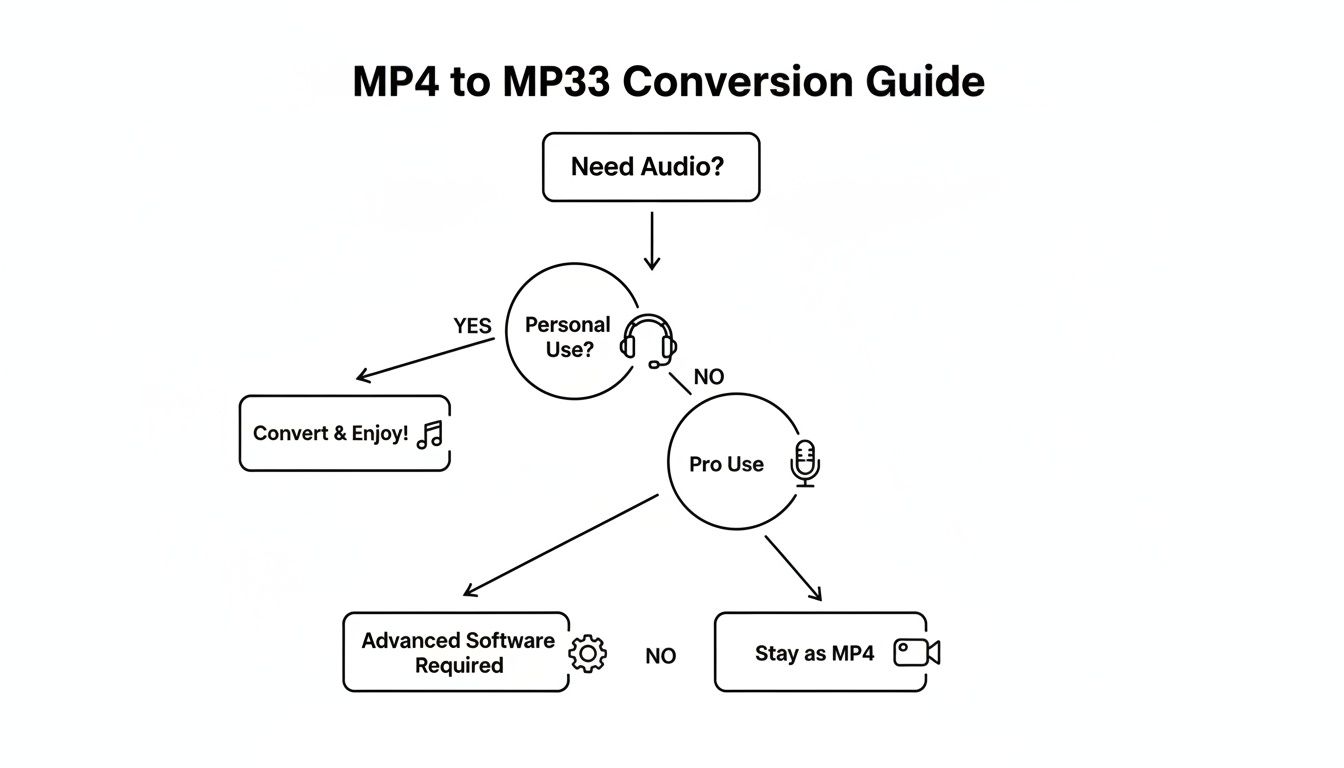
As you can see, for a simple, one-off conversion, an online tool gets the job done. For anything more—especially professional work or high-volume tasks—desktop software is the clear winner.
Online Converters vs Desktop Software at a Glance
To make the choice even clearer, let's put them head-to-head. This table breaks down the key differences so you can quickly see which approach fits your needs.
| Feature | Online Converters | Desktop Software |
|---|---|---|
| Speed | Excellent for single, small files | Faster for large files and batch processing |
| Convenience | Highest—no installation required | Lower—requires one-time download and install |
| File Size Limit | Often have strict limits (e.g., under 100 MB) | Virtually unlimited; depends on your hard drive |
| Privacy | Potential risk; files uploaded to third-party servers | Maximum security; files never leave your computer |
| Advanced Options | Basic; usually limited to just format selection | Extensive control over bitrate, channels, and more |
| Best For | Quick, one-off tasks with non-sensitive files | Large files, multiple files, and quality-focused work |
Ultimately, choosing between online and desktop tools depends entirely on the job at hand. Neither is objectively "better," but one will always be a better fit for your specific task.
It's also worth noting that video file conversion isn't just about audio. Sometimes you need to switch between video formats, too. For instance, this helpful guide on converting MP4 to MPEG walks through different software options, from command-line tools to more user-friendly apps, helping you pick the right tool for that kind of video project.
My Takeaway: You don't have to pick a side forever. I personally use online tools for urgent, one-off tasks and keep a reliable desktop app installed for bigger, more complex projects. This hybrid approach gives you the best of both worlds.
Using Online Converters for Instant Results
When you need to rip the audio from a video file right now, nothing beats an online converter. They're built for speed and simplicity.
Forget installing software. You just open a website, upload your MP4, and get an MP3 back in seconds. It all happens right in your browser, making it the perfect tool for quick, one-off jobs on any device—desktop, tablet, or phone. This is my go-to method for grabbing the audio from a short clip or a meeting recording when I don't want to open up a heavy-duty app.
A Simple Walkthrough with an Online Tool
Most online converters follow the same dead-simple workflow. Let’s use the MeowTXT Converter as a prime example, as it’s designed for this exact purpose, but the steps are pretty universal. It’s a basic three-part process: upload, choose your format, and download the result.
The interfaces are usually clean and self-explanatory, designed to get you from video to audio in under a minute without digging through confusing menus.
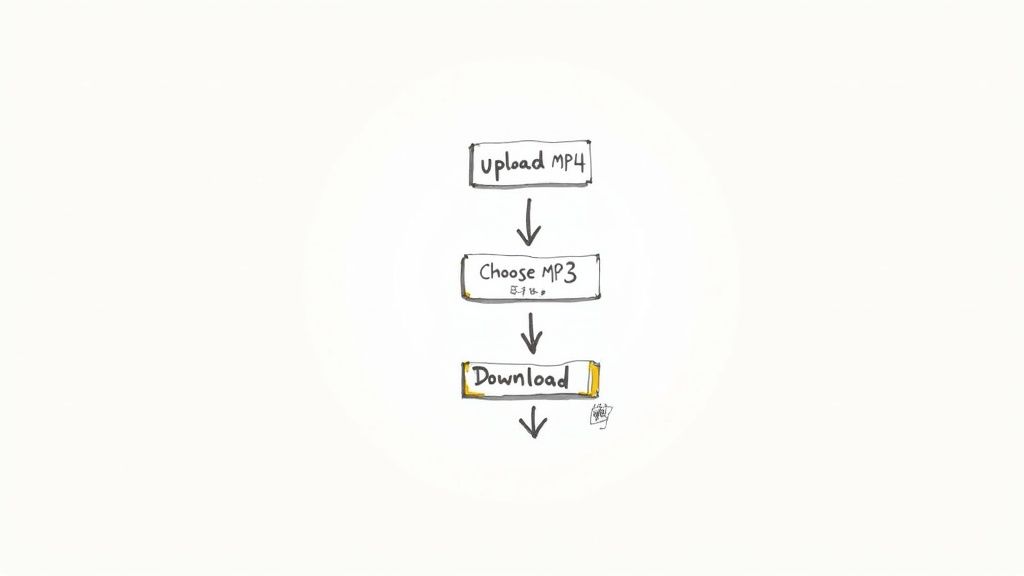
This process almost always looks like this:
- Upload Your File: First, you’ll hit a button like "Choose File" or "Upload" to grab the MP4 from your device. Many modern sites also let you just drag and drop the file directly onto the page.
- Select MP3 as the Output: Next, the site will ask what you want to turn it into. Just pick MP3 from the list of audio options.
- Convert and Download: Finally, click the "Convert" button. The website's servers do the work, and a few moments later, a download link for your brand-new MP3 file pops up.
It really is that straightforward. If you're specifically trying to pull audio from YouTube, there are tools built just for that. We have a whole guide on finding the best YouTube to MP3 converter to fit your needs.
Best Practices for Safe Online Conversion
Online converters are incredibly handy, but remember where your file is going—onto a third-party server. Because of this, it pays to be a little cautious, especially when it comes to privacy and security.
Key Takeaway: Always think about your digital safety. A few seconds checking a site's policy can prevent a lot of headaches. If a video is personal, confidential, or sensitive, just use a desktop app. It's the safer bet.
Here are a few tips I always follow to stay safe:
- Check the Privacy Policy: Any reputable service will clearly state how it handles your files. Look for a promise that your uploaded files are automatically and permanently deleted from their servers after a few hours.
- Don't Upload Sensitive Content: My rule of thumb is simple: never upload anything you wouldn't want to see leaked online. This includes private family videos, confidential work meetings, or anything else you’d rather keep private.
- Use an Ad Blocker: Many free tools are funded by ads, and some can be pretty aggressive or even misleading. A good ad blocker makes the experience much cleaner and safer.
- Scan Your Downloads: Before you open that new MP3, give it a quick scan with your antivirus software. It's a simple step that adds an extra layer of protection.
By keeping these guidelines in mind, you can take full advantage of the speed and convenience of online tools without putting your data at risk.
Go Desktop for Max Control and Quality
When you need serious control over the final audio, desktop software is the clear winner. For jobs where quality, security, and specific settings really matter, nothing beats an application installed right on your computer. Web-based tools just can't compete on that level. This is the way to go when you need to convert mp4 to mp3 format with precision.
One of the best-kept secrets in media conversion is a tool you probably already have: VLC Media Player. Most people know it as the player that handles literally any video format you throw at it, but it also packs a surprisingly powerful conversion engine under the hood. It’s my go-to for large files, sensitive content, or any time I need to nail the audio quality.
Taking the Reins on Audio Quality
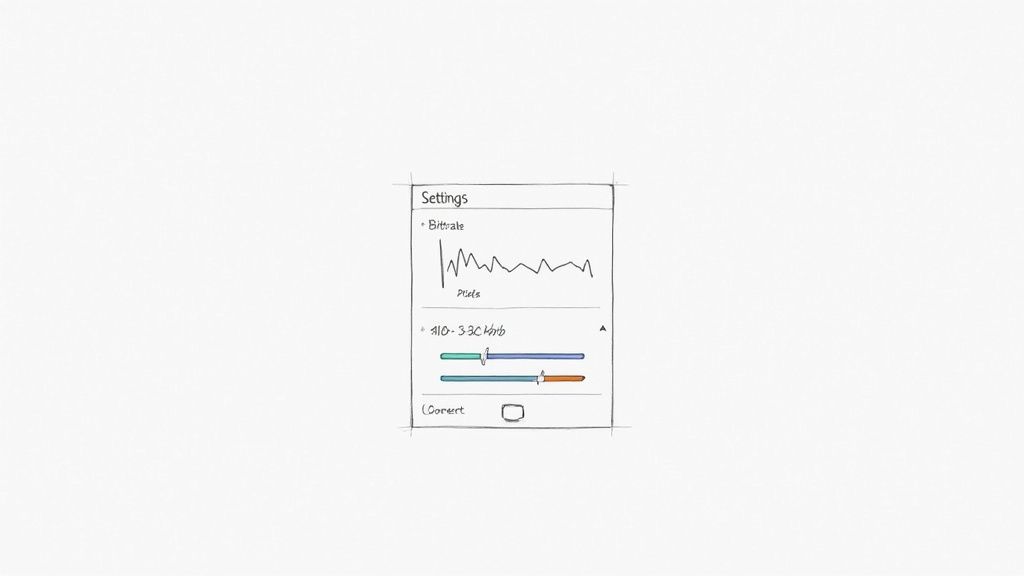
The single biggest reason to use desktop software is the ability to fine-tune your audio output. Forget one-size-fits-all presets; here, you can tailor the MP3 to your exact needs. The most critical setting you'll want to adjust is the audio bitrate.
Think of bitrate as the amount of data used to create one second of sound, measured in kilobits per second (kbps). More data means better quality—and a bigger file.
- 128 kbps: This is pretty standard stuff. It’s a solid balance for podcasts or lectures where you need a small file that's easy to share.
- 192 kbps: You'll hear a noticeable jump in quality here without bloating the file size too much. This is my sweet spot for most music.
- 320 kbps: This is the ceiling for MP3 quality, delivering sound that’s nearly indistinguishable from a CD. Use this when audio fidelity is everything.
Picking the right bitrate has a massive real-world impact. As an example, the technical economics show that a three-minute MP4 converted to a 128 kbps MP3 lands at around 3 MB. That same video converted at 320 kbps balloons to nearly 7.5 MB. For a service that handles millions of files, that choice could mean a difference of 40 terabytes in storage costs per year.
The Power of Working Offline and in Batches
Unlike online converters, desktop apps work entirely on your machine. This gives you two huge advantages: total privacy and the freedom to work from anywhere. Your files never leave your hard drive, which completely eliminates security concerns.
Pro Tip: Got a whole folder of video interviews for a podcast season? Batch conversion is your new best friend. Most desktop apps let you queue up dozens of files, hit "start," and walk away. The software just chews through them automatically, saving you hours of tedious manual work.
This offline capability also makes desktop software incredibly reliable. You're never at the mercy of a spotty Wi-Fi connection. Whether you're on a plane or in a coffee shop, your workflow doesn't stop. For more tips on getting the absolute best sound from your files, be sure to check out our guide on how to improve audio quality.
Why Are There So Many MP4 to MP3 Converters?
If you’ve ever Googled how to convert an MP4 to an MP3, you’ve seen it: a seemingly endless list of websites, desktop apps, and command-line tools all promising to do the same thing. It’s a crowded space, and it's easy to wonder why so many options exist for what feels like a simple task.
The short answer is massive, consistent demand. This isn't some niche utility for tech geeks. Stripping audio from video is a fundamental need for millions of people every day, fueling a surprisingly large and competitive software market.
The Creator Economy Runs on Repurposing
Content creators are a huge driver of this demand. Think about a YouTuber who records a two-hour video interview. By simply extracting the audio, they can instantly repurpose that same content into a podcast episode. This one simple conversion doubles their output, letting them reach a whole new audience on Spotify or Apple Podcasts with minimal extra effort.
It's the same story for educators and students. Video lectures get converted into audio-only files so students can study during a commute, at the gym, or while doing chores—no screen time required. This need is constant and crosses countless professions and hobbies.
A Surprisingly Big Business
This widespread demand has created a serious industry. The market for video and audio conversion tools was valued at around USD 1.2 billion in 2024. And it’s not slowing down; some forecasts predict the video converter market alone could hit USD 2.8 billion by 2032. You can dig into the numbers on the growth in the audio converters market to see the scale for yourself.
This isn't just a handful of free tools. It's a thriving business sector where both free, ad-supported services and paid, premium software have a steady flow of users.
Because the potential audience is so huge, developers are constantly building new tools to grab a piece of the pie. Some, like the online MeowTXT Converter, focus on speed and dead-simple convenience. Others pack in advanced features for professionals. This fierce competition is why you see so much variety, with each tool trying to carve out its own niche by catering to a specific need—be it batch processing, high-fidelity audio, or just getting the job done fast.
Common Questions About Converting MP4 to MP3
Even with the best tools, a few questions always seem to pop up when you convert mp4 to mp3 format. Let's tackle the most common ones I hear from people so you can get your conversions done right the first time.
Will Converting My File Reduce Audio Quality?
This is the number one question, and the answer is: it depends entirely on your settings. The MP3 format uses what’s called lossy compression, which means some audio data is intentionally discarded to shrink the file size.
But here’s the good news: this "loss" can be practically impossible to hear if you choose the right settings.
When you're exporting, shoot for a bitrate of at least 192 kbps. That’s the sweet spot for a great balance between quality and file size. If you're working with music or any audio where every detail matters, bumping it up to 320 kbps will give you a result that's nearly indistinguishable from the original for most listeners. Just remember, you can't add quality that wasn't there in the first place; you can only work to preserve what the original MP4 already has.
Is It Legal to Convert Any MP4 to MP3?
This is a big one, and it really boils down to copyright and what you plan to do with the audio.
- Your Own Stuff: If you recorded the video yourself—say, a lecture you gave or a personal family video—you're 100% in the clear. You own it, you can do whatever you want with it.
- Copyrighted Material: Here’s where it gets tricky. Ripping the audio from a music video or movie you don't own for your own personal listening often falls into a legal gray area (sometimes called "fair use"). But distributing or sharing those MP3s? That’s almost always a clear case of copyright infringement.
The Golden Rule: If you don't own the rights, don't share the file. Always respect the creators and copyright holders.
Why Is My Converted MP3 File Silent?
Getting a silent MP3 is frustrating, but it's usually an easy fix. The culprit is often the audio codec inside the original MP4 file. Some simple online converters just can't handle every audio stream out there.
If this happens, your first move should be to try a different tool. A heavy-hitter desktop app like VLC Media Player has much broader codec support than web-based tools and can often muscle through files that other converters choke on.
Another thing to check: some MP4s have multiple audio tracks (like different language options). Make sure your software is set to pull from the main audio track you actually want.
Can I Convert the Audio Back to Video?
Technically, yes, you can put an MP3 file into a video container like MP4. But you won't get your original visuals back. The conversion from MP4 to MP3 is a one-way street for the video data—it gets tossed out for good.
If you were to convert an MP3 back to an MP4, all you’d end up with is a black screen with your audio playing over it.
Once your audio is ready, the next logical step for many workflows is turning that speech into usable text. For a deep dive into that process, check out our guide on how to convert your MP4 files to text transcripts.


