
Turning your YouTube videos into text is one of the smartest things a creator can do. It's not just a technical step—it's a strategic move to multiply your content's value. When you convert a YouTube video to text, you're transforming spoken words into a searchable, editable document, unlocking huge benefits for SEO, viewer engagement, and repurposing.
Why Converting YouTube Videos to Text Is a Smart Move
Ever wonder how top creators seem to have an endless stream of content? The secret is often hiding in plain sight: transcription. The process to convert a YouTube video to text is about so much more than just captions. It’s about building a foundation for a smarter, more efficient content strategy.
This single action transforms your video into a multi-purpose asset. Suddenly, that 20-minute product review isn't just a video anymore. It's now a detailed blog post, a dozen social media updates, and a searchable resource for your audience. For marketers and educators, this is the key to expanding your reach without doubling your workload.
Unlock Your Video's Full Potential
The benefits of a YouTube video to text convert process touch every single part of your content's lifecycle. From the moment someone discovers your video to long after they've watched it, a text version is working tirelessly for you behind the scenes.
Here’s where you’ll see the biggest impact:
- Boost Your SEO: Search engines like Google can't "watch" your video, but they absolutely crawl and index text. A full transcript makes every word you say discoverable, helping you rank for long-tail keywords and specific phrases you mentioned.
- Increase Viewer Engagement: The data doesn't lie. Videos with accurate captions see a massive 12-13% boost in view counts. They also lead to 40% more total watch time, with viewers being 80% more likely to finish a video. These aren't just vanity metrics; they represent a more engaged, loyal audience.
- Effortless Content Repurposing: A transcript is a content goldmine. You can pull direct quotes for social media graphics, build an entire email newsletter from the key takeaways, or structure a detailed article in minutes. Check out our guide on content repurposing strategies to see just how far one transcript can go.
This decision-flowchart breaks down how turning videos into text directly fuels growth.
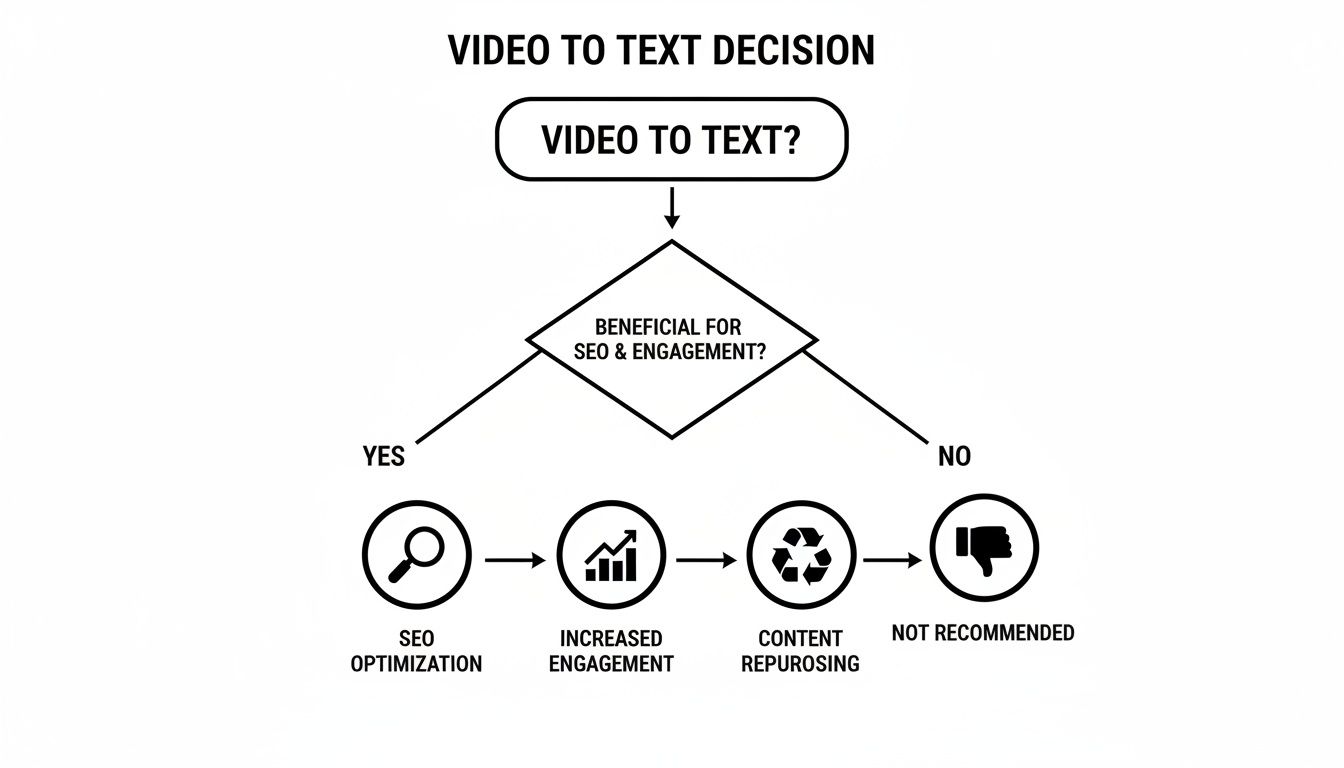
As the visual shows, embracing transcription isn't an extra task—it’s a direct path to measurable gains in SEO, engagement, and content diversification.
Making Your Content More Accessible
Beyond the marketing wins, transcription plays a critical role in making your content accessible to everyone. Viewers who are deaf or hard of hearing can finally understand your message fully through accurate captions.
It also helps people in sound-sensitive environments, like on public transit or in a quiet office. Captions allow them to consume your content without ever turning on the audio. Understanding the fundamentals of audio to text conversion is the first step to unlocking all this value from your YouTube library.
By ignoring transcription, you're not just missing out on SEO and repurposing opportunities; you're potentially excluding a significant portion of your potential audience who rely on text to engage with your videos.
Using YouTube's Built-In Transcript Feature
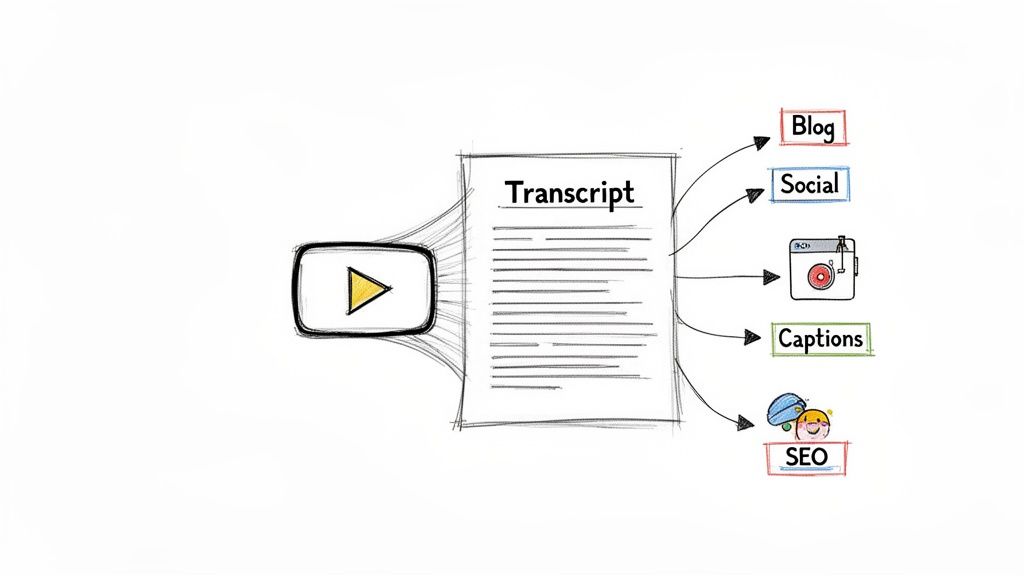
Sometimes the fastest way to convert a YouTube video to text is hiding in plain sight, right on the video page. YouTube’s built-in transcript feature is a powerful, if often overlooked, tool for getting a quick and completely free transcription.
This method is my go-to when I need a rough draft to start with, want to pull a specific quote, or just need to scan the content without re-watching a 20-minute video. For many everyday tasks, it's the most efficient starting point you'll find.
How to Find and Use YouTube Transcripts
Accessing the transcript is easy once you know where to look. Any video with captions enabled—which is most content these days, thanks to auto-generation—has a full text version available in just a couple of clicks.
Here's how to get your hands on it:
- Go to the YouTube video you want to transcribe.
- Look below the video player and click the three-dot menu (...) next to the "Share" and "Save" buttons.
- From the dropdown, simply select "Show transcript." A new panel will pop up right next to the video, showing you the entire time-stamped text.
This panel gives you a scrollable, searchable version of everything said in the video. It’s a game-changer that turns passive watching into an active, reviewable experience.
Cleaning Up the Raw Text for Better Readability
When the transcript panel opens, you’ll notice it's formatted with timestamps for every single line. While that’s great for creating captions, it makes the text a mess to read as a normal document. Thankfully, getting rid of them is simple.
In the transcript panel, click the three-dot menu at the top right and select "Toggle timestamps." Just like that, all the time markers vanish, leaving you with a clean block of text. From there, you can highlight it all, copy it, and paste it into Google Docs, Microsoft Word, or your preferred editor.
Pro Tip: After pasting, I always use the "Find and Replace" tool (Ctrl+H or Cmd+H). Search for paragraph breaks (in Word, it's usually
^p) and replace them with a single space. This little trick stitches the short, choppy caption lines into smooth, readable paragraphs.
The Honest Truth About Auto-Caption Accuracy
While the built-in feature is incredibly convenient, it's vital to be realistic about its limitations. YouTube's auto-generated captions usually hit an accuracy rate of around 60-70%. That means you should expect plenty of mistakes, especially with:
- Technical Jargon: Specialized terms and industry acronyms often get garbled.
- Multiple Speakers: The system doesn't label who is speaking, so conversations can become a jumbled mess.
- Accents or Fast Talkers: Strong accents or rapid-fire speech can really throw off the transcription.
Because of this, the raw output from YouTube is almost never ready for professional use without a heavy dose of editing. It's fantastic for personal notes or as a rough starting point, but always plan on a thorough proofread. For creators needing higher fidelity, tools like a YouTube Caption Generator can help refine the text or create new captions from scratch.
Think of the free transcript as a solid first draft, not the final product.
Switching to a Dedicated AI Transcription Service
While YouTube's built-in tool is a decent starting point, there comes a moment when "good enough" simply isn't.
For serious creators, marketers, and researchers, the need for precision, speed, and advanced features makes a dedicated AI transcription service the only real option. These platforms are built from the ground up to convert YouTube videos to text with an entirely different level of quality.
It's like the difference between a smartphone camera and a professional DSLR. Both take pictures, but one gives you the control, clarity, and reliability you need for high-stakes projects. This is where tools like Meowtxt shine, turning transcription from a tedious chore into a simple, efficient part of your workflow.
The Accuracy Advantage
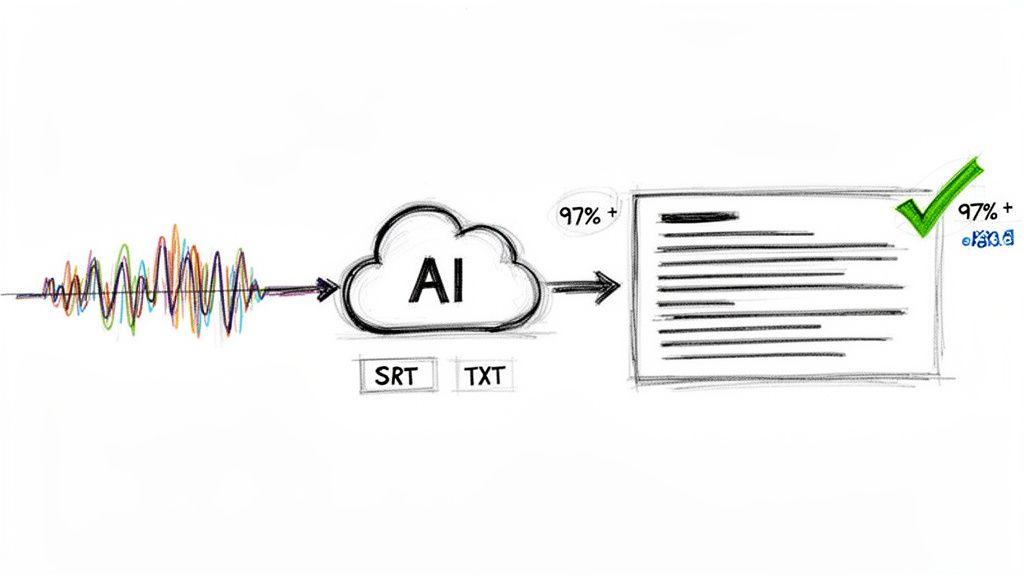
The biggest leap forward is accuracy. YouTube’s auto-captions are notoriously hit-or-miss, often hovering around 60-70% accuracy. Professional AI models, on the other hand, consistently deliver results in the 97%+ range.
That massive improvement means you spend far less time hunting down and correcting errors—and more time actually using your content.
This level of fidelity is non-negotiable when you're repurposing a video into a blog post, creating legal documentation, or generating frame-perfect subtitles. Imagine a marketing team turning a webinar into a searchable guide; every product name and statistic has to be perfect. The small investment in a dedicated service saves hours of manual proofreading.
It also directly impacts your audience. A stunning 96% of people have watched explainer videos to learn about a product, and 85% are often convinced to buy after viewing. Ensuring your message is transcribed perfectly is critical to capturing that value. You can check out more stats on video marketing effectiveness from Wyzowl's latest research.
Beyond Just Converting to Text
Professional services do more than just turn speech into words. They offer a suite of intelligent features designed to make the final transcript more organized, useful, and ready for any application.
Here’s a look at some of the most valuable features you can expect:
- Speaker Identification: This is a game-changer for interviews, podcasts, or panel discussions. The AI automatically detects and labels different speakers (e.g., "Speaker 1," "Speaker 2"), turning a confusing wall of text into a clear, readable script.
- Intelligent Timestamping: Instead of basic line-by-line timestamps, these services often provide word-level timestamps. This allows for incredibly precise caption creation and makes it a breeze to jump to the exact moment a specific word was spoken.
- Multi-Language Support: Many tools can transcribe and even translate content into dozens of languages. This is a massive unlock for creators with a global audience, allowing them to produce accurate captions for different regions without breaking a sweat.
A Seamless Workflow from Video to Document
Using a dedicated service is refreshingly simple. Most platforms, including Meowtxt, let you either upload a video or audio file directly or just paste in a YouTube URL.
The system handles the rest—downloading the audio, processing it through its advanced AI engine, and delivering a polished transcript in minutes.
Once it's done, you get a ton of export options to fit your needs. You can download the transcript in various formats, each serving a different purpose.
Choosing the right export format is key. An SRT file is perfect for YouTube captions, a DOCX is ready for blog post editing, and a TXT file is ideal for quick notes or analysis.
Here’s a quick breakdown of the usual suspects:
- SRT (SubRip Text): The industry standard for video captions, containing text with precise start and end times.
- DOCX (Microsoft Word): Perfect for editing and formatting the transcript into an article, report, or show notes.
- TXT (Plain Text): A simple, clean text file that’s great for easy sharing or pasting into other applications.
- JSON (JavaScript Object Notation): A structured format for developers who need to integrate transcription data into their applications.
For those looking to find the perfect tool, exploring the best audio-to-text converters can give you a deeper comparison of features and capabilities. By picking a service that lines up with your specific needs, you can make the YouTube-to-text conversion process a powerful and reliable part of your content strategy.
Exploring Browser Extensions and Local Software
While cloud services pack a serious punch, they aren't the only game in town. For anyone who prizes a seamless workflow or absolute data privacy, a couple of other paths open up: browser extensions and local software. These are solid alternatives to convert a YouTube video to text.
Each approach serves a different master. Extensions are all about instant gratification right inside YouTube, while local software hands you the keys to the entire process, letting you work offline and keep your data on your own machine. Let's dig into where each one shines.
Instant Transcripts with Browser Extensions
Think of browser extensions as the ultimate convenience tool. They plug right into your browser and add a new button or panel directly to the YouTube interface, letting you snag a transcript with a single click. No new tabs, no extra apps.
In practice, they're like a souped-up version of YouTube's native transcript feature. Many add helpful extras like one-click copy buttons, export options for TXT or CSV files, or the ability to strip out timestamps automatically. It’s a real time-saver for quick jobs.
Here’s the reality of what you get:
The Good Stuff:
- Convenience: Everything happens on the YouTube page. It’s incredibly fast.
- Speed: Perfect for grabbing existing auto-captions in seconds.
- Cost: Most are free or have a tiny one-time price tag.
The Catches:
- Accuracy: This is the big one. Most extensions just grab YouTube's auto-generated captions, so you're still looking at that same 60-70% accuracy rate.
- Limited Features: Don't expect advanced tricks like speaker labels or translation. They’re built for one simple task.
These tools are perfect for creators who just need to pull a quick quote, students reviewing a lecture, or anyone who just needs a rough draft of the text without needing professional polish.
Taking Control with Local Transcription Software
For the more technically inclined or those with strict privacy mandates, local software is the final word in control. These are full applications you install on your computer, putting you in complete command of the transcription process from start to finish.
This approach means your data never leaves your machine. You're not uploading files to a third-party server, which is a massive advantage when you’re working with confidential interviews, proprietary business material, or sensitive research.
By running transcription locally, you guarantee 100% data privacy. Your files stay on your computer, period. This is precisely why researchers, lawyers, and journalists often prefer this method—it eliminates any risk of a third-party data breach.
Many fantastic open-source tools, often powered by models like OpenAI's Whisper, are available for free. The trade-off? The setup. You’ll need to be comfortable with a more technical installation, which might mean firing up the command line or sorting out software dependencies. A good starting point for many local workflows is first learning how to extract audio from a YouTube video, as the audio file is what you'll be feeding to the software.
Performance also hinges entirely on your computer's horsepower. A beefy machine with a modern GPU can fly through transcriptions, but an older laptop will take much longer. It's the classic trade-off: you get total privacy and control, but you shoulder the responsibility for the setup and processing power.
Turning Raw Text into Polished Content
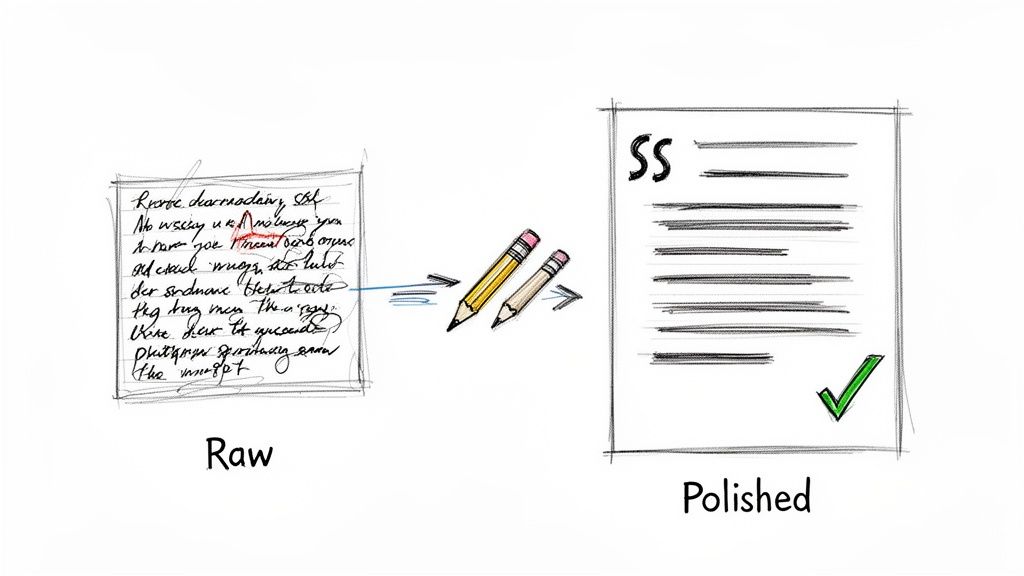
Getting the raw text back from a tool that can convert a YouTube video to text is a great start, but the job's not done yet. Think of an automated transcript as the raw clay. All the material is there, but it takes a bit of shaping to turn it into something valuable.
That initial output, even a highly accurate one, is just your first draft. The real magic happens when you clean up that text, transforming it into a polished, readable document that’s ready for a blog post, video captions, or training materials. This cleanup is what separates a decent resource from a professional one.
Your Essential Post-Transcription Checklist
Before you hit publish or share that transcript, a quick but thorough review is non-negotiable. This isn’t about rewriting the content itself; it’s about catching the small but glaring errors that AI often misses. A few minutes of focused editing can make a world of difference.
Here’s the process I follow every time:
- Proper Nouns and Jargon: AI is smart, but it regularly fumbles names, brands, or niche industry terms. I always do a quick scan to fix misspellings of people's names (like seeing "John Doe" transcribed as "Jon Dough") or technical acronyms.
- Homophones and Sound-Alikes: Words that sound the same but mean different things ("their," "there," "they're") are classic tripwires for automated systems. A careful read-through is the only reliable way to catch these contextual mistakes.
- Filler Words: We all use them—"um," "ah," "like," "you know." While perfectly normal in spoken conversation, they just add clutter to a written transcript. Snipping them out makes the final text feel more concise and authoritative.
This first pass lays the foundation for a much cleaner final product, ensuring the text flows naturally for a reader instead of sounding like a raw, rambling dictation.
Mastering Find and Replace for Quick Fixes
One of the most powerful tools in your editing kit is "Find and Replace." Seriously, don't sleep on this. Instead of manually correcting the same mistake 20 times, you can fix every single instance in a matter of seconds.
For example, I recently transcribed a video where the speaker kept saying "InnovatePro," but the AI heard it as "innovate pro" every single time. A single Find and Replace command fixed the entire document instantly. This trick is a lifesaver on longer transcripts.
Pro Tip: Use Find and Replace to standardize your terminology. If a speaker alternates between "AI" and "artificial intelligence," you can pick one and replace all instances of the other. It’s a small touch that adds a layer of professional consistency.
Refining Timestamps and Speaker Labels
If your transcript is destined for captions or you're analyzing a conversation, accurate timestamps and speaker labels are absolutely critical. Even the best services can get this wrong, so it’s always worth a quick double-check.
Here’s what I look for:
- Verify Speaker Labels: In videos with multiple speakers, an AI might occasionally misattribute a line. I'll quickly scrub through the video to confirm that "Speaker 1" and "Speaker 2" are correctly tagged, especially where they speak in rapid succession.
- Adjust Timestamps for Readability: For captions (SRT files), you want the text to appear on screen in natural, readable chunks. An automated timestamp might cut a sentence off at an awkward spot. A tiny adjustment can make the viewing experience so much smoother for your audience.
These final refinements are what elevate a machine-generated file into a polished, professional asset. Taking these extra steps ensures your transcript isn't just a wall of text, but a well-structured and accurate reflection of the original video.
Common Questions About Video to Text Conversion
Even with the best tools, jumping into video transcription can bring up a few nagging questions. Whether you're a seasoned pro or just getting started, getting straight answers to common roadblocks is the key to a smooth workflow.
We’ve pulled together the most frequent queries we hear to help you get the most out of every youtube video to text convert project. Think of this as your go-to guide for those "what if" moments that inevitably pop up.
How Accurate Are AI Transcripts Compared to a Human?
This is the big one. Modern AI, especially from top-tier services, is shockingly accurate—often hitting 97% or higher with clear audio. For most jobs, like drafting blog posts, pulling quotes, or creating captions, that's more than enough. It's practically human-level.
A professional human transcriber might catch a bit more nuance in really tough scenarios—think videos with heavy accents, people talking over each other, or a ton of background noise. But the real win for AI is the unbeatable combo of speed and cost. You get a solid draft in minutes, not hours or days.
For the vast majority of creators and professionals—well over 95% of use cases—an AI-powered transcription provides the perfect balance of accuracy, speed, and affordability.
Can I Transcribe Videos That Are Not in English?
Absolutely, and this is where the best services really pull ahead. Many modern platforms are built to handle dozens of languages with impressive precision. It’s a game-changer for anyone working with a global audience or analyzing international content.
The process is usually seamless. You can either tell the AI what the language is or just let it figure it out on its own. This makes it an incredibly versatile tool, whether you're a marketer creating multilingual ad campaigns or a student transcribing a foreign-language lecture. The ability to convert a YouTube video to text across different languages opens up a world of possibilities.
Is It Legal to Transcribe Any YouTube Video?
This is a critical point that boils down to copyright and fair use. The simplest rule? Only transcribe content you own or have explicit permission to use. If it's your channel, you're good to go.
It gets murky when you’re working with someone else's content. Your project might fall under "fair use" if it’s for specific purposes like:
- Academic Research: Using transcripts for data analysis in a study.
- News Reporting: Quoting a public figure from a news broadcast.
- Commentary or Critique: Analyzing a video's content for a review.
Even then, fair use can be a gray area. The safest and most ethical path is to avoid transcribing copyrighted material and republishing it as your own without the creator's consent. When in doubt, err on the side of caution.
What Is the Best Format to Export My Transcript In?
The "best" format really depends on what you plan to do next. Any good transcription service will offer several options, each suited for a different task.
Here’s a quick rundown of the most common formats:
- .SRT (SubRip Text): This is the gold standard for video captions. It includes the text along with precise start and end timestamps, making sure your captions sync perfectly on platforms like YouTube.
- .DOCX (Microsoft Word): Choose this if you're turning your transcript into a blog post, article, or report. It keeps things nicely formatted and is ready for editing and collaboration.
- .TXT (Plain Text): Your go-to for simplicity. It's a clean, unformatted text file that’s perfect for quick notes, pasting into other apps, or feeding into data analysis tools.
Thinking about your end goal before you export will save you time and headaches. It’s a small detail that makes a big difference in your workflow.
Ready to transform your video content into accurate, searchable text with just a few clicks? Meowtxt offers a powerful and intuitive platform to handle all your transcription needs, from generating perfect captions to creating detailed summaries.
Start for free and experience the difference at https://www.meowtxt.com.


