
Want to know how to audio extract from YouTube? It's the simple act of saving the sound from a video as a separate audio file, like an MP3. In practice, this simple trick turns everything from university lectures and keynote speeches to podcasts and interviews into audio you can listen to anywhere, even when you're offline.
For anyone serious about content, it's the critical first step in repurposing video into something much more powerful.
Why Extracting YouTube Audio Is a Creator Superpower

YouTube isn't just a video platform; it's one of the largest libraries of human knowledge ever assembled. What started as a niche trick for tech-savvy users has now become a core strategy for creators, professionals, and lifelong learners. Being able to isolate the audio track from a video unlocks a whole new level of efficiency.
Think about it. Countless hours of in-depth interviews, expert panels, and entire podcast series are uploaded daily. Turning that visual media into a simple, portable audio file is a huge productivity win. It lets you absorb valuable information during your commute, at the gym, or while tackling other tasks.
Practical Benefits for Creators and Professionals
For content creators, the payoff is immediate. You can effortlessly repurpose a video series into a full-blown podcast, opening up a new audience on platforms like Spotify or Apple Podcasts. Imagine turning a two-hour webinar into a concise set of audio notes for your team to review on their own time.
This isn't a fringe activity anymore; it's a mainstream tactic. YouTube now attracts over 2.5 billion logged-in users every month, with a staggering 500 hours of new video uploaded every single minute. For the 92% of users who are there to learn something, searchable text is often far more useful than the raw video itself. For a deeper look at these figures, check out this Kapwing article about YouTube stats.
For anyone serious about content, extracting audio isn't just about saving a file. It's the first step in transforming spoken words into searchable, shareable, and valuable text assets with a tool like Meowtxt.
Unlocking New Content Possibilities
Once you have that audio file, the real creative work begins. That extracted track is the raw material you need to create perfectly accurate transcripts and captions. This one simple step empowers you to:
- Boost Accessibility: Add precise, readable captions to your videos, making them instantly available to a much wider audience.
- Improve SEO: Generate keyword-rich blog posts and detailed show notes from the transcribed audio to climb search rankings.
- Create Study Guides: Students and researchers can turn long lectures into searchable notes in seconds.
Ultimately, mastering how to audio extract from YouTube is about working smarter, not harder. It's a foundational skill for maximizing the value of every single piece of content you create or consume.
Choosing Your Toolkit for Audio Extraction
Figuring out how to extract audio from YouTube isn't a one-size-fits-all scenario. The right tool really depends on what you're trying to achieve.
Are you just grabbing a single lecture for your commute? Or are you processing an entire video series to launch a new podcast? Your answer, along with your comfort level with technology, will point you toward the perfect method.
Let's break down the four main ways to get the job done. Each has its own pros and cons, so picking the right one from the start will save you a ton of headaches later.
First, let's get a high-level view of the options on the table.
Comparing YouTube Audio Extraction Methods
This table gives you a quick, side-by-side comparison of the four main methods. Use it to find the best fit for your needs based on ease of use, quality control, and speed.
| Method | Best For | Ease of Use | Quality Control | Key Drawback |
|---|---|---|---|---|
| Online Converters | Quick, one-off downloads without any installation. | Very Easy | Low to Medium | Intrusive ads & potential security risks. |
| Desktop Software | Bulk downloads, playlists, and maximum audio quality. | Moderate | High | Steeper learning curve (command-line). |
| Browser Extensions | Convenient, frequent downloads without leaving YouTube. | Easy | Medium | Can break with YouTube updates. |
| Mobile Apps | Saving audio directly to your phone for offline listening. | Easy | Medium | Functionality varies by OS (iOS/Android). |
Now that you have the lay of the land, let's dig into the details of each approach.
Online Converter Websites
For a quick, one-and-done job, online converters are the go-to for millions of people. Their biggest selling point is simplicity. You just copy a YouTube URL, paste it into a website, and click a button. Done.
Because there’s no software to install, this method is incredibly fast for grabbing a single file when you're in a pinch.
But that convenience comes with some serious trade-offs. These sites are often littered with aggressive ads and sketchy pop-ups, which can pose a security risk if you're not careful. The audio quality can also be a gamble, as many default to lower-bitrate MP3s to save on their server costs. They're fine for casual use but probably won't cut it for professional projects.
Want a deeper dive into this method? Check out our detailed guide on YouTube to MP3 downloaders.
Dedicated Desktop Software
When you need serious power and control, nothing beats dedicated desktop software like yt-dlp. This is the undisputed champion for creators and power users.
Think of it as the professional-grade tool for people who need to extract audio from YouTube in bulk. You can convert an entire playlist into separate audio files with a single command. It gives you absolute control over the format (MP3, M4A, WAV, etc.) and quality, ensuring you get the best possible audio straight from the source.
Sure, the learning curve is a bit steeper, especially if you're not comfortable with command-line tools. But for anyone building a serious content workflow, the one-time setup is well worth the effort.
Pro Tip: Using desktop software like yt-dlp almost always guarantees better audio quality. It can download the original audio stream without re-compressing it—a process that degrades quality every time it happens.
Browser Extensions
Browser extensions offer a fantastic middle ground. They live right in your browser, often adding a simple "Download" button directly onto the YouTube page itself.
This makes them incredibly convenient for grabbing audio as you browse, without ever having to leave the site or open a new tab. They are generally much safer than random converter websites, too.
The main catch? They can sometimes break when YouTube pushes a site update.
- Best For: Quick, frequent extractions without switching tabs.
- Key Advantage: Seamless integration with your browsing experience.
- Potential Downside: Can become outdated or be removed from extension stores.
Mobile Apps
If you live on your phone or tablet, mobile apps are easily the most practical solution. These apps let you save audio directly to your device, making it perfect for offline listening.
This is the ideal way to save podcasts, interviews, or music mixes to enjoy on the go, whether you're on a plane or just out for a run. Functionality can vary quite a bit between Android and iOS due to App Store restrictions, but they provide a solid option for anyone with a mobile-first workflow.
How to Use Online Converters Safely and Effectively
Online converters are the go-to for anyone who wants to extract audio from YouTube without any fuss. Their appeal is obvious: paste a link, click a button, and you’re done. You don't have to install any software or mess with confusing commands. It's the most direct route from video to audio file.
But that convenience comes with a few strings attached. A lot of these free sites are minefields of aggressive pop-up ads, sketchy download buttons, and other security risks. If you’re not paying attention, you could download more than just an MP3. The trick is knowing how to use these tools safely to get what you need, minus the headaches.
Navigating the Process with Confidence
Finding a converter you can trust is the most critical part of the process. A good rule of thumb? Stick with sites that have a clean, no-nonsense interface. If you land on a page and it immediately assaults you with flashing banners or demands you turn off your ad-blocker, that's a huge red flag.
Here are a few practical tips to keep in your back pocket:
- Use an Ad-Blocker: This is non-negotiable. A good ad-blocker will catch most of the intrusive and potentially harmful ads before you even see them.
- Spot the Fake Buttons: Many sites use deceptive designs, placing huge, bright "Download" buttons that actually link to ads or junk software. The real download link is usually smaller, simpler text.
- Never Install Software: If an online converter prompts you to download an installer or a "helper" app, close that tab immediately. Reputable online tools do all the processing on their own servers.
By being cautious and observant, you can easily sidestep the common pitfalls of online converters. The goal is to get your audio file quickly and securely, without any unwanted extras.
Choosing the Right Audio Format and Quality
After you've pasted your link and the site has processed the video, you'll usually get a few choices for the audio format. Making the right call here is important, especially if you plan on transcribing the audio later with a service like Meowtxt.
- MP3: The classic choice and most common format. For spoken-word content like a podcast or interview, a bitrate of 128kbps is perfectly fine. If it's music, you'll want to aim for 192kbps or higher to keep more of the audio detail.
- WAV: This is an uncompressed, lossless format. It delivers the highest possible quality but creates a much bigger file. Pick WAV if you're a serious audiophile or need to do some detailed audio editing.
- M4A/AAC: These are more modern formats that often give you better quality than an MP3 of the same file size. If M4A is an option, it's usually a fantastic pick.
Always grab the highest quality version the converter offers. This ensures the audio you extract is as clear and crisp as the original source. For a deeper dive into the best settings, check out our guide on how to convert a YouTube video to MP3. A clean audio file is the bedrock of an accurate transcript.
A Practical Guide to Using Yt-Dlp for Bulk Extractions
When you're ready to graduate from one-off downloads, it's time to meet yt-dlp. This command-line tool is the undisputed champion for serious content creators and archivists who need to audio extract from YouTube at scale. It offers a level of raw power and efficiency that web-based converters simply can't match.
Don't let the "command-line" part scare you. Getting started is more straightforward than you might think, and the payoff in saved time is enormous. This is the tool you use when you need to reliably rip the audio from an entire playlist or channel with a single command.
No matter which method you choose, a safe workflow is key.
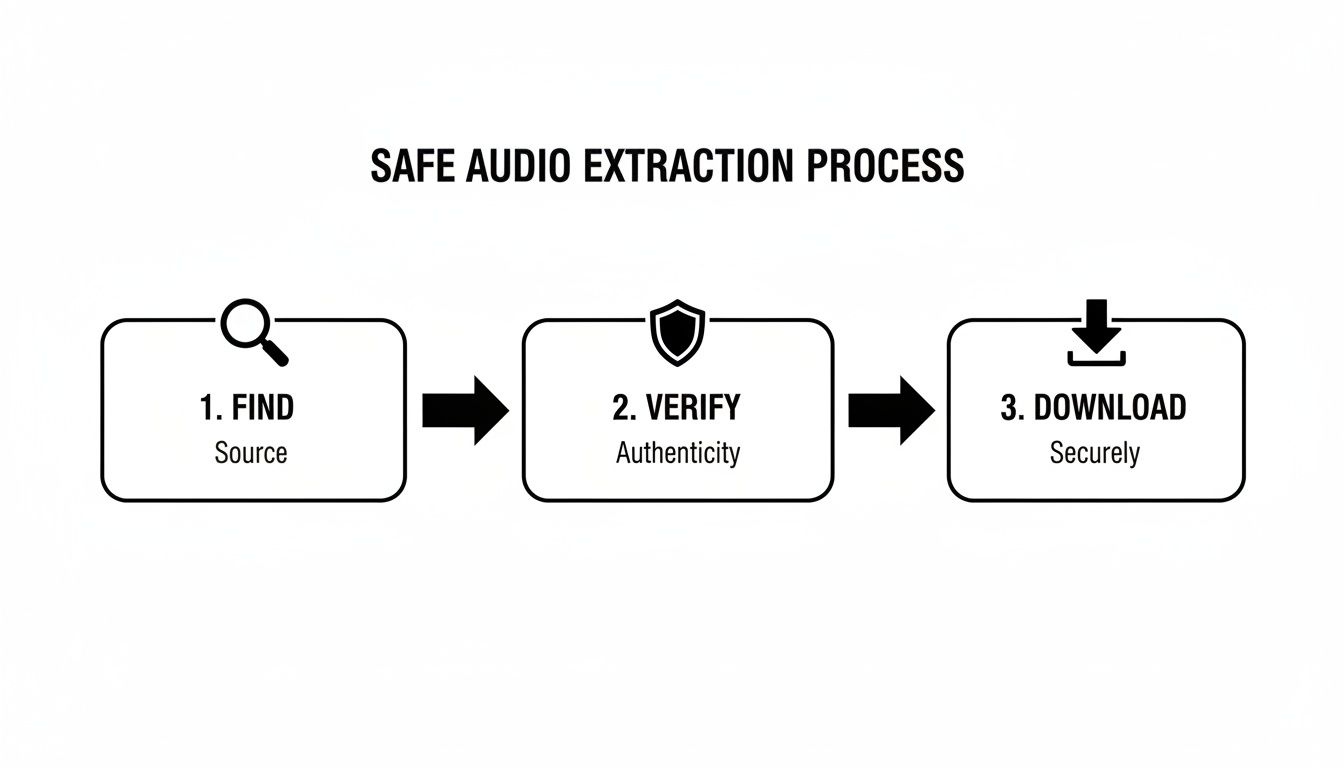
Keeping this simple Find → Verify → Download process in mind acts as a mental checklist. It ensures you're grabbing the right content safely, which becomes even more critical when you're automating tasks with a powerful tool like yt-dlp.
Setting Up Yt-Dlp on Your System
Getting yt-dlp installed is a one-time task that unlocks a world of automation. The process is a little different depending on your operating system, but it’s quick.
- For Windows: The easiest way is to download the
yt-dlp.exefile directly from its official GitHub page. Just place that file in a folder you can easily remember, and you can run it from the Command Prompt or PowerShell. - For macOS and Linux: If you're on a Mac, using Homebrew is the cleanest method. A simple
brew install yt-dlpin your Terminal does the trick. For Linux users, Python's package installer is the way to go:pip install yt-dlp.
Once that's done, you're all set to build a much smarter and faster workflow.
The real magic of yt-dlp isn't just downloading—it's the precision. You can specifically tell it to grab the best possible audio quality automatically, completely bypassing the re-compressed, lower-quality files that many online tools spit out.
Commands for a Smarter Workflow
Now for the fun part. With yt-dlp, you can automate complex jobs that would take ages to do by hand. Forget clicking "download" over and over; you can process entire playlists, embed metadata, and specify formats without ever touching your mouse.
Here are a few workhorse commands I use all the time:
- Get the Best Quality Audio: To snag the highest-fidelity audio stream available (usually in Opus or M4A format), this is your go-to command:
yt-dlp -f bestaudio "YOUTUBE_URL" - Convert Directly to MP3: If you need an MP3 for maximum compatibility, you can tell yt-dlp to extract and convert in a single step:
yt-dlp -x --audio-format mp3 "YOUTUBE_URL" - Download an Entire Playlist: This is where yt-dlp really flexes its muscles. Just give it the playlist URL, and it will methodically download the audio from every single video in order:
yt-dlp -x --audio-format mp3 "PLAYLIST_URL"
Mastering just these few commands can turn a tedious, manual chore into a fire-and-forget process. It’s a game-changer for podcasters who need to convert a backlog of video episodes or researchers archiving a series of lectures. We're talking about saving hours of mind-numbing, repetitive work.
Turning Your Audio Into Actionable Content With Meowtxt
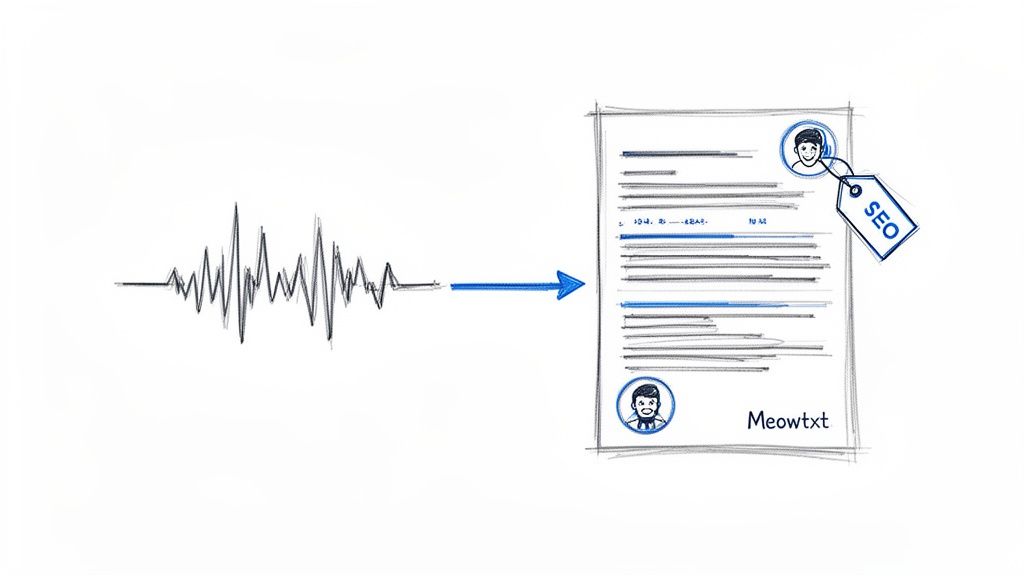
Once you extract audio from YouTube, you're not just holding a sound file. You're holding raw potential. The real magic kicks in when you turn that audio into accurate, usable text, and that's where a tool like Meowtxt becomes a creator's secret weapon.
The workflow is incredibly simple. Just take your freshly downloaded MP3 or WAV file, upload it, and let the platform get to work. It moves you past just listening and straight into active content creation.
From Audio File to Content Asset
Uploading the file is only the beginning. The real value is in the features built specifically for repurposing YouTube content. Speaker identification, for example, is a lifesaver for interviews, automatically labeling who said what. Smart timestamps sync the text directly to key moments, making it painless to find quotes or edit clips.
This simple process unlocks a ton of possibilities:
- Create SEO-Rich Blog Posts: A 20-minute video can easily become a 2,000-word article, packed with the exact keywords you spoke and ready to rank.
- Generate SRT Captions: Pop out a caption file to upload back to YouTube, boosting accessibility and keeping viewers engaged.
- Produce Detailed Show Notes: Turn a podcast-style video into comprehensive notes for your audience, complete with links and key takeaways.
You're no longer just archiving an audio file; you're creating a powerful, multi-purpose content asset. Each transcript becomes a launchpad for articles, social media clips, and more.
The creator space is more crowded than ever. By 2023, there were roughly 2.9 million channels with over 10,000 subscribers—that's a 21% jump from the year before. To stand out, repurposing a single video into multiple text assets is a proven growth strategy.
Building a Scalable Content Engine
This transcription process transforms what was once a manual chore into a scalable system. Instead of spending hours typing out a transcript, you get a near-perfect draft in minutes. For those who want ultimate control, some advanced creators even explore how to build a YouTube transcript AI from scratch using their extracted audio.
But for most creators, the goal is speed and accuracy without all the technical overhead. What really matters is getting your ideas from audio to text as fast as possible.
See how simple it is to convert your files with our free audio to text tool. It’s the final, crucial step in turning that simple audio file into something that truly works for you.
Understanding the Legal and Ethical Rules
Before we dive into the how, let’s talk about the why and the should. Ripping audio from YouTube isn't just a technical exercise; it walks a fine line between convenience and creator rights. This isn't formal legal advice, but it's essential to understand the ground rules to make smart, ethical choices.
At its heart, almost everything you see on YouTube is protected by copyright. The person who made it owns it. Period. YouTube's own Terms of Service are pretty clear on this: you're not supposed to download content unless they explicitly provide a download button for it.
Navigating Copyright and Fair Use
So, where does that leave you? The answer usually comes down to a concept called "fair use." It's a legal doctrine that allows for the limited use of copyrighted material without getting permission, but only for specific purposes like commentary, criticism, news reporting, or education.
For personal use—like grabbing a lecture to study on the go or saving a podcast episode to listen to offline—you're generally on safe ground. The real trouble starts when you take that audio and use it publicly or for commercial gain. Re-uploading someone's song as your own or using their audio in a monetized video without a license is a surefire way to get a copyright strike.
The key takeaway is your intent. If you're using the extracted audio for your own private, non-commercial, or educational benefit, you're most likely operating within the spirit of fair use. The moment you try to profit from it or pass it off as your own, you've crossed a line.
To get a better handle on the basics of who owns what online, it’s worth reading up on what is intellectual property protection. A little knowledge here goes a long way in helping you use these tools responsibly.
Common Questions About YouTube Audio Extraction
Even with the best tools in hand, a few questions always pop up when you extract audio from YouTube. Let's tackle the most common ones to help you fine-tune your process and sidestep any potential headaches.
What Is the Best Audio Format for Extraction?
For most everyday uses, like listening on the go or getting a transcript, an MP3 at 128kbps is the sweet spot. It gives you a great balance of decent quality and a small file size that won't clog up your hard drive.
But if you're pulling audio for a professional project—say, for a podcast or video edit where every bit of fidelity matters—you’ll want to go with a lossless format like WAV.
There's a great middle-ground option, though: M4A or Opus. These are the formats YouTube often uses behind the scenes. Grabbing the audio in one of these formats with a tool like yt-dlp means you’re getting the original source file, which preserves quality perfectly while keeping the file size surprisingly small.
Why Does My Extracted Audio Sound Bad?
If your final audio file sounds muffled, tinny, or just plain awful, it usually comes down to one of two things: the source video itself or your extraction settings.
First, always give the original YouTube video a quick listen. If the creator uploaded it with bad audio to begin with, there’s nothing any tool can do to fix it. Garbage in, garbage out.
The second culprit is re-encoding. Many online converters download the audio and then re-compress it, which can strip away quality. This is where tools like yt-dlp really shine, as they can often download the original audio track directly without any changes, guaranteeing you get the best possible version.
Key Takeaway: Whatever you do, avoid recording your computer's sound output. Direct extraction or downloading is always the superior method. Recording introduces background noise and seriously degrades the quality, while a direct pull keeps the digital audio clean and intact.
Ready to turn that freshly extracted audio into accurate, searchable text? Meowtxt transcribes your files with incredible speed and precision. Get your first 15 minutes free and start creating actionable content in minutes.


