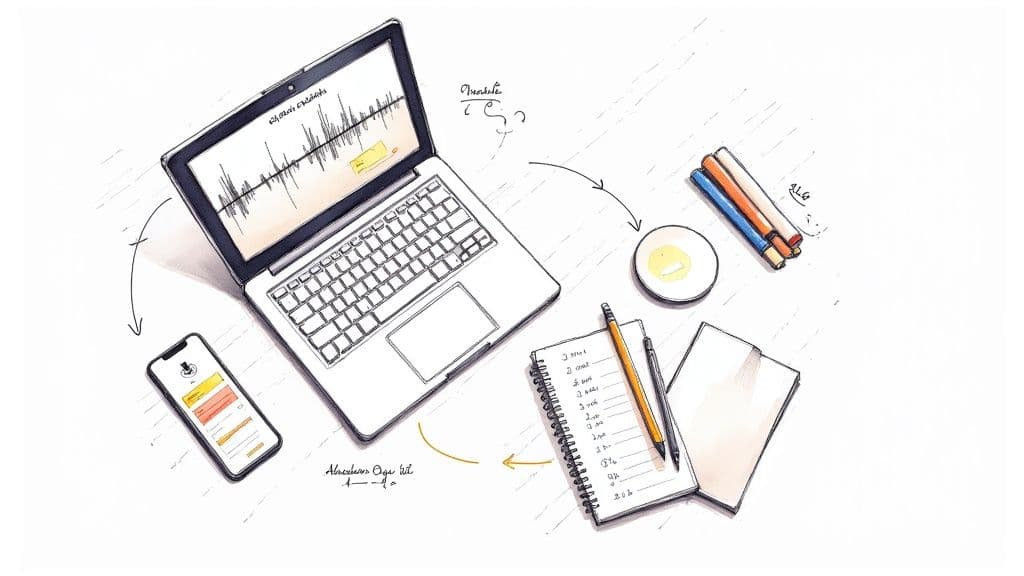
An SRT file creator is any tool or process used to generate a simple text file containing your video's subtitles and timing information. Whether you're using a sophisticated, automated transcription service or a basic text editor, the end goal is the same: a universally compatible SubRip Subtitle (.srt) file that makes your video content more accessible, engaging, and searchable.
What Is an SRT File and Why It Matters
Ever wonder how videos get those perfectly timed captions? The secret ingredient is often an SRT (SubRip Subtitle) file, the standard format produced by any good SRT file creator.
It’s just a plain text file, but it holds all the crucial subtitle information—the text itself, plus the exact start and end times for each line of dialogue. Think of it as the universal language for video captions. It’s compatible with virtually every video platform and player, from YouTube to Vimeo to social media.
Creating accurate SRT files isn't just for professional broadcasters anymore; it's a must-do for any serious video content creator. Nailing the timing of your captions is a critical step, which is why it's so important to understand how to properly add captions to your YouTube video for maximum impact.
Comparing SRT Creation Methods
Here’s a quick breakdown of the different ways to create SRT files, highlighting the trade-offs between each approach.
| Method | Best For | Speed | Accuracy Control | Cost |
|---|---|---|---|---|
| Manual Creation | Short videos, perfectionists | Very slow | Total control | Free (time-intensive) |
| Automated AI Tools | Most content (interviews, tutorials) | Extremely fast | Good (needs review) | Low-cost to free |
| Professional Services | High-stakes legal, medical content | Slow to moderate | Very high | Expensive |
| Built-in Platform Editors | Quick fixes on YouTube, etc. | Moderate | Good | Free |
While manual creation gives you ultimate control, it’s just not practical for most projects. An automated SRT file creator offers the best balance of speed, cost, and quality for the vast majority of creators.
The Core Benefits of Using SRT Files
Beyond just putting words on a screen, SRT files deliver tangible benefits that can seriously boost your video's performance and reach. These advantages are why modern content strategies almost always include captioning.
- Improved Accessibility: Captions open up your content to viewers who are deaf or hard of hearing, ensuring your message is truly inclusive.
- Enhanced SEO Performance: Search engines can't watch videos, but they can read text. An SRT file provides a full transcript for search engine crawlers to index, making your video discoverable for relevant keywords.
- Increased Viewer Engagement: A huge percentage of social media videos are watched with the sound off. Captions are essential for grabbing attention and keeping people engaged, even in silent-play environments.
- Global Audience Reach: SRT files are incredibly easy to translate. This allows you to create subtitle tracks in multiple languages, opening your content to an international audience without needing to re-edit the video itself.
A Brief History of the SRT Format
The SRT file format emerged in Europe around the year 2000, and it was a genuine breakthrough. For the first time, users could extract subtitle information from DVDs using optical character recognition (OCR) and edit it themselves. Before this, captioning was limited to large media companies with specialized, expensive equipment. This simple text file democratized captioning and kicked off a new era for accessible video content. You can read a bit more about this history and its impact over at Filmora.
Doing It By Hand: How to Create an SRT File Manually
Before you jump to an automated srt file creator, it's worth learning how to build a caption file from scratch. It’s a valuable skill that demystifies the entire process and gives you a real appreciation for the precision that goes into a professional SRT file.
You don't need fancy software. A simple text editor like Notepad (on Windows) or TextEdit (on Mac) is all you need to manually create an SRT file.
Going manual gives you absolute, granular control over every single caption—the timing, the line breaks, everything. The catch? It’s incredibly time-consuming. A seasoned professional might still spend 25-50 minutes captioning just a five-minute video by hand. Even so, understanding the fundamentals makes you much better at spotting and fixing issues in files from any source.
The Anatomy of an SRT Entry
At its core, an SRT file is a plain text document with a specific, rigid structure. Each caption is a block of text made up of four essential parts. If you get one of them wrong—even a single comma or colon—the entire file can break.
Every single caption must follow this formula:
- Sequence Number: A simple counter (1, 2, 3...) that marks the order of each caption.
- Timestamp: The exact start and end time the caption should appear on screen. The format is brutally strict:
HH:MM:SS,ms --> HH:MM:SS,ms. - Caption Text: The actual words viewers will read. For best readability, stick to one or two lines.
- Blank Line: A single, empty line that signals the end of the current caption block. This is not optional—it's what separates one entry from the next.
This structure repeats for the entire length of the video. New caption, new number.
Key Takeaway: That timestamp format,
hours:minutes:seconds,milliseconds, is the most critical and unforgiving part of a manual SRT file. The-->arrow and the comma separating milliseconds are non-negotiable.
A Practical Walkthrough
Let's say you're captioning the first few seconds of a video where someone says, "Hello and welcome to our channel."
First, open up Notepad or TextEdit. A quick but crucial tip for Mac users: in TextEdit, you must switch to plain text mode. Go to Format > Make Plain Text. This strips out any hidden formatting that can corrupt your SRT file.
Your first caption entry would look like this:
1 00:00:01,500 --> 00:00:03,800 Hello and welcome to our channel.
See that blank line after the text? Perfect. Now you watch the next bit of the video. Let's imagine the speaker then says, "Today, we're talking about SRT files," starting at the 4-second mark and ending at 6.5 seconds.
You'd add the second entry right after that first blank line:
2 00:00:04,000 --> 00:00:06,500 Today, we're talking about SRT files.
You just keep repeating this cycle—number, timestamp, text, blank line—until the video is fully captioned.
When you're done, the final step is saving it correctly. Change the file extension from .txt to .srt. Crucially, you must also set the encoding to UTF-8. This universal format prevents text from showing up as garbled symbols (like †or �), a classic rookie mistake with manual SRT file creation.
It’s tedious, but this hands-on experience gives you an incredible foundation for using any SRT file creator tool more effectively.
How to Use an Automated SRT File Creator
Manually creating subtitles line by line is a soul-crushing waste of time. For most content creators, an automated SRT file creator is a total game-changer. It transforms what used to be an hours-long chore into a task you can complete in minutes.
Modern AI tools offer a powerful combination of speed and efficiency that makes them a no-brainer for anyone creating regular video content. They're no longer a "nice-to-have"—they're a standard part of a smart video production workflow.
The process is refreshingly simple. You just upload your video or audio file to the online platform. The AI transcription engine then gets to work, listening to the audio and converting every spoken word into neatly time-stamped text.
This entire process is remarkably fast. A ten-minute video might only take a minute or two to transcribe, delivering a full SRT draft. This speed allows you to build captioning directly into your process instead of leaving it as a painful final step.
What to Look for in an Automated Tool
Not all automated tools are created equal. A great SRT file creator should have a few key features that make a real difference in the quality of your output and the time you spend editing.
First and foremost, you need high transcription accuracy. A tool that consistently achieves 95% accuracy or better is your best friend—it drastically cuts down on the time you'll spend cleaning up the text later.
Another killer feature is automatic speaker labeling. If you're working with interviews, podcasts, or videos with multiple speakers, a tool that can identify and tag who is speaking is a massive time-saver. It turns a confusing wall of text into a clear, readable conversation.
This infographic breaks down the simple but strict format every automated tool must follow to generate a valid SRT file.
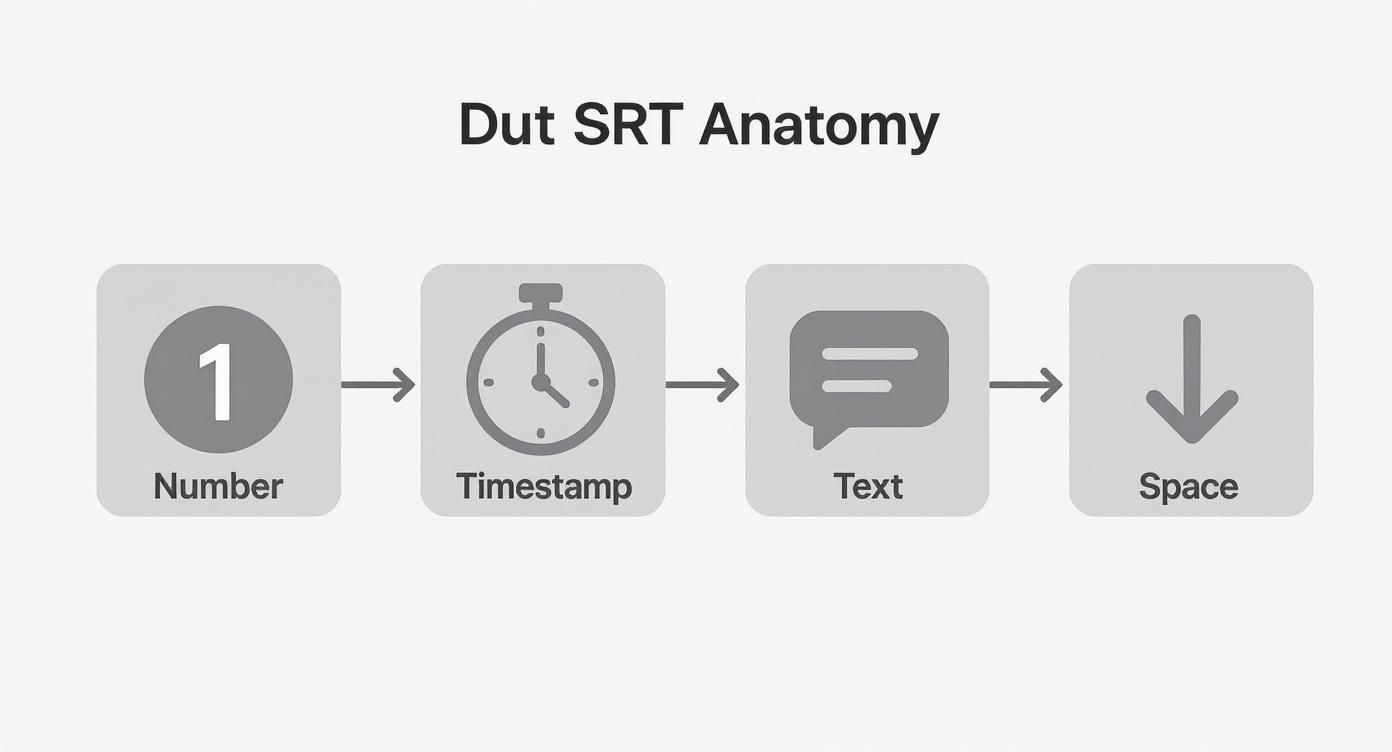
As you can see, it's all about those four core components: the sequence number, the timestamp, the text itself, and a blank line to separate entries. Get that right, and your captions will work anywhere.
The Standard AI-Powered Workflow
Using a tool like MeowTxt is designed to be intuitive. You upload your file, let the AI do the heavy lifting, and receive a nearly perfect transcript moments later.
After the AI has worked its magic, you can jump into the built-in editor to make quick adjustments. This is where you'll catch any misheard proper nouns or industry jargon that the AI might have stumbled on. From there, the last step is simply exporting the SRT file.
Pro Tip: Always look for a tool with multiple export options. While SRT is the most common format for captions, being able to download your transcript as a TXT, DOCX, or VTT file gives you a ton of flexibility. You can easily repurpose that content into blog posts, show notes, or social media updates.
The ability to generate SRT captions with an online tool has completely changed how creators work, making high-quality, accessible video possible for everyone.
When you're evaluating subtitle software, it helps to understand the wider world of AI writing tools for content creators. This context can help you pick the best tools for your entire creative process, from scripting all the way to the final captions.
Fine-Tuning Your AI-Generated Subtitles
An AI-generated transcript gets you 80% of the way there, but that last 20% is all about human oversight. Think of the automated draft from a good SRT file creator as your foundation; the refinement is where you build a professional-grade structure on top. It’s this final polish that separates decent captions from truly great ones.
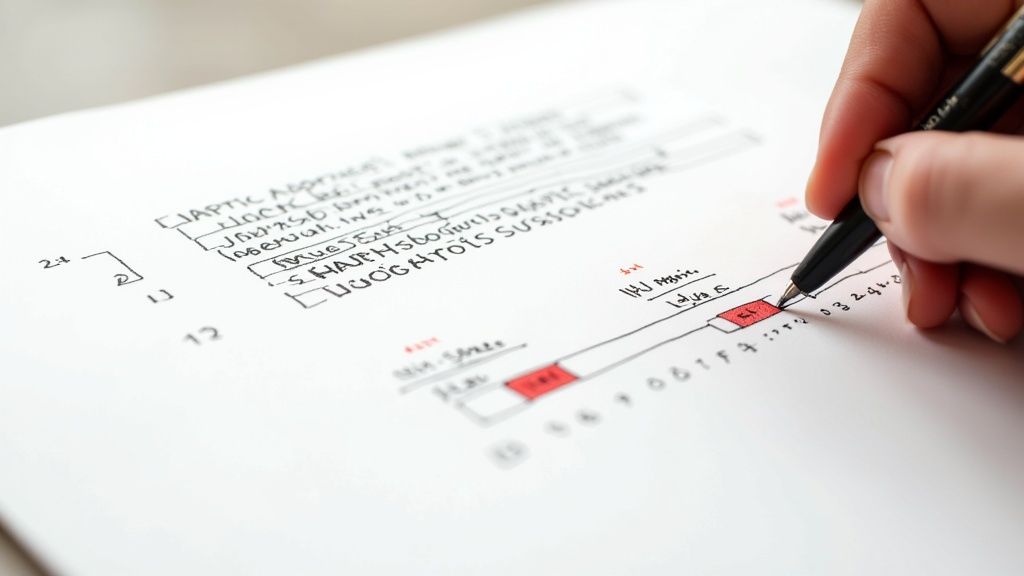
This editing step is absolutely essential for turning a good automated draft into a flawless subtitle track. The goal is to make the captions so seamless they feel invisible to the viewer.
Correcting Names and Technical Jargon
Even the best AI stumbles over specific terminology. The first and most common pass you'll make is correcting words the machine misheard.
AI consistently struggles in a few key areas:
- Proper Nouns: It often misspells unique names of people, companies, or products.
- Industry Jargon: Specialized terms or acronyms specific to your field are easily misinterpreted.
- Homophones: Words that sound the same but mean different things (e.g., "their" vs. "there") are frequent culprits.
For example, an AI might transcribe "MeowTxt" as "meow text" or "Gensler" as "Gentsler." A quick proofread ensures your brand and key terms are represented accurately, which is critical for maintaining professional credibility.
Adjusting Timestamps for Perfect Sync
While AI is surprisingly good at initial timing, a human eye is still needed for perfect synchronization. The real goal here is to make captions appear and disappear in perfect rhythm with the speaker's natural cadence.
A common issue is a caption lingering on-screen a moment too long after someone has finished speaking, or appearing a split-second too late. Jump into your editor and nudge the start and end times by a few milliseconds. A well-timed caption should feel like a natural part of the video, not a distracting overlay.
Key Insight: Don't just sync to the audio waveform; sync to the speaker's delivery. A caption should appear precisely when the first word is spoken and vanish as the last word ends, respecting natural pauses in conversation.
This level of detail makes subtitles feel professional. It’s also why the SRT format has remained the standard for so long; despite newer formats emerging, its simple text-based structure makes these precise adjustments incredibly straightforward. Over two decades later, an estimated 80-90% of subtitles distributed online are still in this reliable format. You can find more insights on the format's longevity over on Sally.io's blog.
Improving Readability and Adding Context
Finally, you need to think about how the captions are actually presented on screen. A raw transcript often produces long, unbroken sentences that are a nightmare for a viewer to read quickly.
Break up lengthy captions into shorter, more digestible lines—my rule of thumb is no more than two lines per caption block. Just as important is adding non-verbal context that hearing viewers take for granted, like sounds that are important to the story or mood.
[music][laughter][applause][door closes]
These small additions make the content far more accessible and create a richer, more inclusive experience for everyone watching.
Advanced Subtitle Techniques and Troubleshooting
Once you get the hang of the basics, you can start pushing your SRT file creator to do more complex and valuable work. Moving beyond simple captioning is how you open up your content to brand new audiences and learn to fix the technical hiccups that inevitably pop up.
Taking your content global is a massive opportunity, and subtitles are your ticket in. Many modern SRT file creator tools can instantly translate your original transcript into dozens of languages. It's a surprisingly fast and effective way to reach international viewers without a ton of extra effort.
On the other hand, if you've already invested in a professionally translated script, you can use the original SRT file's timestamp structure as a template. Just drop the translated text into the corresponding time slots, and you have a perfectly synced, high-accuracy translation ready to go.
Navigating Common SRT File Errors
Sooner or later, it’s going to happen. You’ll upload an SRT file, and the platform will reject it. Don't panic. The cause is almost always a simple formatting mistake or an encoding issue that's easy to fix once you know what to look for.
The most common culprit by far is a broken timestamp. A single period used for milliseconds instead of a comma (00:00:10.500) or a typo in the --> separator can make the entire file unreadable to a video player. Platforms are incredibly strict about this, so your first move should always be to double-check the timestamp formatting.
Another frequent issue is character encoding. If you ever see bizarre symbols like †or � pop up in your captions, it means the file wasn't saved with the right encoding standard.
Crucial Tip: Always save your SRT files with UTF-8 encoding. This is the universal standard that ensures every character—especially those in non-English languages and special symbols like emojis—displays correctly across all platforms and devices.
Hardcoding Subtitles for Maximum Compatibility
Sometimes, you need to embed your captions directly into the video frame itself. This is known as burning in or hardcoding subtitles, and it’s the perfect fix for platforms that don't support separate caption files, like certain social media feeds or older video players.
When you burn in subtitles, they become a permanent part of the video image. While viewers can't turn them off, it guarantees your message is seen, even in environments where videos autoplay on mute (think Instagram or LinkedIn).
Many video editing programs let you import your SRT file and render it directly onto the footage. You'll find that some captioning formats are more flexible than others; for those interested, you can learn more about how to convert VTT to SRT to ensure broader compatibility with various editing tools.
Your Top SRT File Creator Questions, Answered
Even when you have a great tool, some questions are bound to pop up. Think of this as your quick-reference guide for the most common hurdles you might face when creating and polishing your subtitles.
What's the Best Free SRT File Creator Out There?
Truthfully, while you can find a completely free SRT file creator online, they almost always come with a catch. You'll likely hit frustrating limits on video length, find the transcription accuracy is too low for professional use, or discover essential features are locked behind a paywall.
For a super short, one-time clip, you might get away with a basic online tool or even the manual method we covered earlier. But for anyone who needs consistent quality and doesn't want to waste hours editing, AI-powered platforms are leagues ahead. Many of the best tools offer a free trial or a handful of free minutes, which is the perfect way to test drive their transcription engine and editor before you commit.
Can I Convert Other Caption Formats to SRT?
Absolutely. Converting between caption formats is a common and usually painless task. Plenty of online converters and most video editing programs can easily switch files like VTT, SSA, or ASS into the universally supported SRT format.
This comes in handy more often than you'd think. For example, if you download captions directly from YouTube, they often give you a .vtt file. A quick trip to a converter site—usually just a simple upload-and-select process—gets you a compatible .srt file ready for any platform.
How Do I Get My SRT Timestamps Perfectly Synced?
Getting that perfect timing is part art, part science—a mix of good tech and your own human touch. It really breaks down into a two-step process.
First, you need a solid starting point. A high-quality transcript from a reliable SRT file creator will automatically generate initial timings that are already very close to the mark, saving you a ton of manual effort.
The second, and most crucial, step is a manual review. This is where your expertise comes in. Play the video and read the captions in the tool's editor. Nudge timestamps forward or back by milliseconds, making sure the text appears the instant someone starts speaking and vanishes the moment they finish. You’ll want to pay extra attention to fast-paced dialogue or natural pauses to create that seamless, professional feel.
Key Takeaway: The whole goal of syncing is to make the captions feel invisible. They shouldn't pop up too early or linger too long, as both can pull a viewer right out of the experience.
Ready to create perfectly synced and accurate captions in minutes? MeowTxt is the AI-powered SRT file creator that simplifies your workflow, offering fast transcriptions, an intuitive editor, and multiple export options to make your content accessible everywhere. Get your first 15 minutes free at https://www.meowtxt.com.


