
Yes, you can absolutely translate a Google meeting in real time. Google’s built-in live translated captions feature is a game-changer for global teams, allowing participants to read the conversation in their own language as it happens. It’s a powerful tool for tearing down communication barriers, making international collaboration smoother than ever.
Bridging Communication Gaps with Google Meeting Translate
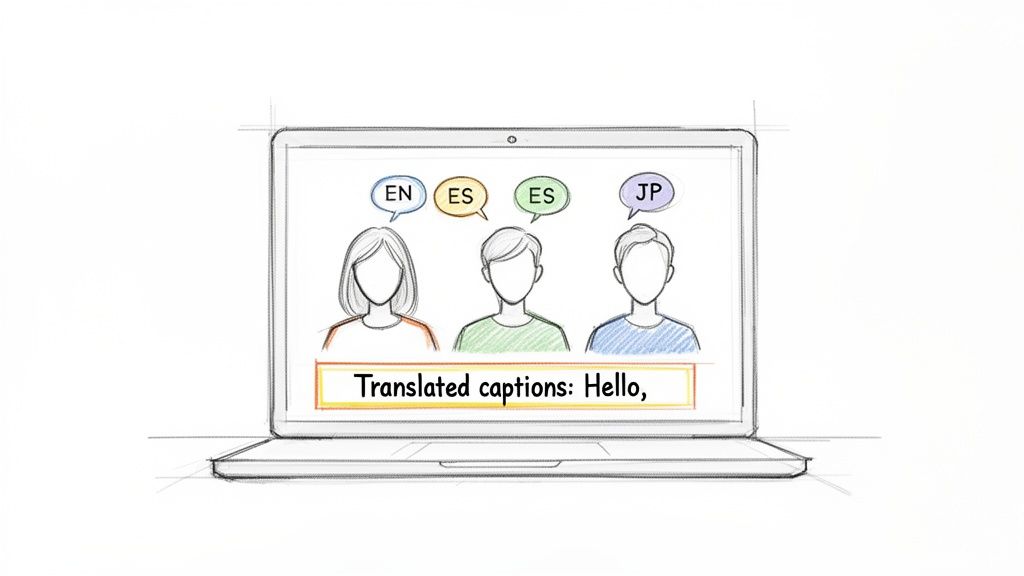
Imagine a meeting where language is no longer an obstacle. Team members, clients, and partners from across the globe can understand each other seamlessly, all in real time. That's the core benefit of using a google meeting translate function—it transforms a potentially confusing virtual call into a smooth, productive experience.
This guide will walk you through exactly how to use these powerful translation tools. We'll cover the essentials for getting started right away and then explore more advanced strategies for when you need a perfect, polished record of the conversation.
The Power of Real-Time Translation
At its heart, this technology is all about inclusivity. It ensures every voice is heard and, more importantly, understood, regardless of the speaker's native language.
The benefits are clear and immediate:
- Improved Global Collaboration: Connect with international colleagues and clients without needing a human interpreter.
- Enhanced Accessibility: This is a huge help for participants who are deaf or hard of hearing, as well as for non-native speakers who can follow the conversation more easily.
- Greater Efficiency: By reducing misunderstandings and the time spent asking for clarification, meetings become far more productive.
While live captions are fantastic for in-the-moment comprehension, sometimes you need a flawless written record. For those situations, a different approach is necessary, such as getting a detailed meeting transcription after the call.
How Google's AI Makes It Happen
This isn't science fiction anymore, thanks to major advancements in artificial intelligence. Google Meet's real-time speech translation, powered by its Gemini AI, has completely changed the game for multilingual meetings. It started with common language pairs like English-to-Spanish and is constantly expanding its capabilities.
The real magic is the speed. The technology has reduced latency to a 2-3 second 'sweet spot', which is fast enough to mimic human interpreters and allow for a natural conversational flow.
While Google Meeting Translate does an amazing job bridging language gaps, actively working to improve listening comprehension skills can make communication in these environments even smoother, perfectly complementing what the technology offers.
How to Enable and Use Live Translated Captions
Activating Google Meet’s translation features is surprisingly simple. You don’t need to be a tech expert to start breaking down language barriers in your calls. The best part? It's built right into the Google Meet interface, so turning it on only takes a few clicks.
First, join your meeting as you normally would. Once you’re in, look for the Captions button on the bottom toolbar—it's the icon that looks like a speech bubble with "CC" inside. Click it to turn on standard captions in the language the speaker is using.
This simple action already makes the conversation more accessible, but the real power is just one step away.
Activating Translated Captions
To switch from standard captions to live translation, find the Settings gear icon on your bottom toolbar. Clicking it opens a menu where you can adjust your audio, video, and other call settings. From this menu, select the Captions option.
This is where you'll find the toggle for Translated captions. Flip that switch on, and a dropdown menu will appear, letting you choose your preferred language from a comprehensive list of supported options. Google regularly adds more, but you'll find all the major ones like Spanish, French, German, and Portuguese ready to go.
Keep in mind that this live translation feature is typically included with paid Google Workspace subscriptions. If you don't see the 'Translated captions' option, it's likely because your plan doesn't support it. Free, personal Google accounts generally do not have this capability.
This screenshot from Google Meet's official page shows you exactly where to find these settings in its clean, user-friendly interface.
The layout is designed to be intuitive, so you can enable features like translated captions without fumbling around and disrupting the meeting.
Customizing Your Experience
Once you have translated captions enabled, the text will appear on your screen in real time as people speak. You can easily toggle the captions on or off at any point during the call using the main "CC" button. This flexibility is perfect for meetings where you might only need translation for specific parts of the conversation.
Here are a few important things to remember:
- It’s Your Personal View: Each person in the meeting controls their own caption settings. If you enable Spanish captions, it won’t change what anyone else sees. Another participant can view them in French, while someone else might have them turned off completely.
- No Transcript is Saved: These live captions are for in-the-moment understanding; Google Meet does not save them as a transcript. If you need a permanent record of the conversation, your best option is to record the meeting and then have it transcribed. For anyone needing to create a polished text file for records or subtitles, learning how to create SRT files is a fantastic next step.
- The AI Does the Detecting: You don't need to tell Google Meet what language is being spoken. The tool automatically detects the source language; you just have to select the language you want to read the captions in.
By following these simple steps, you can instantly make your Google Meet sessions more inclusive and productive for everyone, no matter where they are or what language they speak.
Advanced Translation for High-Stakes Meetings
Live translated captions are fantastic for keeping everyone on the same page during a call. But what happens when "good enough" isn't quite good enough?
For high-stakes situations like legal depositions, creating client-facing content, or making official corporate announcements, you need a flawless, permanent record where every nuance is captured perfectly. This is where a post-meeting workflow shines, bridging the gap between real-time convenience and post-production precision.
From Accurate Transcript to Global Content
This process moves beyond live AI to a more deliberate and accurate method. You start by recording your Google Meet session. Afterward, instead of relying on the ephemeral captions, you use a dedicated transcription service like Meowtxt to generate a highly accurate text version of the audio. These services can often achieve up to 97.5% accuracy.
This polished transcript becomes the foundation for a much higher-quality translation.
Once you have this precise text, translating it into over 100 languages becomes simple and far more reliable. This method preserves context and subtle meanings that live AI can easily miss, especially with industry-specific jargon or fast-paced conversations. It's the ideal approach for creating official subtitles, building legal archives, or distributing multilingual training materials where clarity is non-negotiable.
For example, a podcaster interviewing an international guest can record the interview in Google Meet, get a near-perfect transcript, and then translate it to create multilingual show notes and social media content, dramatically expanding their global reach.
This quick diagram shows how to turn on Google Meet's built-in translation for live viewing during a call.
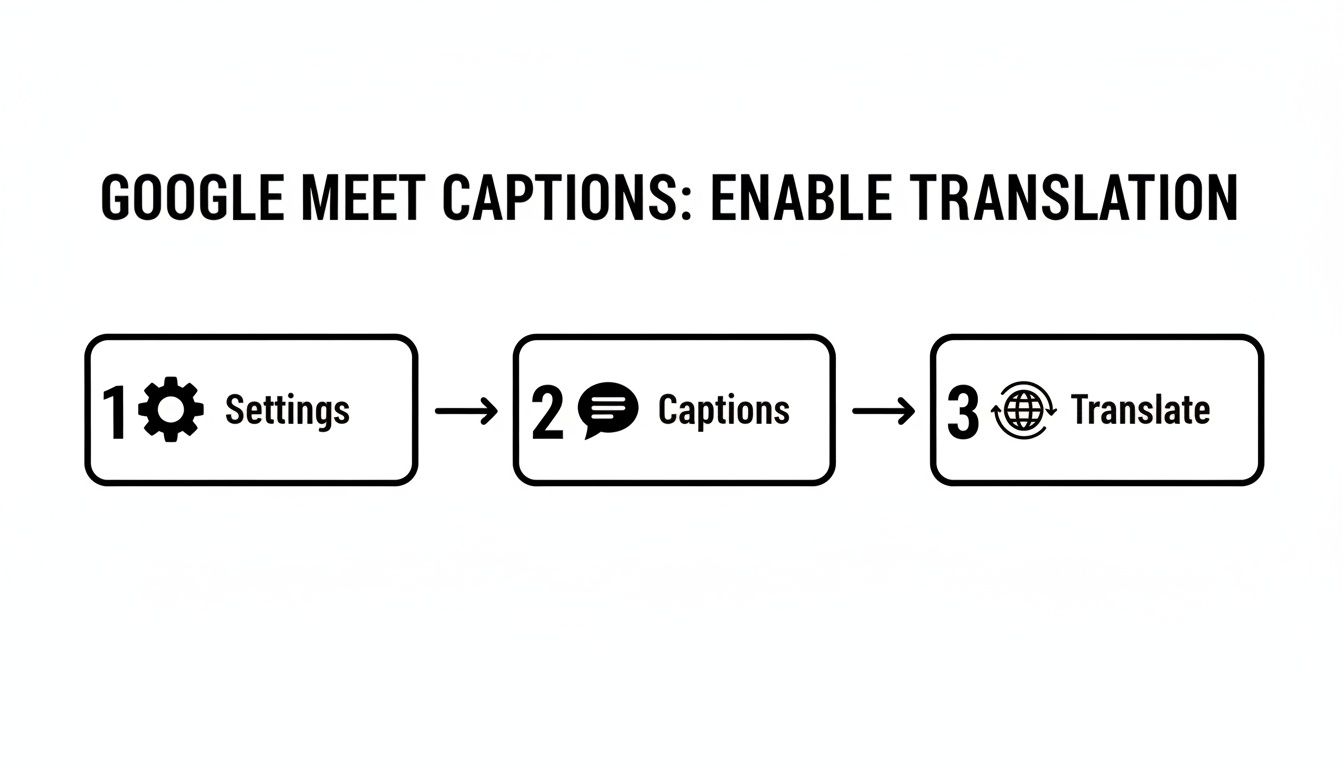
This simple, three-step process is designed for immediate understanding during the call itself, contrasting with the more detailed workflow required for archival accuracy.
Live Translation vs. Post-Meeting Transcription and Translation
Choosing between live captions and a dedicated transcription service depends entirely on your goal. One is for real-time accessibility; the other is for creating a permanent, flawless record. Here's a quick comparison to help you decide which workflow is right for the job.
| Feature | Google Meet Live Captions | Meowtxt Transcription & Translation |
|---|---|---|
| Primary Use Case | Real-time understanding during a live call | Creating a permanent, highly accurate record for legal, content, or archival purposes |
| Accuracy Level | Good for clear, simple speech (~90%) | Near-perfect for clear audio (up to 97.5%) |
| Key Benefit | Instant accessibility, keeps everyone in the conversation | Verbatim precision, preserves nuance, legally defensible, ideal for repurposing |
| Workflow | Turn on feature during the meeting | Record meeting, upload audio, receive polished transcript, translate as needed |
| Best For | Daily team syncs, informal international calls, accessibility | Legal depositions, official announcements, creating subtitles, multilingual content creation |
Ultimately, these two methods solve different problems. Use Google Meet's live features to keep conversations flowing, and turn to a post-meeting transcription service when the stakes are high and every single word counts.
The Growing Demand for Precision
The need for high-quality translation is exploding. The AI language translation market skyrocketed from $1.88 billion in 2023 to $2.34 billion in 2024, pushing forward innovations like Google Meet's Gemini AI-powered speech translation.
This growth reflects a global demand for more connected and accessible communication, both live and archived. You can explore more about the latest AI speech translation breakthroughs and see how the market is evolving.
The core takeaway is this: for real-time conversation, use Google Meet's live tools. For anything that needs to be archived, repurposed, or legally sound, a record-transcribe-translate workflow is the professional standard.
This dual approach gives you the best of both worlds. You can use the google meeting translate live caption feature for its intended purpose—facilitating fluid conversation—while reserving the more robust transcription process for when you need a perfect, lasting record of what was said. This ensures both immediate accessibility and long-term accuracy, covering all your communication needs.
Practical Tips for Better Translation Accuracy
AI translation is a powerful tool, but its output is only as good as the audio it receives. Think of it like talking to someone in a noisy room—if they can't hear you clearly, they'll struggle to understand you. The same logic applies to the AI powering your google meeting translate feature.
To get the clearest, most accurate translations, you need to provide the AI with the cleanest possible audio. A few simple adjustments before and during your meeting can make a huge difference.
Optimize Your Audio Environment
The single biggest factor affecting translation accuracy is the quality of your audio. Muffled, distant, or echoey sound will confuse the AI and lead to garbled, nonsensical captions.
First, find a quiet space. Background noise from a busy office, a barking dog, or street traffic is the enemy. Closing a door or window is a simple but highly effective first step.
Next, consider your microphone. While your laptop's built-in mic works in a pinch, it’s not ideal. It tends to pick up ambient noise and can make you sound far away.
A dedicated external microphone—even an affordable USB model or a headset with a boom mic—will capture your voice with much greater clarity. This isolates your speech from background distractions, giving the AI a clean signal to work with.
Improving your setup doesn't have to be complicated. Our guide on how to improve audio quality offers more detailed steps for anyone looking to get crystal-clear sound.
Master Your Speaking Habits
Once your audio setup is solid, the way you speak becomes the next critical factor. AI models are trained on clear, structured speech, so a few tweaks to your delivery can dramatically improve the results.
- Speak at a Steady Pace: Talking too quickly is a surefire way to trip up the AI. Make a conscious effort to speak clearly and at a moderate, consistent speed.
- Enunciate Your Words: Mumbling is the enemy of accurate transcription. Speak distinctly and avoid letting your voice trail off at the end of sentences.
- Pause Between Speakers: It's natural to jump in as soon as someone finishes, but when multiple people talk over each other, the AI can't distinguish between voices, leading to jumbled captions. Encourage participants to leave a brief pause before they start speaking.
- Avoid Slang and Idioms: While you don't need to be robotic, highly regional slang or complex idioms often get translated literally, leading to confusing errors. In a multilingual setting, sticking to more standard phrasing is always a safer bet.
As the meeting host, you can set these ground rules at the beginning. A quick reminder for everyone to use an external mic if possible and to avoid speaking over one another can set the stage for a much smoother, more accurately translated conversation.
Navigating Privacy and Security for Translated Meetings
When your conversations move beyond casual chats to discussing sensitive information like proprietary tech, legal matters, or private research, data security becomes absolutely essential.
Using any google meeting translate function, whether built-in or a third-party add-on, means you need a clear understanding of where your data is going and who has access to it.
Google’s own data policies for live captions are integrated into its broader Workspace security framework. For paid Workspace accounts, your content is yours, and Google promises not to use it for advertising. The processing for live captions is done in real-time and is typically ephemeral—meaning it's not stored long-term.
However, the moment you involve a third-party service for more advanced transcription and translation, the privacy landscape changes.
Understanding Third-Party Data Policies
This is where due diligence is key. Many external services, like Meowtxt, build their platforms with security as a core feature. They often highlight end-to-end encryption for file transfers and have strict data deletion policies.
Look for services that automatically remove your uploaded files after a short period, such as 24 hours. This approach minimizes the data footprint and gives you control over your sensitive information. For organizations dealing with strict compliance needs—like those in the legal or healthcare sectors—these security protocols are often a deciding factor.
It's crucial for any team to evaluate the security protocols of their chosen workflow. Beyond Google's own policies, it's vital to understand the data handling practices of any third-party translation tools you might use by reviewing privacy policies for AI translation services. This due diligence ensures you select a solution that aligns with your specific compliance and confidentiality requirements.
Why It Matters for a Growing User Base
This focus on security is more important than ever. By 2024, Google Meet had surged to over 300 million monthly users worldwide, capturing a massive 29.39% market share.
The platform's explosive growth, especially its dominance in markets like Malaysia (74% share) and the Philippines (61%), means more sensitive conversations are happening on Meet every single day. That makes privacy a top-tier concern for a massive global user base.
Ultimately, you have to weigh convenience against control. Google's integrated solution is seamless, but a dedicated third-party service often provides more explicit and robust security assurances. The right workflow is the one that matches the tool’s privacy features to the sensitivity of your conversation.
Your Google Meet Translation Questions, Answered
When you're dealing with a tool as powerful as Google Meet, questions are bound to pop up. Understanding its translation features helps you figure out the best way to run your multilingual meetings. Here are direct answers to the most common questions.
Is Google Meet's Live Translation Feature Free?
This is a common question, and the short answer is no. Live translated captions in Google Meet are a premium feature, typically bundled into paid Google Workspace plans like Business Plus, Enterprise, and Education Plus.
You generally won't find this feature in the free, personal version of Google Meet. If you're on a free account and need translation, the best workaround is to record the meeting. Afterward, you can use an external transcription and translation service to create a written record. It's always a good idea to check the current feature list for your specific plan to see what's included.
How Accurate Is The Real-Time Translation?
For live conversations, the accuracy of Google's live translation is quite impressive. It's generally good enough for in-the-moment understanding, helping everyone on an international call or team meeting stay on the same page.
However, it has its limits, especially when you need near-perfect precision. The AI can struggle with heavy accents, specialized industry jargon, fast speakers, or when multiple people talk at once.
For needs like legal transcripts, official video subtitles, or formal corporate communications, a different approach is necessary. A post-meeting workflow—transcribing first, then translating the polished text—delivers far superior accuracy. This controlled process ensures all important nuances are preserved.
This two-step method is the professional standard when every word matters.
Which Languages Does Google Meet Translation Support?
Google is constantly adding new languages to its translated captions feature. It started with common pairs like English and Spanish and has steadily expanded to include many other major global languages.
Because this list is always evolving, your best source of information is the official Google Meet support page. That page will always have the most current list of available languages.
What if the language you need isn't supported yet?
- Record the meeting. This is your essential first step.
- Use a third-party service. Once the call is over, upload the recording to a dedicated transcription platform.
- Translate the transcript. Many services can translate your text into over 100 languages, giving you far more options than what's available live.
This workaround ensures you're never limited by the current live features.
Can I Save The Translated Transcript From A Live Meeting?
No, you cannot directly save the translated captions that appear during a live meeting. The feature is designed purely for real-time viewing to help participants follow the conversation. While some Workspace plans let you save a transcript of the meeting's original audio, that file won't include the translated text.
To get a translated document that you can share, edit, and keep, you must use the post-meeting workflow. Record the meeting, get the audio transcribed into a text file, and then translate that file. This is the only way to create a permanent, editable record of the translated conversation—essential for building accurate archives or repurposing your content for a global audience.
For situations where you need a flawless, permanent record of your conversations in any language, meowtxt offers a powerful solution. Record your meeting, upload the file, and receive a highly accurate transcript that you can translate into over 100 languages. Get started for free at https://www.meowtxt.com.


