
Getting subtitles on VLC Player to work is refreshingly simple. You can literally drag and drop a subtitle file right onto the video as it’s playing. If you prefer using menus, a quick trip to Subtitle > Add Subtitle File achieves the same result. This straightforward functionality is a key reason so many people stick with VLC—it just works.
Your Essential Guide to Subtitles in VLC
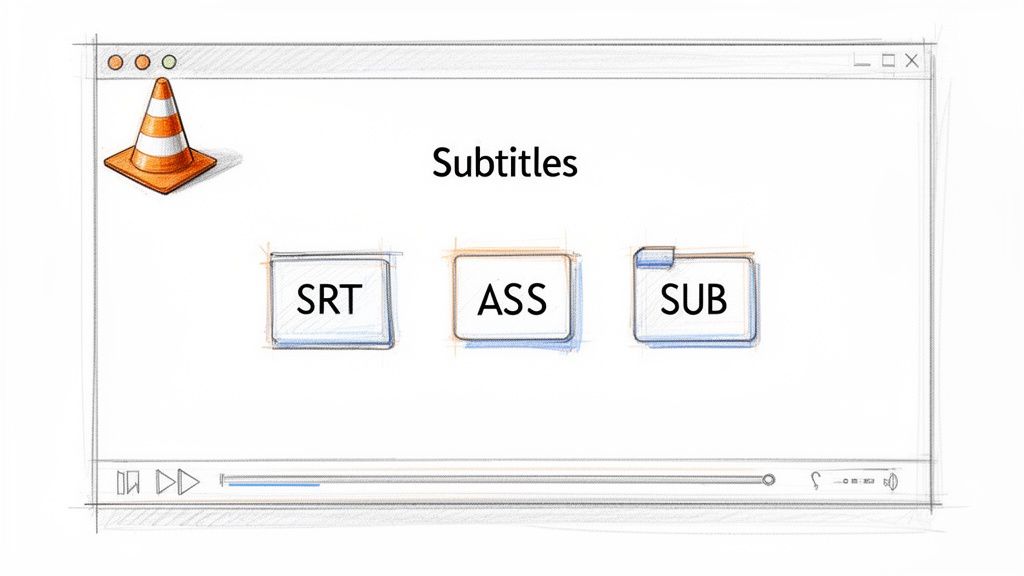
Welcome to your complete resource for mastering subtitles on VLC Player. This guide isn't just about loading a file; it's about giving you full command of your viewing experience. Whether you’re diving into a foreign film, need captions for clarity, or want to ensure your own content is accessible, this is the perfect place to start.
Subtitles have become a standard part of how we watch videos. For content creators, using subtitles in VLC is a daily ritual for reviewing and quality-checking their work. While many manually load SRT files, it's worth noting that over 70% of global video views now happen with captions enabled, which shows just how crucial seamless integration is.
Understanding the Basics
VLC's greatest strength has always been its incredible flexibility. It can handle nearly any video file you throw at it, and the same goes for subtitle files. You’ll mostly encounter a handful of common types, and understanding the difference can be quite helpful.
Here's a quick reference guide to the formats you'll most often use for subtitles on VLC Player.
Common Subtitle File Formats for VLC
| File Extension | Full Name | Key Feature |
|---|---|---|
| .SRT | SubRip Text | The most common and basic format. Just timestamps and text. |
| .ASS | Advanced SubStation Alpha | Allows advanced styling like custom fonts, colors, and positioning. |
| .SUB | SubViewer | An older format that's structured similarly to SRT. |
The real magic of VLC is that you rarely have to worry about these formats. Its robust design decodes and displays each one correctly without you needing to install extra plugins or tweak complicated settings.
If you’re creating your own content and need to generate these files, services like Meowtxt can bridge the gap between your raw video and a perfectly captioned final product with high accuracy. For a deeper dive, exploring the different subtitle file types can give you a better grasp of which format best suits your needs.
How to Add Subtitle Files in VLC
So, you have your video and a separate subtitle file. How do you get them to play together in VLC? Thankfully, VLC makes this incredibly simple. There are a few ways to add subtitles, and you can pick whichever method feels fastest for your workflow.
The quickest method is pure drag-and-drop. Just find your subtitle file (it’s usually a .srt, .ass, or .vtt file), click it, and drag it right onto the VLC window while your video is playing. Boom. The subtitles on VLC player load instantly. This is my go-to when I have both files sitting on my desktop.
Using the Menu Bar
If dragging and dropping isn't your style, or if you're in fullscreen mode, you can always use the classic menu bar. This method works the same way on Windows, macOS, and Linux, making it a reliable alternative.
- With your video playing, look at the top menu bar.
- Click on Subtitle.
- In the dropdown menu, choose Add Subtitle File...
- This will open your file browser. Just navigate to your subtitle file and select it.
Here’s a look at the "Subtitle" menu, which is your main command center for all things captions.
Once you select your file, it loads immediately, just like the drag-and-drop method. It takes a couple of extra clicks, but it's a clean, organized way to handle it.
The Power of Auto-Detection
Want to make adding subtitles on VLC Player even easier? Let VLC do the work for you. This is a fantastic trick that saves a ton of time if you frequently watch content with external subtitles.
VLC is smart enough to automatically find and load a subtitle file if it has the exact same name as your video file and is located in the same folder. The only difference should be the file extension.
Pro-Tip: Make this a habit. If your video is named
MyMovie.mp4, rename your subtitle file toMyMovie.srt. When you open the video, the subtitles will just be there. No dragging, no menus. It’s the smoothest viewing experience by far. For more on getting your video files ready, check out our guide on how to add subtitles to an MP4 file itself.
Fixing Out-of-Sync Subtitles in VLC
There's nothing more distracting than subtitles appearing seconds before or after the dialogue. It's a common problem that can completely pull you out of the moment, but thankfully, VLC gives you powerful, built-in tools to fix sync issues on the fly. You don't need to hunt for a new file or mess around with an editor; you can make these adjustments in real time.
The absolute quickest way to fix the timing is with keyboard shortcuts. If the subtitles on vlc player are appearing too early, just press the 'G' key. Each tap delays the subtitles by 50 milliseconds. If the subtitles are lagging behind the audio, hit the 'H' key to push them forward. Keep tapping until the text lines up perfectly with what's being said.
Before you start syncing, of course, you need to get the subtitles loaded. The process is pretty straightforward.
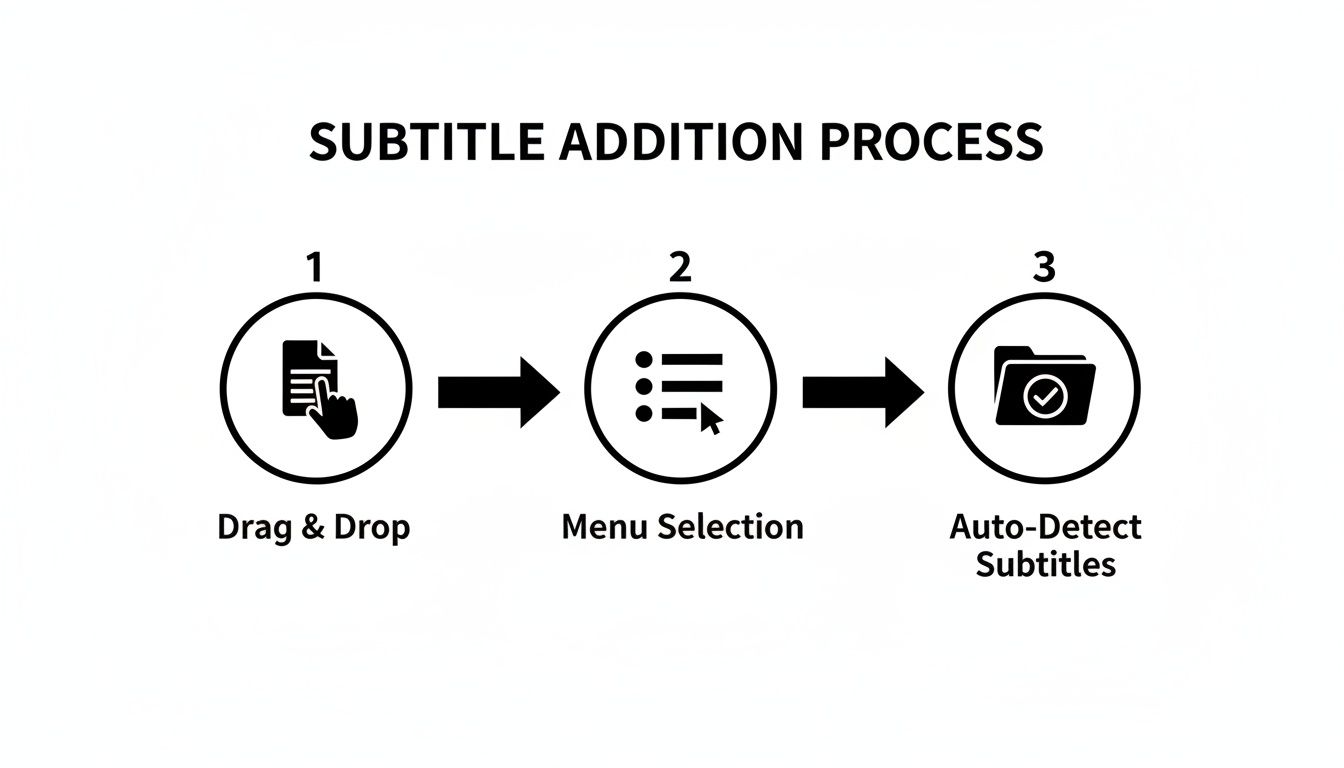
Whether you prefer to drag and drop the file, use the menu, or let VLC find it automatically, the end goal is always a smooth, seamless viewing experience.
Precise Control With Track Synchronization
For those times when a more surgical adjustment is needed, VLC's advanced settings give you much finer control. This is especially useful for content creators who need frame-perfect accuracy or professionals reviewing transcribed audio where every second counts.
Here’s how you get there:
- Navigate to Tools > Track Synchronization.
- Look for the Subtitle track synchronization panel.
- In the box labeled Advance of subtitles over video, you can enter a precise value. A positive number (like 2.5) will make subtitles appear earlier, while a negative number (like -1.5) will delay them.
This level of control is a lifesaver when you're dealing with sync issues caused by mismatched video frame rates (like a 24 fps video with a 23.976 fps subtitle file) or tiny editing mistakes in the subtitle track itself. And if you ever find yourself needing to create a subtitle track from scratch, our guide on how to make an SRT file will give you a solid starting point.
Customizing Subtitle Appearance for Better Readability
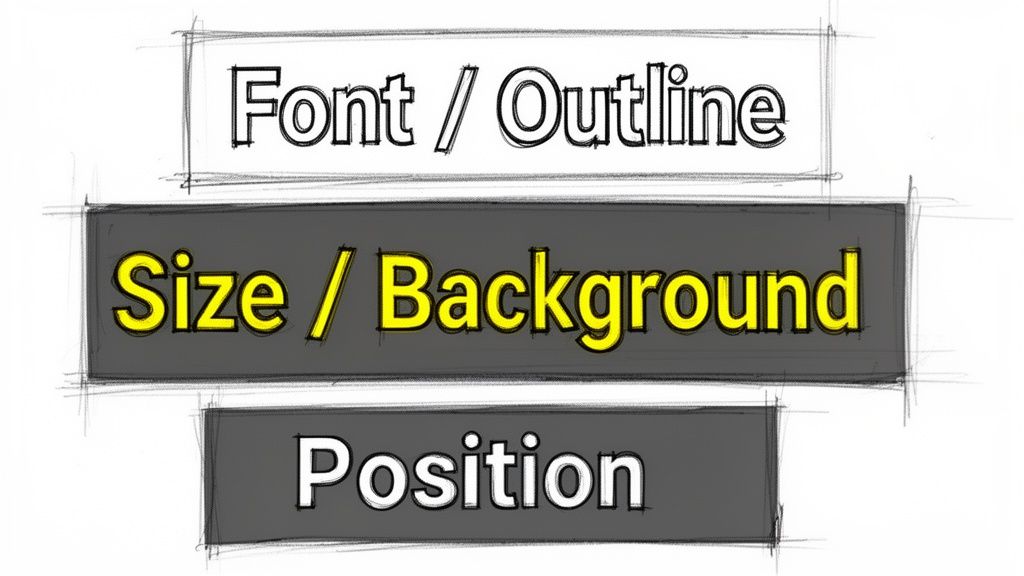
The default subtitles in VLC get the job done, but "one size fits all" rarely fits anyone perfectly. Let's be honest, those standard settings can be a real pain during a fast-paced action scene or on a small laptop screen.
The good news is that you have total control. Taking a minute to tweak the subtitles on vlc player can make a night-and-day difference in readability.
To get started, you'll need to dive into VLC’s preferences. Just navigate to Tools > Preferences and then click on the Subtitles / OSD tab. This little menu is your command center for all things subtitle-related.
Adjusting Core Text Properties
Once you're in the Subtitles settings, you'll find a bunch of options that let you dial in the look and feel. Don't be afraid to play around here—what looks good is completely a matter of personal preference.
Here are the settings I almost always change first:
- Font and Size: The default font can be a bit clunky. I usually switch to a clean, easy-to-read font like Arial or Helvetica. Then, I bump up the size until it's comfortable to read from my couch without squinting.
- Color and Outline: White or yellow text is pretty standard, but the real game-changer is the outline. Adding a thick outline makes the text pop against literally any background, from a bright white snowstorm to a dark, moody interior shot.
For the cleanest look, try using white text with a semi-transparent black background instead of a harsh outline. This creates a professional, non-intrusive style that many streaming services use, ensuring your text is always readable without being distracting.
You can even adjust the subtitle position. If there's important action happening at the bottom of the frame, just move the subtitles to the top. It's these small tweaks that make a massive difference in your viewing experience.
How to Find and Download Subtitles Automatically
Manually adding a subtitle file is great, but what do you do when you don't have one? Instead of switching to a browser and searching through sketchy websites, VLC has a fantastic, often-overlooked feature that can hunt down and download subtitles for you.
It’s all thanks to a built-in extension called VLsub. This handy tool connects to popular online subtitle databases, finds a file that matches your video, and saves you a ton of time and effort. For anyone who loves international films or is learning a new language, this feature is an absolute game-changer.
Ever since VLC launched back in 2001, manually loading subtitles has been the standard. But the world has changed. The demand for accessible content has exploded—recent studies show that 80% of global internet users actually prefer subtitled content when watching in a non-native language. Even more telling, 55% of YouTube viewers will just click away if a video doesn't have captions.
Using the VLsub Extension
Getting VLsub to do its thing is incredibly easy.
While your video is playing, just head up to the top menu and select View > VLsub. This pops open a small window where the magic happens.
VLC offers two main ways to find a match:
- Search by Hash: This is your best bet for accuracy. VLC creates a unique digital fingerprint of your video file and looks for a subtitle file with the exact same signature.
- Search by Name: If the hash search comes up empty, this method uses your video's filename to track down potential matches. It's a bit less precise but still gets the job done most of the time.
Once you pick a subtitle from the list and hit "Download selection," VLsub grabs the file, drops it into the same folder as your video, and loads it instantly. The whole thing takes seconds.
Of course, sometimes you want more control. For those who prefer to gather subtitle files themselves, this guide on downloading videos and their subtitles for offline learning is a great resource. It's perfect if you need to manage multiple language tracks or make a few edits before watching.
VLC Subtitle Problems? Let's Fix Them.
Even with a player as solid as VLC, subtitles can sometimes throw a curveball. Maybe the file won’t load, or worse, it shows up as a bunch of gibberish. Don't worry, these are common hiccups, and the fixes are usually quick. Let's walk through some of the most frequent subtitle headaches and get them sorted out.
My Subtitles Look Like Gibberish or Random Symbols. What's Wrong?
This is probably the most common issue people face, and it almost always comes down to one thing: character encoding.
This problem occurs when the subtitle file was saved in a format that your VLC player isn't set up to read by default. The good news? It's a simple, one-time fix. You just need to tell VLC to use a more universal standard.
Here’s how to sort it out:
- Head up to Tools > Preferences in the menu.
- At the bottom left, under Show settings, click All. This reveals the advanced options.
- On the left, navigate to Input / Codecs > Subtitle codecs > Subtitles.
- Look for the Default encoding dropdown menu and select Universal, UTF-8. This is the gold standard for compatibility.
- Hit Save and restart VLC.
That’s it. This small change solves the vast majority of garbled text problems for good, ensuring your subtitles on VLC player show up exactly as intended, no matter the language.
Why Are Subtitles Such a Big Deal Anyway?
Subtitles are much more than a tool for watching foreign films; they're essential for accessibility and viewer engagement. The numbers speak for themselves: 85% of hearing-impaired users rely on them to access content.
And it’s not just about accessibility. Captions drive huge engagement, with 40% of all video consumption worldwide happening with subtitles on. On platforms like YouTube, they boost engagement by a whopping 12%—especially since 70% of views are on mobile, which is VLC's home turf. You can dig deeper into these trends and see what else VLC is up to over at TechCrunch.
A quick tip from experience: a subtitle file might work perfectly on your desktop but fail on the VLC mobile app. If that happens, double-check that the file is in a universally friendly format like SRT. While VLC is a powerhouse, simpler formats tend to cause fewer headaches across different devices.
Perfectly synced, readable subtitles aren't just a nice-to-have. Whether you're a viewer who needs them for clarity or a creator trying to reach the widest possible audience, they are absolutely non-negotiable.
For creators who need flawless transcripts to build those subtitles in the first place, meowtxt offers a fast and incredibly accurate solution. Our service turns your audio and video into clean, editable text that's ready to export as an SRT file for seamless use in VLC. You can get your first 15 minutes transcribed for free and see for yourself.


