
You can, of course, transcribe Apple Voice Memos by sitting down and typing them out. But a much smarter approach is to export the audio and use an automated service like Meowtxt. This saves hours of mind-numbing work, turning your spoken ideas into useful text in just a few minutes.
Why Manually Transcribing Voice Memos Is a Workflow Killer
You just captured something important—a killer interview, a detailed lecture, or a sudden burst of creative genius. It's a valuable asset. But the moment you sit down to type it out, all that forward momentum grinds to a halt.
The real cost of manual transcription isn't just the hours you lose; it's the creative friction. It’s the tedious, repetitive work that completely derails your productivity and turns a valuable recording into a chore.
The True Cost of Typing It Out
Let's get practical. A professional typist needs four to five hours to transcribe just one hour of clear audio. For the rest of us? That number is way, way higher.
This isn't just a minor inconvenience; it's a direct hit to your workflow.
- For podcasters: Typing up a 45-minute episode transcript can easily eat up an entire afternoon, pushing back your show notes and social media clips.
- For students: Manually transcribing a one-hour lecture means you spend more time typing than you did in the actual class, which is time you could have spent studying.
- For project managers: That quick five-minute voice memo with project updates just became a 20-minute typing task, slowing down the very communication it was meant to speed up.
Manually transcribing voice memos is the digital equivalent of digging a ditch with a spoon. You'll get there, but you’ll be exhausted, and the opportunity you were digging for might have already passed you by.
Before we dive into the "how-to," it's helpful to see the practical differences between the old way and the new way.
Manual vs. Automated Transcription: A Quick Look
| Factor | Manual Transcription | Automated with Meowtxt |
|---|---|---|
| Time | 4-6 hours of typing per hour of audio. A major time sink. | ~90 seconds per hour of audio. Near-instant results. |
| Cost | "Free" if you don't value your time. Otherwise, it's very expensive. | First 15 minutes are free, then pay-as-you-go from $0.025/min. |
| Accuracy | Prone to human error, typos, and fatigue-based mistakes. | Up to 97.5% accuracy with clear audio. Consistent and reliable. |
| Features | Just plain text. That's it. | Speaker labels, timestamps, AI summaries, and multiple export formats. |
The table makes it pretty clear. Unless you have endless time and enjoy repetitive tasks, automation is the only logical path forward for anyone who values their time.
The Scale of the Problem
The need for a better way to do this is massive. Apple's Voice Memos app is a daily tool for millions of people capturing ideas on the fly.
With Apple holding nearly 57% of the U.S. smartphone market, we're talking about over 150 million people who have this app in their pocket. Globally, that number is even bigger. You can find out more about Apple's powerful, overlooked app to see just how integrated it is.
This makes an efficient way to transcribe Apple Voice Memos a necessity, not a luxury. An automated solution isn't just about saving time—it’s about preserving your creative flow and keeping your projects moving forward.
Exporting Your Voice Memos From Your iPhone
So, you've captured the perfect recording. The problem? It's trapped inside your iPhone. To get that audio transcribed by a service like Meowtxt, you first need to get the file out of the Voice Memos app. Don't worry, it's a lot easier than it sounds once you know your options.
The key to getting your file out is the iOS Share Sheet—that little menu that pops up whenever you send something from one app to another. This is your gateway. From here, you can pick the best method depending on where the file needs to go.
Choosing Your Export Method
The right way to get your audio off your phone really depends on its final destination. Are you sending it to your Mac? Uploading it to a cloud drive? Emailing it to a colleague? Each scenario has a best move.
- AirDrop to Your Mac: If you're all-in on the Apple ecosystem, this is hands-down the fastest method. It's a direct, wireless transfer that literally takes seconds.
- Save to Files: This is your most flexible option. Saving the memo to the Files app lets you drop it into iCloud Drive, Dropbox, or Google Drive. Once it's there, you can access it from pretty much any device.
- Email or Messaging Apps: This is the old reliable, perfect for sharing with anyone, even if they don't use Apple products. Just attach the memo and send it off like any other file.
This flowchart maps out the decision between doing it yourself and letting an automated service handle it. The time savings become pretty obvious.
Ultimately, the visual makes it clear: while you can transcribe manually, automating the process is the only logical choice if you value your time.
A Practical Step-by-Step Guide
Getting your audio out is simple. First, pop open the Voice Memos app and tap the recording you need to transcribe.
Now, look for the three-dots icon (...) and give it a tap. This opens up the options menu. From there, just hit "Share." This brings up the standard iOS Share Sheet, showing all the ways you can send your file.
Pro Tip: Before you export, take a second to rename your voice memo. The default name is usually your location or just "New Recording," which is useless. A specific name like "Client Feedback Call" or "Marketing Brainstorm 05-15" will save you a massive headache later when you're trying to find it.
Handling Multiple Files at Once
What if you have a whole batch of recordings to transcribe? Don't waste time exporting them one by one.
In the main list of your recordings, just tap "Edit" in the top-right corner. This lets you check off multiple files at once. After you've selected all the recordings you need, tap the Share icon at the bottom of the screen.
You can then AirDrop, email, or save the entire batch to your Files app in a single move. This is a huge time-saver for anyone dealing with a series of interviews, lectures, or meetings. Once they're exported, your files are ready for fast, automated transcription.
Using Meowtxt for Fast and Accurate Transcription
Okay, so you’ve successfully exported your voice memo. Now what? The next step is turning that raw audio file into something you can actually use—and that’s where a dedicated tool like Meowtxt comes in. It’s built to take that audio and give you back a polished, searchable document in just a few minutes.
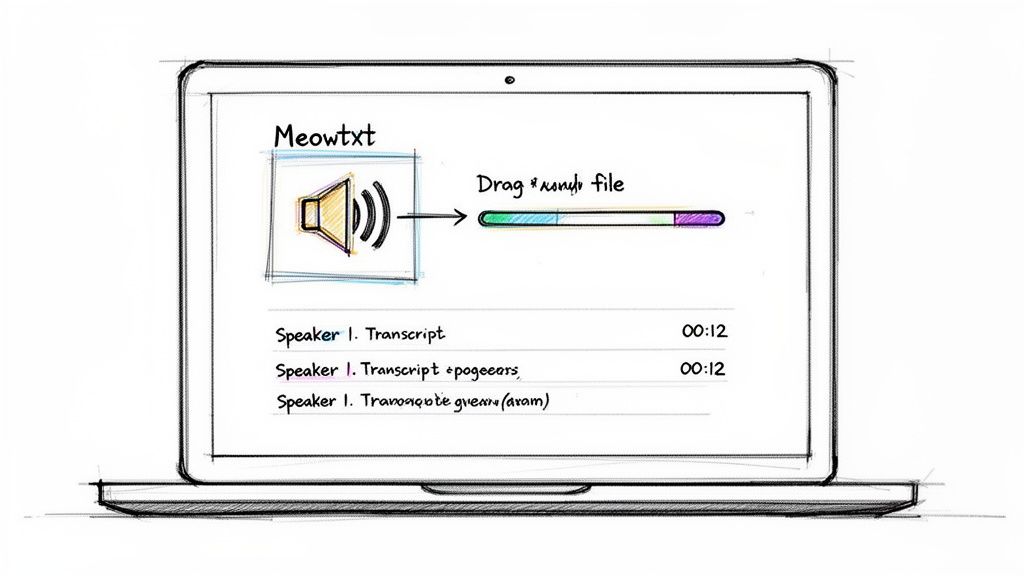
The whole process is refreshingly simple. You just drag and drop your voice memo file right into the interface. No clunky software to install, no complicated setup. This is a huge win for anyone who wants to transcribe Apple Voice Memos without getting stuck in a technical rabbit hole.
This kind of efficiency is becoming non-negotiable. The market for voice-activated recording is booming, with experts predicting a massive 22.1% compound annual growth rate from 2025-2032. For Meowtxt users—from podcasters and legal teams to developers—this translates to a tool that handles their files securely (with encryption) and at speeds up to 40x faster than real-time.
Solving Real-World Transcription Problems
Getting the words right is just one part of the puzzle. Meowtxt is designed to solve the real frustrations that pop up when you're dealing with voice memo audio, turning the text into something genuinely useful.
Think about transcribing a focus group or a chaotic team brainstorm. Without clear speaker separation, the transcript is a confusing mess of dialogue. This is where Meowtxt really shines.
- Automatic Speaker Labeling: The AI is smart enough to detect and label each person speaking (e.g., "Speaker 1," "Speaker 2"). This instantly untangles group conversations and makes it obvious who said what.
- Precise Timestamps: Every word and phrase gets a timestamp. Need to double-check a quote or jump to a specific moment? Just click the timestamp to listen to that exact spot in the audio.
This level of detail turns a raw recording into a document you can actually work with, saving you from hours of manual cross-referencing.
The real power of a great transcription service isn't just accuracy—it's structure. Getting a transcript that already looks like a script, complete with speaker labels and timestamps, cuts your editing time in half.
For anyone transcribing voice memos, these features are essential for turning a simple audio file into a truly valuable asset. Here’s a quick look at how Meowtxt's features specifically help with this workflow.
Meowtxt Feature Breakdown For Voice Memo Users
| Feature | What It Does For You | Best For |
|---|---|---|
| High Accuracy (up to 97.5%) | Delivers a transcript that requires minimal editing, saving you cleanup time. | Interviews, meeting notes, lectures, and dictations. |
| Speaker Identification | Automatically labels who is speaking in multi-person recordings. | Focus groups, team meetings, and panel discussions. |
| Word-Level Timestamps | Lets you click any word to jump directly to that point in the audio. | Verifying quotes, editing captions, or analyzing specific moments. |
| Multiple Export Formats | Provides transcripts in DOCX, TXT, SRT, and more for different uses. | Creating documents, generating subtitles, or importing into other apps. |
| No-Signup Upload | Allows you to get started immediately without creating an account. | Quick, one-off transcriptions or testing the service. |
This combination of tools ensures the final transcript is ready for whatever you need it for, whether it’s for an article, captions, or just your personal records.
Accuracy That Saves You Time
Let's be honest: a low-accuracy transcript just creates more work. You end up having to listen back to the whole recording just to fix mistakes. Meowtxt aims for up to a 97.5% accuracy rate on clear audio, which means you spend way less time editing and more time actually using your content.
This precision gives you the confidence to use the output for important tasks, whether you're pulling quotes for an article, creating meeting minutes, or generating video captions. The goal is to deliver a transcript that’s practically ready to go the moment it lands in your inbox.
Meowtxt even has a simple online tool to help you directly convert a voice memo to text. By combining speed, accuracy, and intelligent features, it makes sure your great ideas don't stay locked away in an audio file.
Turning Your Transcript Into Actionable Content
Getting a text file back after you transcribe Apple Voice Memos is a great feeling, but it's just the starting line. The real magic happens with what you do next. A simple block of text is raw material, and if you know how to shape it, it can become a dozen different assets.
This is where your export options become mission-critical. Different projects demand different formats, and having the flexibility to choose the right one saves you from hours of tedious reformatting down the road. We built Meowtxt with this exact workflow in mind, offering several key export formats designed for specific, real-world jobs.
Choosing the Right Export Format
Each format serves a distinct purpose, turning your raw text into a ready-to-use asset. Instead of wrestling with a plain text file for every task, you can pick an output that slots directly into your project, whether that's video production, academic research, or a software pipeline.
Here’s a breakdown of how you can put each one to work:
- TXT for Simplicity: This is your universal, no-frills option. A plain text file is perfect for pasting into emails, dropping into note-taking apps like Bear or Simplenote, or just keeping as a simple reference.
- DOCX for Documents: When you need to create a formal document—think meeting minutes, an interview summary, or a report—exporting to DOCX is the way to go. It preserves basic formatting and is ready to be opened in Microsoft Word or Google Docs for editing and team collaboration.
- SRT for Video Captions: This format is an absolute game-changer for anyone creating video. An SRT file contains your transcript broken down with precise timestamps, ready to be uploaded directly to platforms like YouTube or LinkedIn to instantly add closed captions.
- JSON for Data Integration: For developers or data analysts, a JSON export provides structured data. It neatly packages the text, speaker labels, and timestamps in a machine-readable format, perfect for feeding into other applications or running analyses.
This flexibility is essential. Apple services are hitting record highs with 850 million weekly App Store users. For the countless business teams where 80% of iPhone users own multiple Apple products, the ability to quickly turn a voice memo into an editable DOCX is invaluable for keeping projects moving.
From Raw Text to Polished Content
Beyond just picking the right format, you can use the transcript as the foundation for brand new material. Transcribing your voice memos is the crucial first step in applying actionable content repurposing strategies, allowing you to squeeze every drop of value from your spoken ideas.
An AI-generated summary, for instance, can be a massive time-saver. Imagine a 30-minute project update call. Instead of re-listening to the whole thing, you can use the summary to instantly draft a follow-up email with the key decisions and action items. That transforms a lengthy recording into a concise update in seconds.
For a deeper dive, check out our guide on how to get more mileage out of every recording.
A transcript isn't the final product; it's the starting block. It’s the source material for blog posts, social media updates, detailed reports, and accessible video content.
When you start thinking of your voice memo transcript as a versatile asset, you unlock its true potential. A single recording can fuel your content calendar for a week, document critical conversations, and make your digital media more accessible to a much wider audience.
Pro Tips for Crystal-Clear Voice Memo Recordings
The quality of your transcript is directly tied to the quality of your audio. Before you even think about how to transcribe Apple Voice Memos, spending a few extra seconds to capture clean sound will save you a ton of editing time later. You don't need a professional studio—just a bit of awareness makes all the difference.
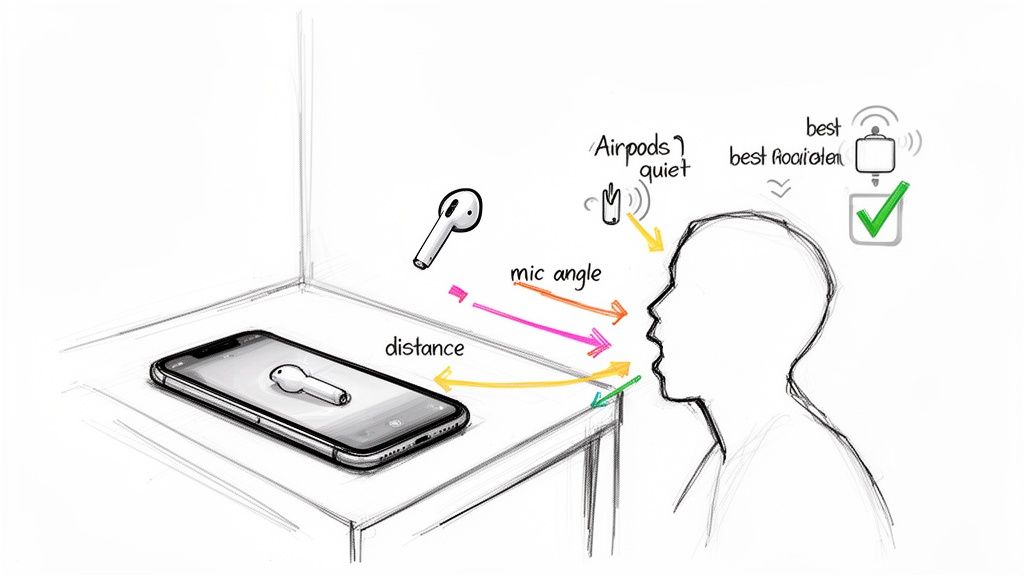
The golden rule is simple: get the microphone closer to the sound source. Your iPhone’s built-in mic is surprisingly good, but its effectiveness drops off a cliff with distance. If you're recording yourself, hold the phone like you're on a call, with the bottom mic pointed toward your mouth.
For interviews, just place your phone on the table halfway between you and the other person. This one move dramatically cuts down on room echo and background chatter, making voices much clearer for any transcription AI.
Mind Your Surroundings
Where you record plays a massive role in audio clarity. Hard surfaces like glass windows and bare walls are your enemy; they reflect sound, creating reverb that muddies the entire recording.
Try to find a room with softer surfaces. Think carpets, curtains, or even a cluttered office—these things absorb sound and kill that distracting echo. If you’re stuck in a noisy café, find a quiet corner or a booth to buffer the ambient noise.
A small change in location can make a huge difference in your transcript's accuracy. A five-minute recording in a quiet room is infinitely better than one captured next to an open window with traffic noise.
For more advanced techniques, you can learn more about how to improve audio quality with just a few simple tweaks. This is key to getting transcripts that need little to no correction.
Leverage the Gear You Already Own
You don't need to run out and buy a fancy external microphone. If you have AirPods or even the basic wired Apple EarPods, you’re already holding a fantastic recording tool. The mic on your headphones is designed to isolate your voice, which is perfect for interviews or dictating notes in a chaotic environment.
Just connect your headphones and start recording in the Voice Memos app; it automatically defaults to the headphone mic. This trick is especially useful for walking meetings or capturing ideas on the go, as it keeps the mic a consistent distance from your mouth.
Speaker Etiquette for Better Transcripts
When you're recording a meeting or group discussion, a little bit of coordination will dramatically improve the final transcript. It’s all about making it easy for the AI.
- Introduce Speakers: At the very start, have everyone say their name. This gives the AI (and you) a clear reference for differentiating voices later.
- One Person at a Time: Gently encourage people to avoid talking over each other. This is the number one cause of jumbled, inaccurate transcriptions.
These small habits make the speaker identification feature in services like Meowtxt much more effective. You'll get a clean, easy-to-read script instead of a confusing block of text.
Got Questions? We've Got Answers
When you start thinking about transcribing your Apple Voice Memos, a few questions almost always pop up. Let's tackle them head-on so you can move forward with confidence.
Is It Safe to Upload My Private Voice Memos?
That’s a totally fair question, especially if your recordings are sensitive. Any reputable service, like Meowtxt, uses strong encryption to shield your files from the moment you upload them to when they're stored on the server. Think of it as putting your file in a digital armored car.
Meowtxt takes privacy a step further by automatically deleting your files after 24 hours. This is a huge deal—it means your private recordings don't just sit on someone else's server forever. It’s always a good habit to skim a service's privacy policy before uploading, just for that extra peace of mind.
Can I Transcribe a Voice Memo With Multiple Speakers?
Yes, absolutely—and this is where using a dedicated service really shines. Trying to manually figure out who said what in a group conversation is a nightmare. Advanced AI, however, can automatically detect and label each person, a feature known as speaker diarization.
Instead of a giant wall of text, you get a clean, script-like transcript with labels like "Speaker 1" and "Speaker 2." This makes it incredibly easy to follow interviews, untangle team meetings, or pull quotes from a focus group without losing your mind.
An AI-powered transcript with clear speaker labels can turn a chaotic group conversation into an organized, actionable document in minutes—a task that could take hours to do by hand.
This one feature is a game-changer for making sense of any recording with more than one voice.
What if My Voice Memo Has Background Noise?
Look, pristine audio is always the goal, but life is rarely that clean. Thankfully, modern transcription AI is surprisingly good at cutting through the clutter. The algorithms are trained to zero in on human speech patterns and tune out a lot of the ambient junk.
So, that memo you recorded in a busy coffee shop or on a loud conference floor can still produce a really solid transcript. While it's always smart to minimize background noise when you can, you definitely don't need a professional studio to get great results from your Apple Voice Memos. The tech is built for the real world.
Ready to turn your recordings into accurate, actionable text? With Meowtxt, you can transcribe your first 15 minutes for free without even creating an account. Drag and drop your voice memo and get a clean transcript in minutes. Start transcribing now at https://www.meowtxt.com.


